

If You Can't Set Up a Virtual Machine in Windows, Check This Setting First
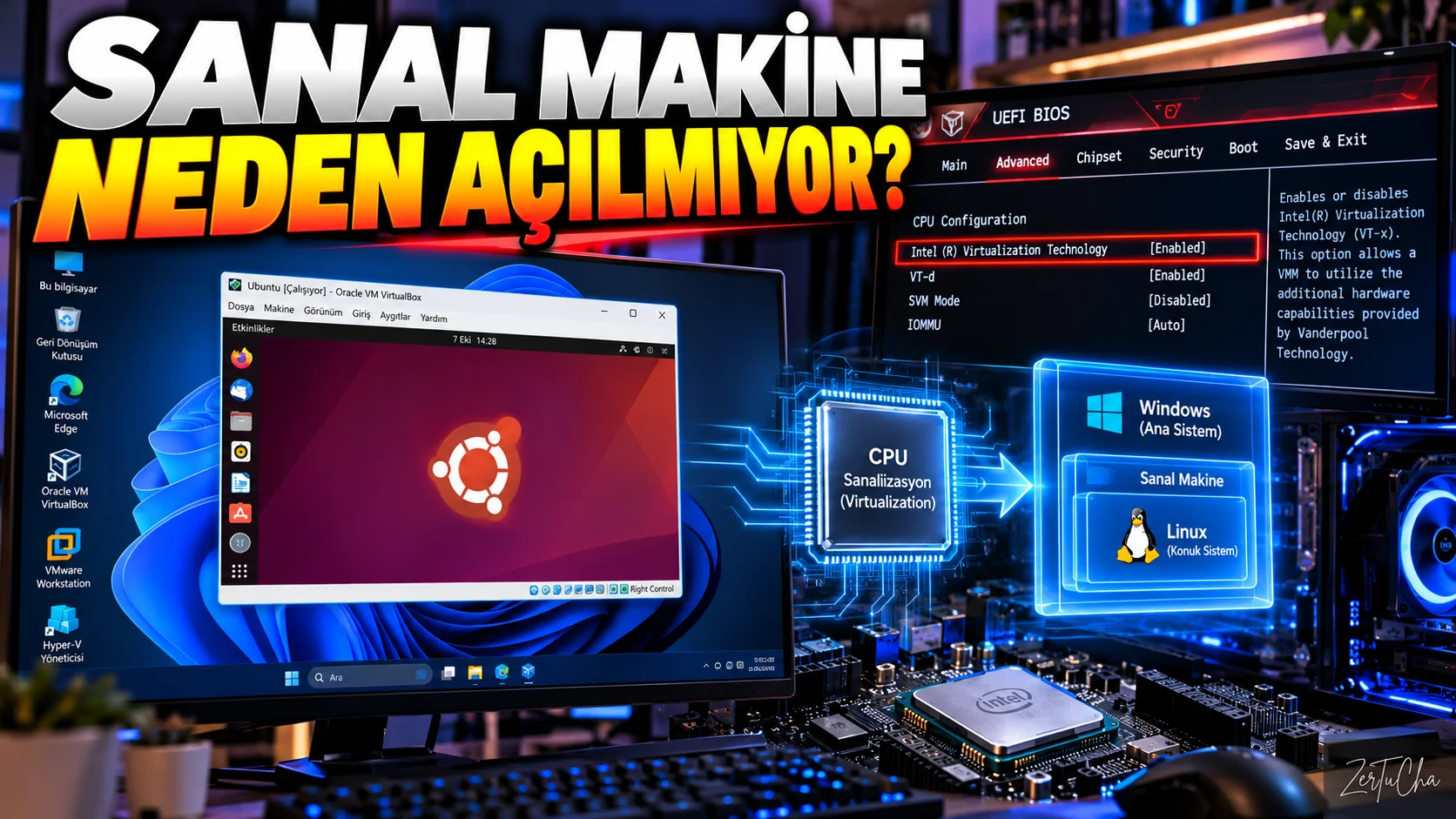
You want to run a virtual machine on your computer.
You want to install Linux.
You will use an Android emulator.
You are installing Docker or other virtualization software.
But the program:
“Virtualization is disabled”
.
The source of the problem can often be the hardware virtualization setting in BIOS/UEFI.
Microsoft's current Windows documentation states that virtualization can be used to emulate other operating systems in Windows, and that the feature may already be enabled on many new computers.
What is virtualization?
Simply:
It is the technology that helps the computer's processor run different virtual computer environments on the same physical hardware.
For example:
Windows 11
on your running computer:
Linux virtual machine
.
First check if it is enabled on your computer
On Windows Task Manager.
-
Ctrl + Shift + Esc -
Performance
-
Processor
.
Here Virtualization.
Enabled
, it means virtualization is enabled on the processor side.
What do we do if it is closed?
You need to enter BIOS or UEFI settings.
Via Windows:
Settings → System → Recovery → Advanced startup
.
Then:
Restart now
option.
Microsoft also documents an advanced startup method for accessing UEFI/BIOS from Windows.
Which setting should you look for in BIOS/UEFI?
The name may vary depending on the processor manufacturer and motherboard manufacturer.
In Intel systems usually:
Intel Virtualization Technology
or
Intel VT-x
may appear.
On AMD systems:
SVM Mode
or a similar option regarding AMD virtualization may be available.
The important point here:
Not every BIOS is the same.
Therefore, it is safest to consult the official manual of your motherboard or laptop manufacturer.
After turning on the setting
Virtualization setting:
Enabled
position.
Then save the changes and restart the computer.
What is virtualization used for in Windows?
Virtualization:
-
Virtual machines
-
Linux development environments
-
Android emulators
-
Docker
-
Some scenarios related to WSL
-
Test environments
.
Microsoft also states that virtualization can be used to emulate other operating systems such as Android or Linux.
Does turning on virtualization automatically speed up the computer?
No.
The purpose of this setting is not to speed up the computer in general use.
To ensure that software that uses virtualization benefits from the necessary hardware support.
What if virtualization is already turned on?
Then do not enter the BIOS and change any settings.
Problem:
-
In virtual machine software
-
In Hyper-V settings
-
In WSL configuration
-
In Docker settings
-
In Windows features
could be.
First you need to examine the error message of the program you are using.
Very important BIOS warning
Do not randomly change unknown settings in BIOS/UEFI.
Specifically:
-
Boot
-
Storage
-
Security
-
Processor
-
Memory
settings unconsciously may result in Windows not starting.
The best approach is to just change the virtualization setting you need and exit.




Henüz yorum yapılmamış. İlk yorumu siz yapın!
Bir Yorum Bırakın