

WINMERGE: SEE THE DIFFERENCES BETWEEN THE TWO DOCUMENTS!
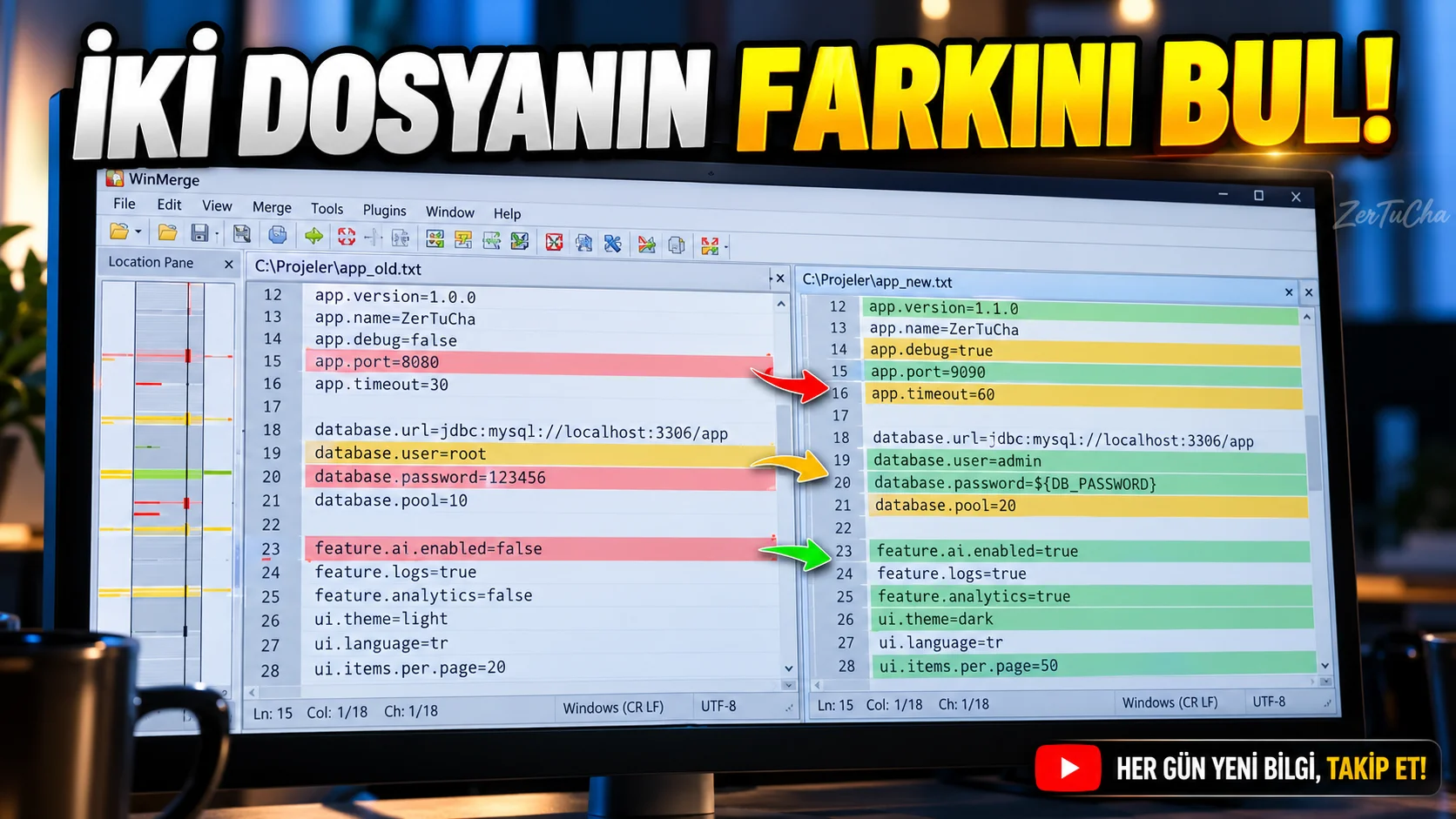
You want to compare old and new versions of a document. A paragraph may have changed, a line may have been deleted, or you may need to find which files are different in two folders.
For this purpose, you can use WinMerge instead of opening two documents side by side and reading them line by line. The program compares the contents of two files and visually highlights the differences. Since it can also perform folder comparison, it helps to check whether a large number of files have changed. WinMerge
Comparing two documents step by step
1. Install WinMerge.
Download the program from the official site. WinMerge is an open source tool developed for Windows. WinMerge
2. Open the program.
From the top menu File → Open.
3. Select the first file.
Specify the older document you want to appear on the left side of the comparison.
4. Select the second file.
Select the new document on the right.
5. Start the comparison.
Open files. WinMerge displays two documents side by side and highlights the differences.
6. Navigate the differences.
You can cycle through the changes using the next and previous difference options in the toolbar.
7. Merge changes if necessary.
WinMerge supports copying and merging content between compared files. However, do not merge without making sure that every change is correct.
How to compare folders?
To compare two folders:
- File → Open menu.
- Select the first folder on the left.
- Select the second folder on the right.
- Start comparison.
- Examine files that are different, missing, or located only in one folder.
- If you also need to compare subfolders, check that the option to include subfolders is enabled.
WinMerge's folder comparison view separates files by result type and lets you examine the differences. WinMerge
Where is it useful?
- When comparing old and new versions of a contract.
- When reviewing changes to website texts.
- When comparing software configuration files.
- When finding which files have changed between two folders.
- Trying to understand which rows an edit affects.
Things to consider
Just because WinMerge shows the differences does not mean that it automatically determines which version is correct. Examine changes carefully, especially in configuration files and important documents.
It's a good habit to make a backup of the original files before defragmenting.
Official sources:




Henüz yorum yapılmamış. İlk yorumu siz yapın!
Bir Yorum Bırakın