



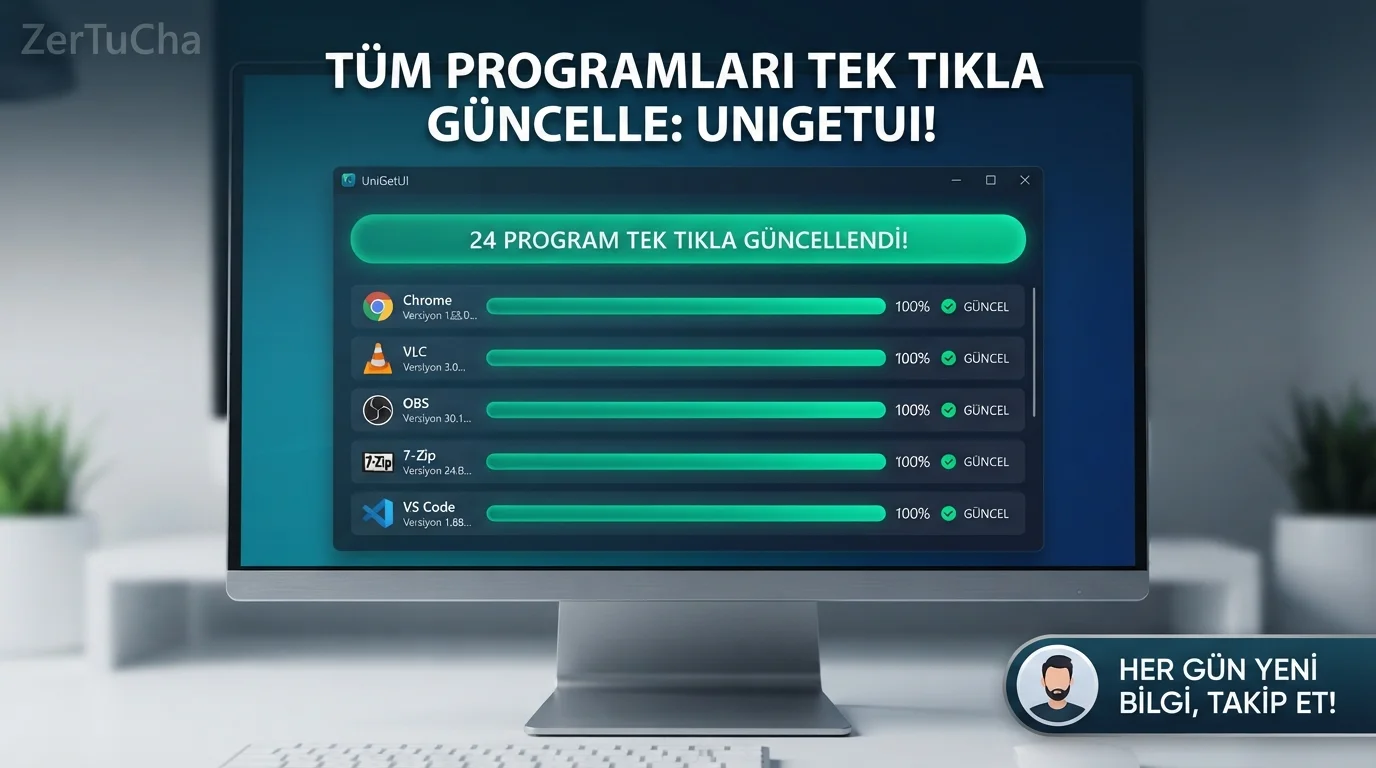
What do you do when new versions of VLC, 7-Zip, Chrome, Zoom, OBS, Python, Discord, Notepad++ and dozens of different programs installed on your Windows 10 or Windows 11 computer are released? It would take hours to update each program by going to its website one by one and saying "Download → Next → Next"; If you do not update, cyber security vulnerabilities remaining in old versions will endanger your computer! Microsoft's own package manager Winget is great, but typing commands on a black terminal screen feels cold to many home users. What about Winget, Scoop, Chocolatey and Microsoft Store resources are stylish, modern and completely in Turkish in a single application store screen, updates all programs stuck in old versions on your computer with a single click, and prevents installations with ads? Details right below!
Brief Summary: UniGetUI (marticliment.com/unigetui) is an open source application manager that combines Winget, Scoop, Chocolatey and Microsoft Store package managers in
Leave a Comment to Read the Rest of the Article
Did you find our content useful? We are curious about your thoughts on the subject.
Windows into a single Turkish graphical interface. It updates all your installed programs with a single click and backs up and restores your entire list after formatting.
What is UniGetUI (Formerly WingetUI)?
UniGetUI is free open source software that brings a modern Windows 11 visual store interface to Windows package managers normally managed from the black command line.
Scans all software installed on your computer; those stuck in the old version "Software Updates" tab, they are arranged one under the other and a single "Update Selected" button moves it to the latest version silently in the background (without installing ads or additional toolbars).
Manual Program Update vs. UniGetUI
The difference in time and security between the traditional method of Windows maintenance and UniGetUI can be seen in the table below.
| Feature | Manual Update from Sites | UniGetUI (Open Source) |
|---|---|---|
| Update Time (20 Programs) | 45–60 minutes | One click (Automatic in background) |
| Fake Download / Adware Risk | High (Sponsored fake links) | Very Low (Verified official package repositories) |
| Post Format Installation Backup | Remembering all programs one by one | One-click restore with "Export Packages" (JSON) |
| Scope | Single sites | Winget + Scoop + Chocolatey + Python Pip + npm |
How to Install and Use UniGetUI in 5 Steps?
Follow these steps to control all software on your Windows computer from a single center:
- Official address only https://www.marticliment.com/unigetui/(or via Microsoft Store / GitHub)UniGetUI (Interface automatically Turkish pops up).
- "Software Updates" tab; See all programs awaiting updates on your computer listed with their current and new version numbers.
- Select all and select "Update selected packages" button; Watch them silently update in the background without clicking any "Next / Accept" windows!
- When you want to install a new program "Discover Packages" tab and download safely directly from the official repository.
- Before formatting your computer "Installed Packages → Export Selected"; After formatting, import this file and install all your programs automatically in 5 minutes!
Privacy and Security Assessment
UniGetUI is licensed under MIT open source and does not distribute files from its own server; It pulls all installation packages directly from Microsoft's official Winget repository and verified addresses from relevant manufacturers. When you turn on automatic notification settings, you will be instantly notified from the system tray when new security patches are released.
Frequently Asked Questions
Are UniGetUI and the old WingetUI the same software?
Yes. Since the program now supports not only Winget but also Scoop, Chocolatey, Pip, npm and .NET tools, it has been named UniGetUI.
Does UniGetUI also perform Windows' own system updates?
No. Windows kernel and driver updates are also made through Windows Update; UniGetUI, on the other hand, keeps all third-party programs (browsers, media, office, software tools) that you subsequently install on your computer up to date.
Can I exclude a particular program if I want it to remain in its old version?
Yes. Right click on the program you want and "Ignore updates for this package".


No comments yet. Be the first to comment!
Leave a Comment