



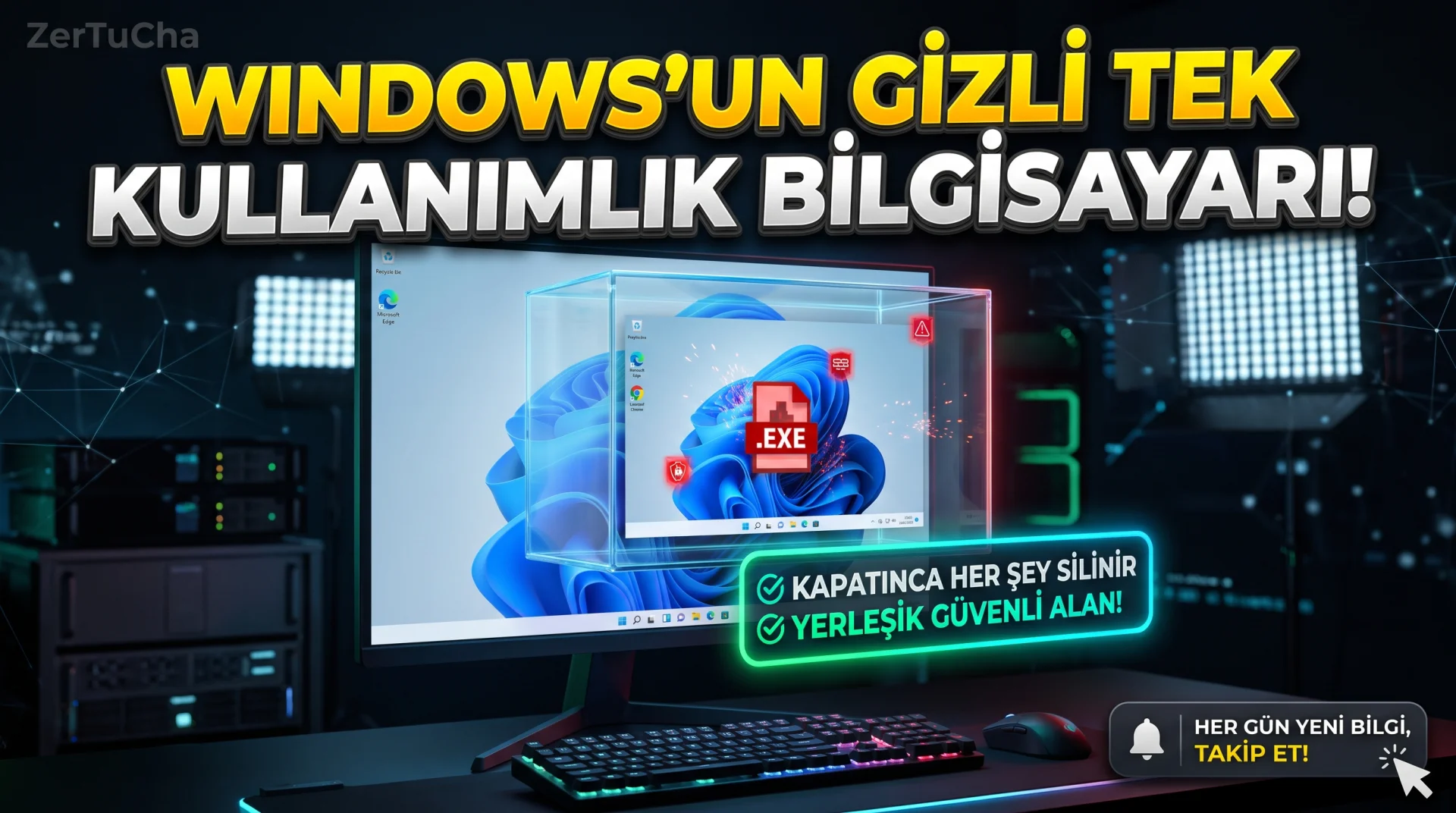
You downloaded a suspicious file from the Internet .exe program, an invoice/PDF attachment you are unsure of, or an unknown website, you feel a great fear: "What if when I open this, my computer is infected with ransomware, my passwords are stolen, or my system is filled with junk files and slows down?" That's why many users either spend hours trying to install external virtual machine programs (VirtualBox/VMware) that take up gigabytes of space, or take the risk and open the file directly on their main Windows system! Whereas A disposable "Isolated Virtual Computer" that Microsoft placed directly inside Windows 10 and Windows 11, but which almost 90% of users never knew about because it was turned off is found! With a single click, you open a new Windows desktop in 5 seconds and try the suspicious file you want inside; The second you close the window, everything inside and any viruses evaporate! Details below!
Brief Summary: Windows Sandbox is a disposable isolated desktop environment built
Leave a Comment to Read the Rest of the Article
Did you find our content useful? We are curious about your thoughts on the subject.
into Windows 10/11 Pro systems. Allows you to test suspicious programs and files without damaging your main system; As soon as you close the window, all data and possible viruses are permanently deleted.
What is Windows Sandbox and How Does It Work?
Windows Sandbox is a hardware-based virtualization feature that uses your computer's existing Windows kernel to open a second Windows window in seconds, clean and completely isolated from your main operating system.
No need to download gigabytes of ISO files like VirtualBox or VMware and install Windows for hours. When you close the window, the entire virtual environment is destroyed from memory; The next time you start up, you will see a clean system straight from the factory.
Difference between Classic Virtual Machine (VirtualBox) and Windows Sandbox
You can see the practicality comparison of two solutions for rapid security tests in the table below.
| Feature | Classic Virtual Machine (VirtualBox) | Windows Sandbox |
|---|---|---|
| ISO Download and Installation | 5–6 GB ISO + 30 min installation required | 0 MB (Comes built-in, opens in 5 seconds) |
| Disk Space Consumption | Occupies 25–50 GB hard disk | When turned off, 0 bytes remain (Completely deleted) |
| Resetting on Shutdown | Manual Snapshot required | Automatically reset to 100% at every shutdown |
| Version Requirement | All Windows versions | Windows 10/11 Pro, Enterprise, Education |
How to Activate Windows Sandbox in 5 Steps?
Follow these 5 steps to activate this hidden security shield on your computer:
- First of all Task Manager → Performance → CPUbottom right of the screen"Virtualization: Enabled" (Intel VT-x / AMD-V is turned on in BIOS settings if it is off).
- Windows search bar "Turn Windows features on or off" and open the relevant official window.
- Scroll down the list "Windows Sandbox" box and "OK" button.
- Restart your computer once when the installation is completed.
- Now access the Start menu "Windows Sandbox" and open it; Copy a program you find suspicious from your desktop (
Ctrl+C) inside the Sandbox window (Ctrl+V) and test with zero risk to your host system!
Important Safety Limit and Cautions
Windows Sandbox provides strong isolation at the disk and operating system level, but can access the internet through your home network by default. Advanced when testing a file you suspect is very dangerous .wsb (<Networking>Disable</Networking>) provides extra security. Additionally, this feature does not appear for Windows Home edition users; For home users, the open source VirtualBox alternative should be preferred.
Frequently Asked Questions
Will my host computer be infected if I open an infected file in Windows Sandbox?
Thanks to hardware-based hypervisor isolation, it cannot access your main disk and files; When you close the window, the virus disappears completely. However, it is safest to keep the network connection turned off during critical tests against worms that can spread to other devices over the public local network (Wi-Fi).
Why is there no Windows Sandbox on my Windows 11 Home computer?
Microsoft has included this feature only in Windows 10/11 Pro, Enterprise and Education licenses.
Will the files I downloaded into it be deleted when I close the Windows Sandbox window?
Yes, everything is permanently deleted without exception. If there is a clean output that you want to keep, you should copy it to your main desktop before closing the window.



No comments yet. Be the first to comment!
Leave a Comment