

Is Your Windows Computer Booting Up Late? Close Unnecessary Programs Running at Startup!
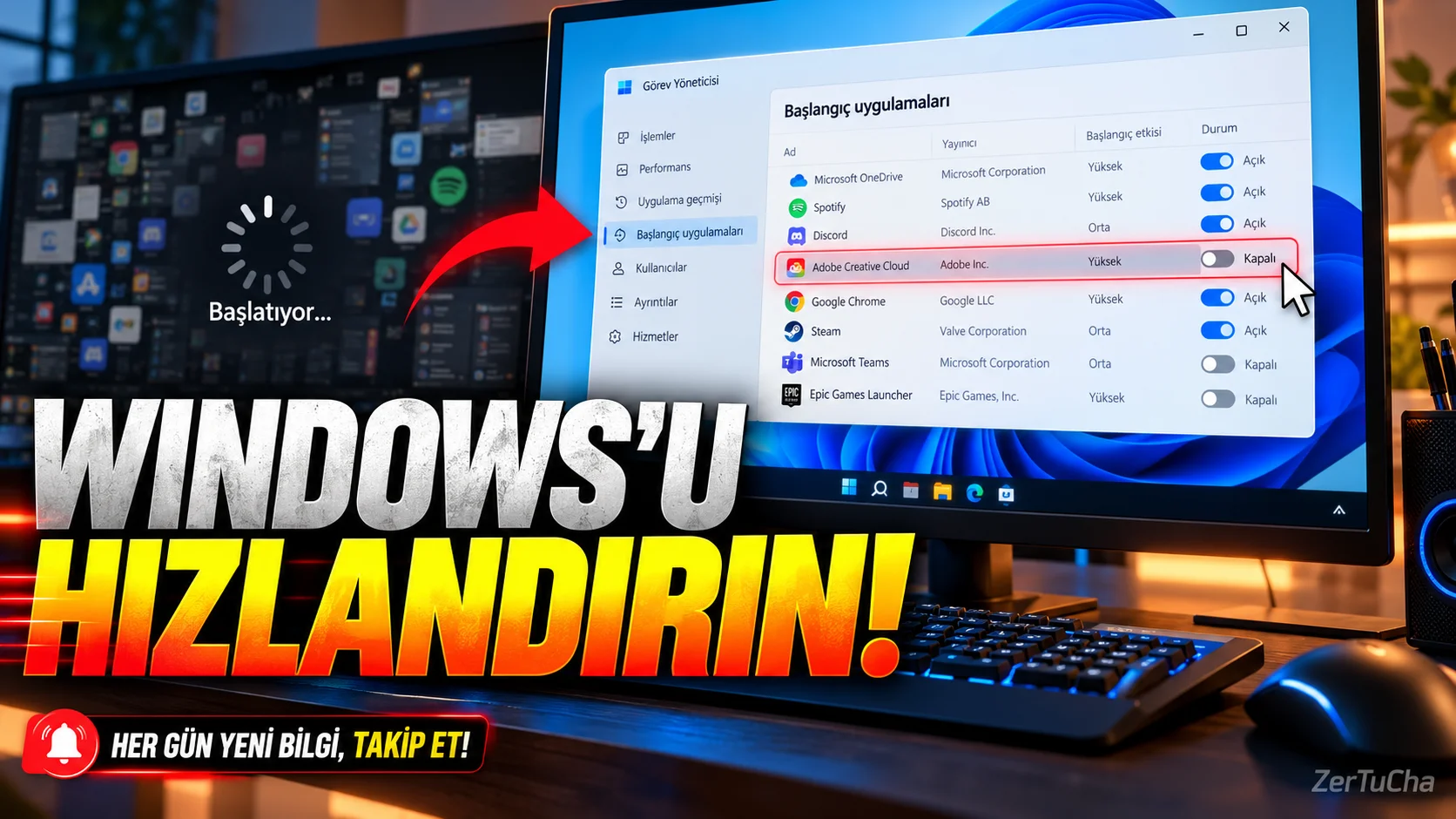
You turn on your computer, the desktop comes up, but the computer works slowly for a few minutes. Even opening the browser takes a long time. Moreover, you do not perform any operations on the computer.
One possible cause of this problem is programs that start automatically when Windows starts.
Some applications add themselves to the startup list. So they can start working in the background every time you turn on the computer. Running many applications simultaneously can affect startup time and resource usage, especially on computers with limited hardware.
The good news is that you don't need to install an additional program to manage startup apps in Windows 10 and Windows 11. Microsoft Support
1. View programs running at startup
One of the most detailed methods is to use Task Manager.
- From your keyboard Ctrl + Shift + Esc.
- When the Task Manager opens, Startup applications.
- Check out the list of applications that can be started automatically when logging into Windows.
- Check the effects of applications on startup.
Task Manager can provide information about the impact of applications on startup performance. So you can determine which programs require more attention. Microsoft Support
2. Disable unnecessary programs
Let's say your computer has a music application, a game launcher, and a utility you rarely use.
You may not really need these programs to run as soon as the computer starts.
Follow these steps:
- Startup applications list.
- Select the application you do not want to start automatically.
- Right click.
- Disable.
Alternatively, you can use the deactivation option next to the application.
This action does not delete the program from your computer. It only prevents it from running automatically when logging into Windows. You can open the program normally whenever you need. Microsoft Support
3. Which programs can you close?
Not every computer has the same programs, so there is no single list that can be applied to everyone. However, the following approach may make your job easier.
Programs that may not need to open automatically:
- Game launchers you rarely use
- Music applications that you do not need to run when the computer is turned on
- Utilities you don't use
- Some productivity tools that don't necessarily run at startup
Things to investigate before deactivating:
- Security software
- Required utilities from hardware manufacturer
- Backup and sync tools
- Applications that require continuous operation for your business
Do not close a program just because it appears in the list, especially if you do not know what it does.
4. You can also do the same through Settings
As an alternative to Task Manager, you can use Windows Settings.
- Start > Settings section.
- Applications.
- Start section.
- Turn off the switch for the application you do not want to start automatically.
By managing the applications in this section, you can reduce the unnecessary programs that start when your computer is turned on. Menu names may vary slightly depending on the Windows version. Microsoft Support
5. Test if the changes work
Restart your computer after disabling the programs.
Then check these points:
- Is the desktop becoming usable faster?
- Do unnecessary program windows decrease after the computer is turned on?
- Does the stuttering during the first few minutes get better?
- Is the function of an application that you do not want to be closed affected?
If you accidentally disabled an application you need, you can return to the same list and re-enable it.
6. What should you do if the computer is still slow?
Reducing startup applications does not speed up every slow computer. The problem may also be caused by storage space running out, hardware failure, malware, or another system problem.
Microsoft's recommendations include removing unused applications and examining background activities. Microsoft Support
Result: If a lot of programs are running as soon as your computer boots up, reviewing the startup list is a good first step. Instead of shutting down random system services, start with applications you know what they do.



Henüz yorum yapılmamış. İlk yorumu siz yapın!
Bir Yorum Bırakın