

3 Secret Life-Saving Shortcuts in Windows 11
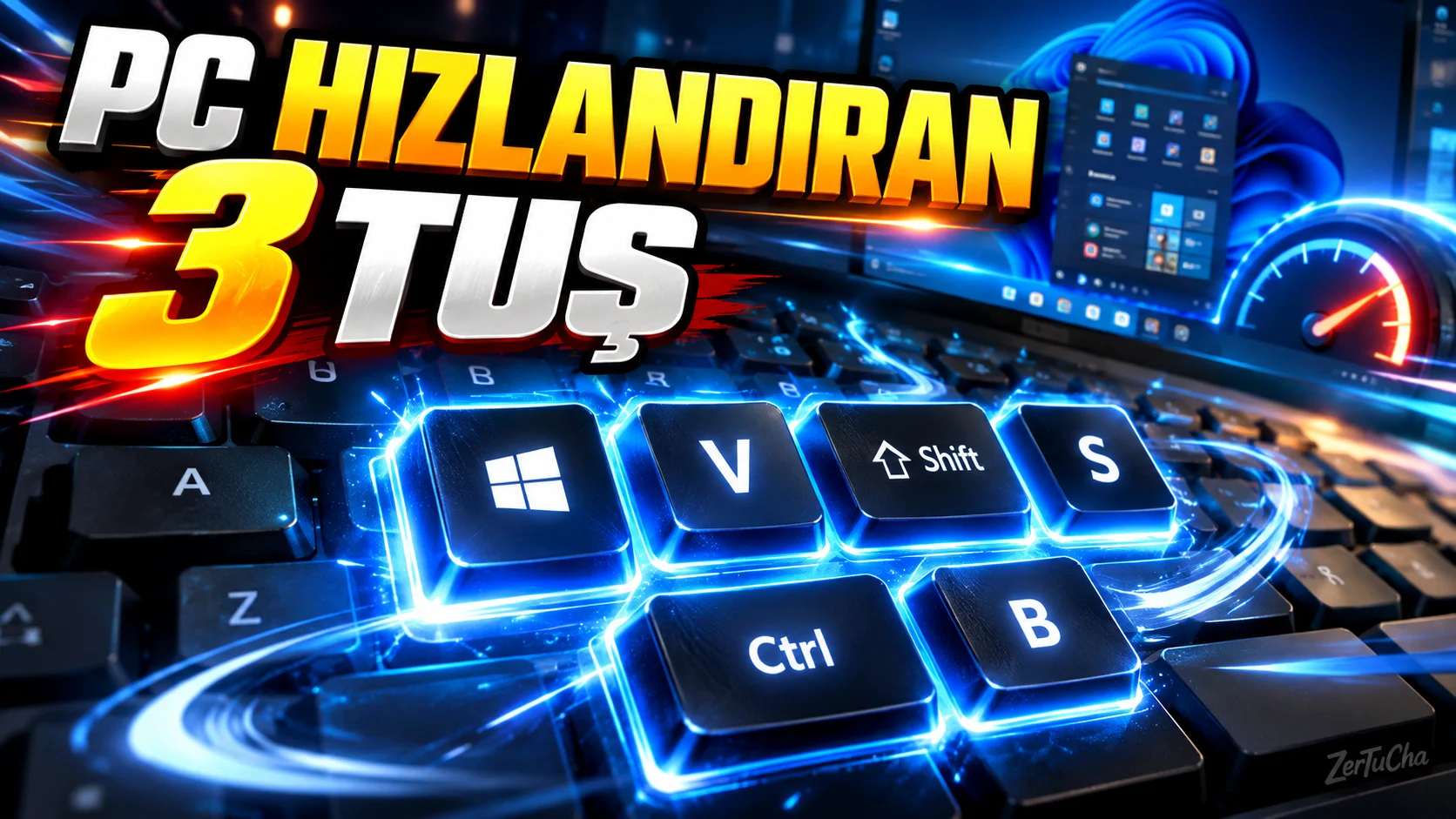
Most people do not know these 3 key combinations that will throw your mouse in the trash while using Windows!
Now friends, if you are using Windows, save these three shortcuts somewhere. Because the first two really save a lot of time in daily use, and the third one can save lives, especially when you have a problem with the computer screen.
Moreover, what all three have in common is this:
You can complete your work in a few seconds without using your mouse.
Let's get started.
1. Win + V — Clipboard History
“Our first shortcut is the Windows key plus V.
Now if you've never used this before you've probably experienced this problem.
You copied some text from somewhere.
Then you copied another text.
Then you copied a third thing.
And finally you went back and needed the thing you copied first.
But get well soon…
Because normally when you say Ctrl + V, the last thing you copied comes to the clipboard.
This is where Win + V comes into play.
As soon as you press these keys, Windows will tell you clipboard history is opening.
So you can see more than one text that you have copied before and you can select and paste the one you want.
For example, you are doing research on the internet.
You copied a sentence.
Then an address.
Then a phone number.
Then some other information.
Normally you overwrite the previous one each time.
But you can go back to the past and choose whatever you want with Win + V.
You can even pin some clipboard items you use frequently.
There is also a small detail here.
Clipboard history may not be automatically turned on on every computer.
When you press Win + V for the first time, Windows may ask you to turn on the feature. Microsoft also states that clipboard history can be enabled from Settings > System > Clipboard.
So don't be afraid if this feature is turned off.
You open it once, then you continue using it.
This shortcut is incredibly useful, especially for those who copy and paste a lot of text.”
Shortcut:
Win + V
What does it do?
Opens clipboard history.
Who should use it a lot?
Students, content creators, office workers, researchers, and anyone who constantly copy-pastes.
2. Win + Shift + S — Regional Snipping
“We came to the second shortcut.
This is the Windows key plus Shift plus S.
Now, friends who do not know this generally press Print Screen to take a screenshot, then open Paint, then paste the image, then crop it...
So it does a mini operation to take a screenshot.
There is no need for this.
You press Win + Shift + S.
Your screen goes dark.
And Windows allows you to select the region you want on the screen.
For example, you only want to get the price on a website.
No need to capture the entire screen.
You just select that region.
Or you will send an error message in a program to your friend.
Select only the part with the error message.
Done.
Moreover, this is where Windows' Screen Snipping Tool comes into play and offers different capture options.
You can select a rectangular area.
You can choose freely.
You can select a specific window.
You can even take a full-screen shot. Microsoft states that Win + Shift + S captures a certain part of the screen to the clipboard, which can then be edited or shared via the Snipping Tool.
And in new Windows versions, the Snipping Tool has the ability to recognize text within images.
So you took a screenshot.
You can select and copy the text in the image.
This works especially well when working with text in PDFs, websites, error messages or images. Microsoft states that text actions in the Snipping Tool can recognize text in an image on-device using OCR.
So definitely keep our second shortcut in mind.
Win + Shift + S.
Don't waste three minutes doing your three-second job.”
Shortcut:
Win + Shift + S
What does it do?
Allows you to quickly capture any part of the screen as an image.
Who should use it a lot?
Office workers, students, tech support users, content creators, and anyone who takes screenshots frequently.
3. Win + Ctrl + Shift + B — Restarting Graphics Driver
“Now we come to the third shortcut.
And I think this is the most interesting of the list.
Win + Ctrl + Shift + B.
I want you to remember this shortcut especially when you have a problem with the screen.
For example, the computer was working but the screen suddenly turned black.
Screen froze.
There is no image.
There was a strange stutter on the screen.
Or there is a problem with the display driver.
In such cases, you can try pressing Windows + Ctrl + Shift + B keys simultaneously.
What's going on?
Windows is restarting the graphics driver.
When successful, you may sometimes hear a short beep or the screen may flicker briefly. Microsoft recommends this as a step to try, especially for blank screen and external monitor problems.
But let's clear up an important misunderstanding here.
On the internet, we usually see this as the 'graphics card reset button'.
You're not actually resetting the graphics card itself.
You are restarting the graphics driver.
So this is not a magic repair key.
Does not solve every display problem.
But if the problem is related to installing the graphics driver, a reboot may help.
And the best part is:
A quick step you can try before completely turning off and on the computer.
Consider.
Screen gone.
The computer is on.
Instead of pressing the reset button immediately, you can try this combination first.
Didn't it happen?
Then you can move on to other troubleshooting steps.”
Shortcut:
Win + Ctrl + Shift + B
What does it do?
Attempts to restart the graphics driver.
When can it be tried?
Black screen, image freezing, sudden screen loss or some graphics driver-related display problems.
“Now let's quickly remember these three shortcuts.
A:
Win + V
Opening clipboard history.
Two:
Win + Shift + S
Instantly captures the part of the screen you want.
Three:
Win + Ctrl + Shift + B
Trying to restart the graphics driver.
And look, these are not shortcuts that make you say 'you have to be a computer genius'.
Three simple combinations that may come in handy even today if you use Windows.
Give it a try, especially if you've never used Win + V before.
I think it might be the shortcut that will surprise you the most.
By the way, if you have other Windows shortcuts that not everyone knows about, write them in the comments.
Because there are actually more interesting things in the second part of this list.
If you liked the video, don't forget to save it.
Because when the computer screen goes dark one day, you may not think of the third shortcut.”



Henüz yorum yapılmamış. İlk yorumu siz yapın!
Bir Yorum Bırakın