

Convert Video to MP3 with VLC: Don't Look for a Separate Converter!
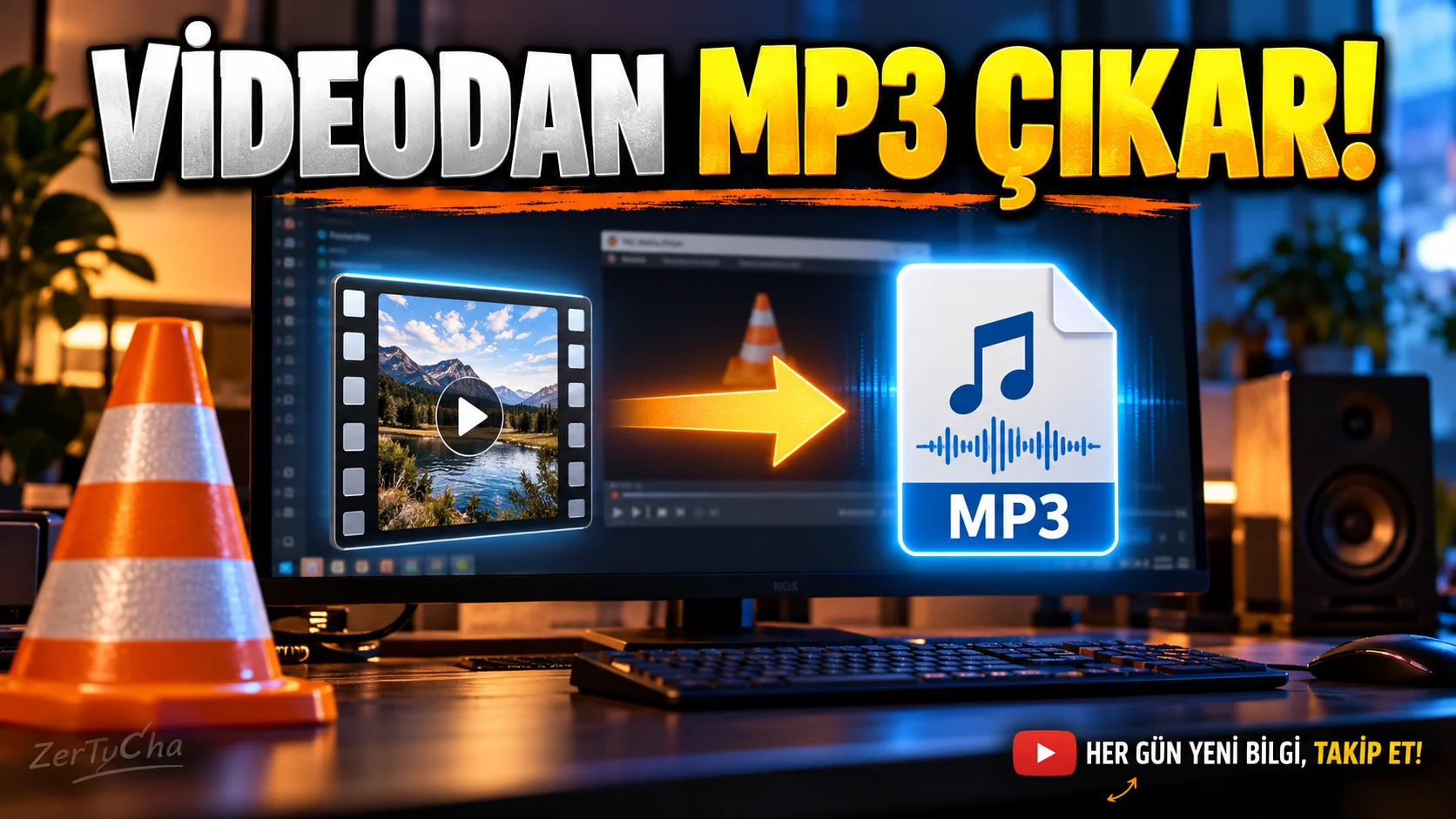
If you already have VLC on your computer, you may not need to separately search for an online converter to extract audio from a compatible video file. VLC's Convert/Save function can convert the selected file to a different media format.
Extracting audio from video file step by step
-
Open VLC Media Player.
-
Media → Convert/Save menu.
Ctrl + Rcan be used. -
Press the Add button and select the video file you want to extract the audio from.
-
Click the Convert/Save button.
-
Select an audio profile from the Profile list in the window that opens. Available profiles may vary by version; For MP3, choose the profile that uses MP3 audio encoding.
-
Specify the path to the file to save in the Destination file field.
-
Filename
.mp3and check that the profile you choose is also MP3 compatible. -
Press the start button and wait for the conversion to complete.
-
Play the resulting file and check that the sound is transferred properly from start to finish.
VLC's official desktop documentation explains that the conversion process consists of selecting a file, specifying a profile, giving a target file name, and initializing it.
What should you do if the conversion fails?
-
If the file is not created: Check the write permission and file path of the target folder.
-
If no sound: Make sure the profile you selected includes sound; Do not use a profile that only encodes video.
-
If the extension is correct but the file does not open: Changing the extension alone does not provide a true format conversion. Check that the profile encodes correctly.
-
If quality has decreased: Note that the audio bitrate used during conversion may affect the result.
Important: Conversion does not improve the quality of the source file. Also, when extracting audio from copyrighted content, pay attention to the relevant usage permissions.



Henüz yorum yapılmamış. İlk yorumu siz yapın!
Bir Yorum Bırakın