
You connected the phone to the computer with a cable, but the files are not visible? This is How to Turn on the Correct USB Mode
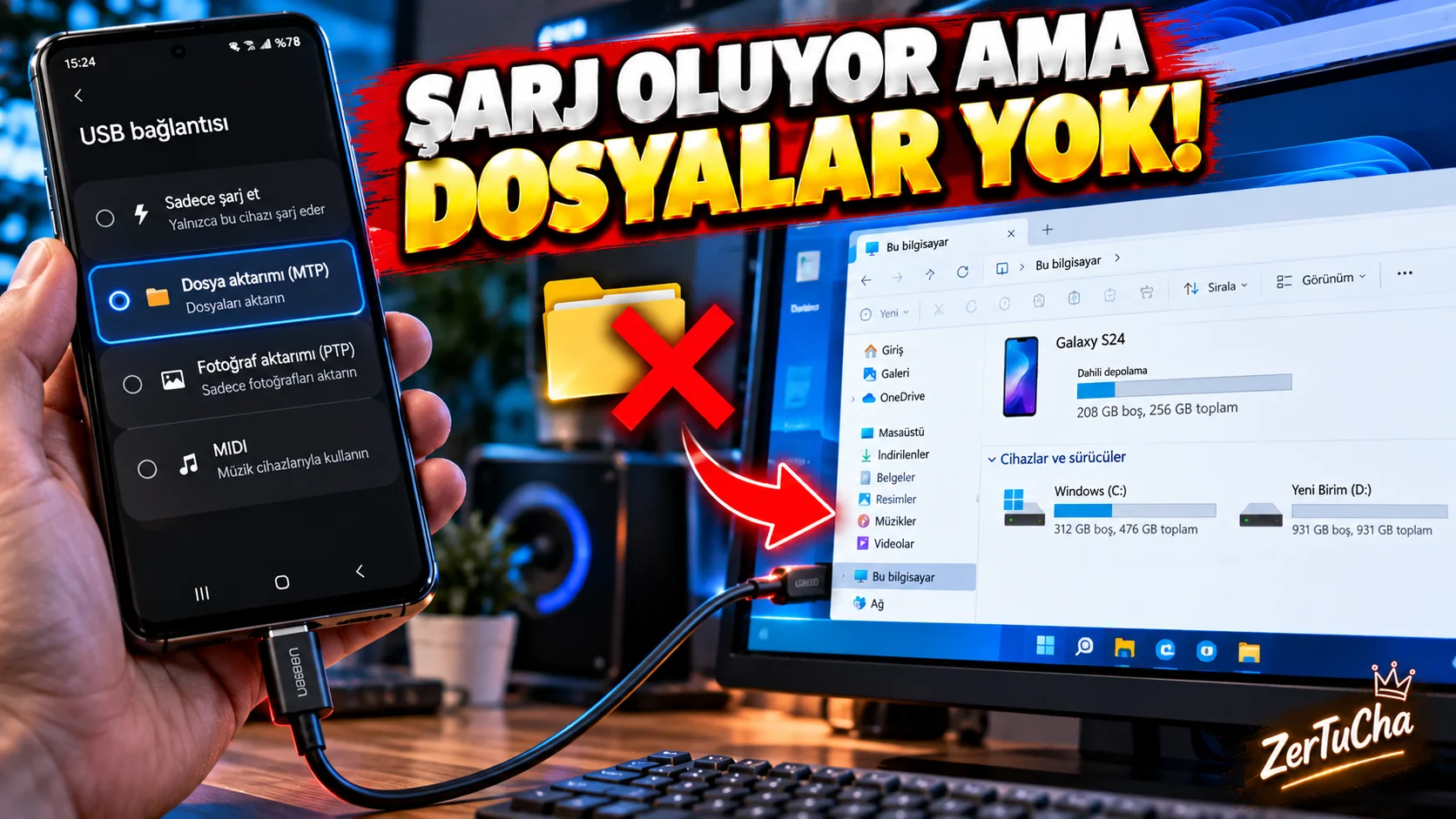
This is the classic problem experienced by many people who connect their Android phone to the computer via USB cable:
The phone is charging but the computer does not show the files.
In most cases, the problem is not that the phone is broken, but that the USB connection is just stuck in charging mode.
According to Google's current Android help page, to transfer files between an Android device and a Windows computer, you need to unlock the phone, connect it with a USB cable, and click on the USB notification on the phone File Transfer.
How to transfer files from Android phone to computer?
- Unlock the phone's screen.
- Connect the phone to the computer via USB cable.
- “This device is charged via USB”.
- “Use USB for” section.
- File Transfer.
- Wait for the file transfer window to open on the computer.
- Drag and drop the folders or files you want to the computer.
Why is it only charging?
USB connection does not always mean automatic file transfer when the phone is connected to the computer.
Phone charging only mode, Windows may not be able to access the device's file system.
In this case, the first thing to check is the phone's USB notification.
Cable is also important
Not every USB cable supports file transfer.
Some cables can only be used for power/charging. Therefore, if the computer does not see the device even though the phone is switched to the correct USB mode:
- Try another USB cable.
- Try a different USB port on the computer.
- Unlock and reconnect the phone.
- Check the USB connection notification again.
How to import photos from Android to computer?
After connecting the phone, you can access the Android device's storage and open photo folders on the computer.
The location of photos may vary depending on the phone and the application used. Therefore, a single folder name should not be given as the definitive path for all Android devices.
File transfer is also possible with a Google account
USB is not the only option.
According to Google's Android help page, it is also possible to access files on both a computer and a phone by uploading files to Google Drive with a Google account. Google Photos can be used for photos and videos.
Checklist if file transfer is not working
Phone:
- Is the lock unlocked?
- Is USB mode “File Transfer”?
- Does the USB notification appear?
Cable:
- Does it support data transfer?
- Has any other cable been tried?
Computer:
- Has any other USB port been tried?
- Has the phone been reconnected?
Important point
Not showing the phone on the computer does not always mean hardware failure.
First:
Turn on phone → tap USB notification → select File Transfer
steps is the most logical starting point for most users. Google's current documentation also specifically states this connection method for Android 14 and some later versions.