

Telefonunuzda Yer Yoksa Fotoğraf Silmeden Önce Bunu Yapın: Android Depolama Temizleme Rehberi
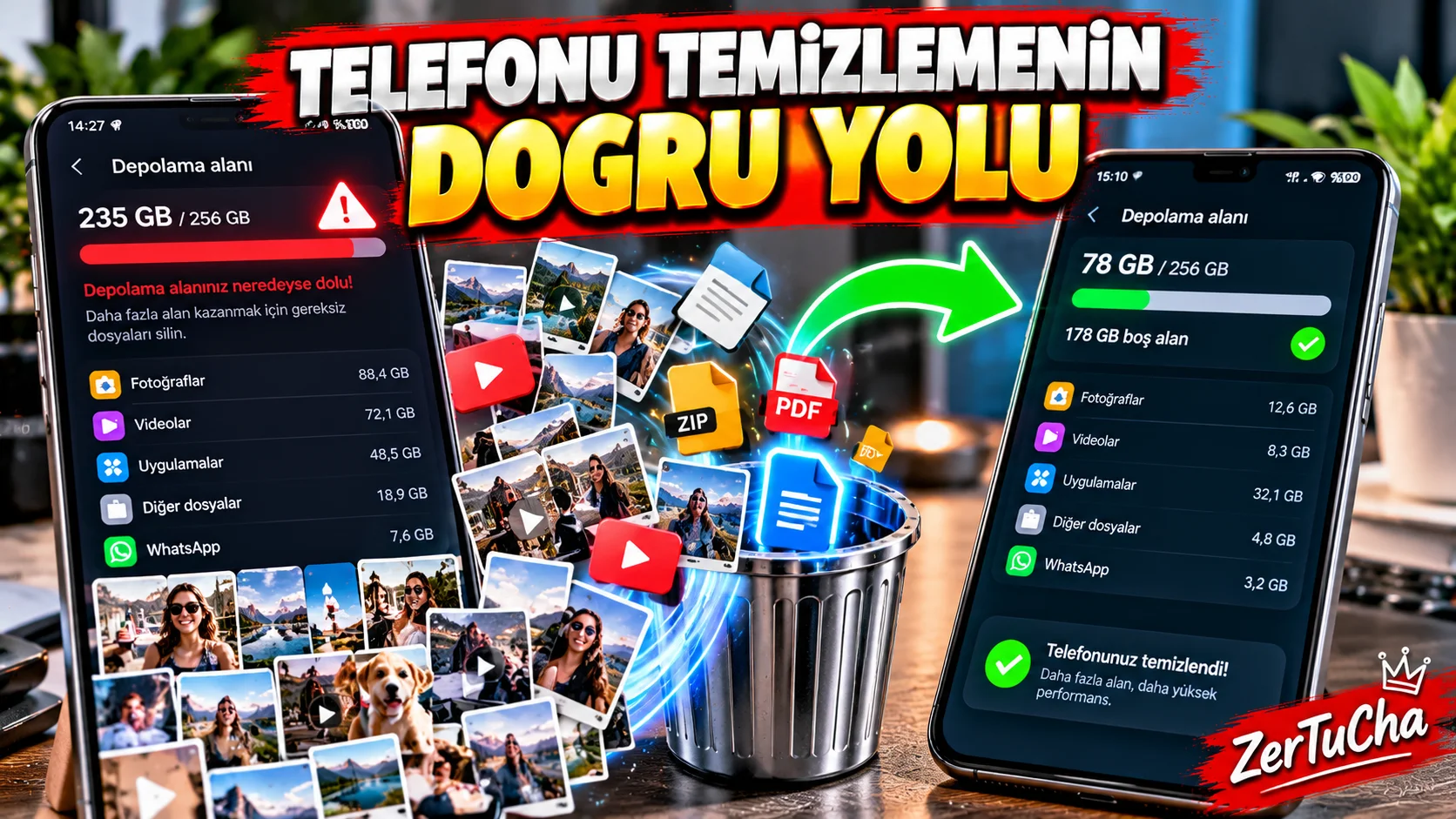
Telefonun ekranında “Depolama alanı dolmak üzere” uyarısını görmek oldukça can sıkıcı. Fakat çözüm her zaman fotoğrafları rastgele silmek değil.
Android'in güncel yardım belgelerine göre öncelikle hangi kategorinin ne kadar alan kullandığını kontrol etmek gerekiyor. Bunun için telefonunuzun Ayarlar > Depolama bölümünü açabilirsiniz. Menü isimleri üreticiye göre değişebilir.
Önce telefonunuzda neyin yer kapladığını bulun
- Ayarlar uygulamasını açın.
- Depolama / Storage bölümüne girin.
- Fotoğraflar, videolar, uygulamalar, indirilen dosyalar ve diğer kategorilerin ne kadar alan kullandığını kontrol edin.
- En fazla alan kullanan kategoriden başlamanız daha mantıklı olur.
Google Fotoğraflar ile yedeklenen fotoğrafları kontrol edin
Fotoğraflarınız Google Fotoğraflar'a yedekleniyorsa, cihazınızda bulunan yerel kopyaları kaldırarak depolama alanı kazanabilirsiniz. Google da depolama alanı boşaltma seçenekleri arasında yedeklenmiş fotoğraf ve videoların cihazdan kaldırılmasını gösteriyor.
Burada dikkat edilmesi gereken önemli nokta:
Bir fotoğrafın gerçekten yedeklenmiş olduğundan emin olmadan telefondan silmeyin.
Kullanmadığınız uygulamaları kaldırın
Telefonlarda aylarca hatta yıllarca açılmayan uygulamalar birikebilir.
Android'de kullanılmayan uygulamaları manuel olarak kaldırabilir veya bazı cihazlarda otomatik arşivleme seçeneklerinden yararlanabilirsiniz. Google Play ayrıca kullanılmayan uygulamaları otomatik arşivleme özelliğinin bulunduğunu belirtiyor.
Files by Google ile gereksiz dosyaları bulun
Files by Google, depolama alanını temizlemek için kullanılabilecek araçlardan biri.
Uygulama içerisinde:
- Gereksiz dosyaları temizleyebilir
- Yinelenen dosyaları bulabilir
- Kullanılmayan uygulamaları kaldırabilirsiniz
- Ekran görüntülerini inceleyebilirsiniz
- Dosya ve klasörleri yönetebilirsiniz
Google'ın güncel belgelerine göre Files by Google, Android 8.0 ve üzerindeki sürümlerde kullanılabiliyor.
Aynı dosyaları tekrar tekrar tutmayın
Özellikle WhatsApp, Telegram ve sosyal medya kullanımında aynı fotoğraf veya video birden fazla kez indirilebiliyor.
Files by Google'ın Duplicate files / Yinelenen dosyalar temizleme özelliğinde orijinal dosya Original etiketiyle işaretleniyor.
Adımlar:
- Files by Google uygulamasını açın.
- Temizle / Clean bölümüne girin.
- Yinelenen dosyalar / Duplicate files kartını bulun.
- Dosyaları inceleyin.
- Silmek istediğiniz kopyaları seçin.
- Çöp kutusuna taşıyın.
Google, orijinal olarak işaretlenen dosyanın korunmasını öneriyor.
Önbellek temizlemek depolama alanı kazandırabilir
Bazı uygulamalar geçici dosyalar oluşturur.
Android yardım sayfasına göre uygulamaların önbelleği temizlenebilir. Ancak “Depolamayı temizle / Clear storage” ile “Önbelleği temizle / Clear cache” aynı şey değildir.
- Önbelleği temizle: Geçici verileri siler.
- Depolamayı temizle: Uygulamanın verilerini kalıcı olarak silebilir.
Bu nedenle uygulama verilerini yanlışlıkla silmemeye dikkat edin.
İndirilenler klasörünü unutmayın
Birçok kişi telefonuna indirdiği PDF, ZIP, video ve diğer dosyaları yıllarca silmiyor.
Dosyalar > İndirilenler / Downloads bölümünü kontrol ederek artık ihtiyaç duymadığınız dosyaları temizleyebilirsiniz.
Telefonun hafızası ile RAM aynı şey değildir
Burada sık yapılan bir hata var.
- Depolama: Fotoğraf, video, uygulama ve dosyaların bulunduğu alan.
- RAM / Bellek: Çalışan uygulamaların kullandığı çalışma alanı.
Dolayısıyla “telefonumun belleği dolu” cümlesi aslında iki farklı şeyi ifade edebilir.
Güvenli temizlik sırası
En risksiz yöntemlerden biri:
- Büyük videoları kontrol edin.
- İndirilen dosyaları temizleyin.
- Yinelenen dosyaları bulun.
- Kullanılmayan uygulamaları kaldırın veya arşivleyin.
- Yedeklenmiş fotoğrafları kontrol edin.
- Önbelleği gerektiğinde temizleyin.
En önemli kural: Ne olduğunu bilmediğiniz sistem dosyalarını rastgele silmeyin.