

Store Your Private Documents in a Password Protected File on Mac
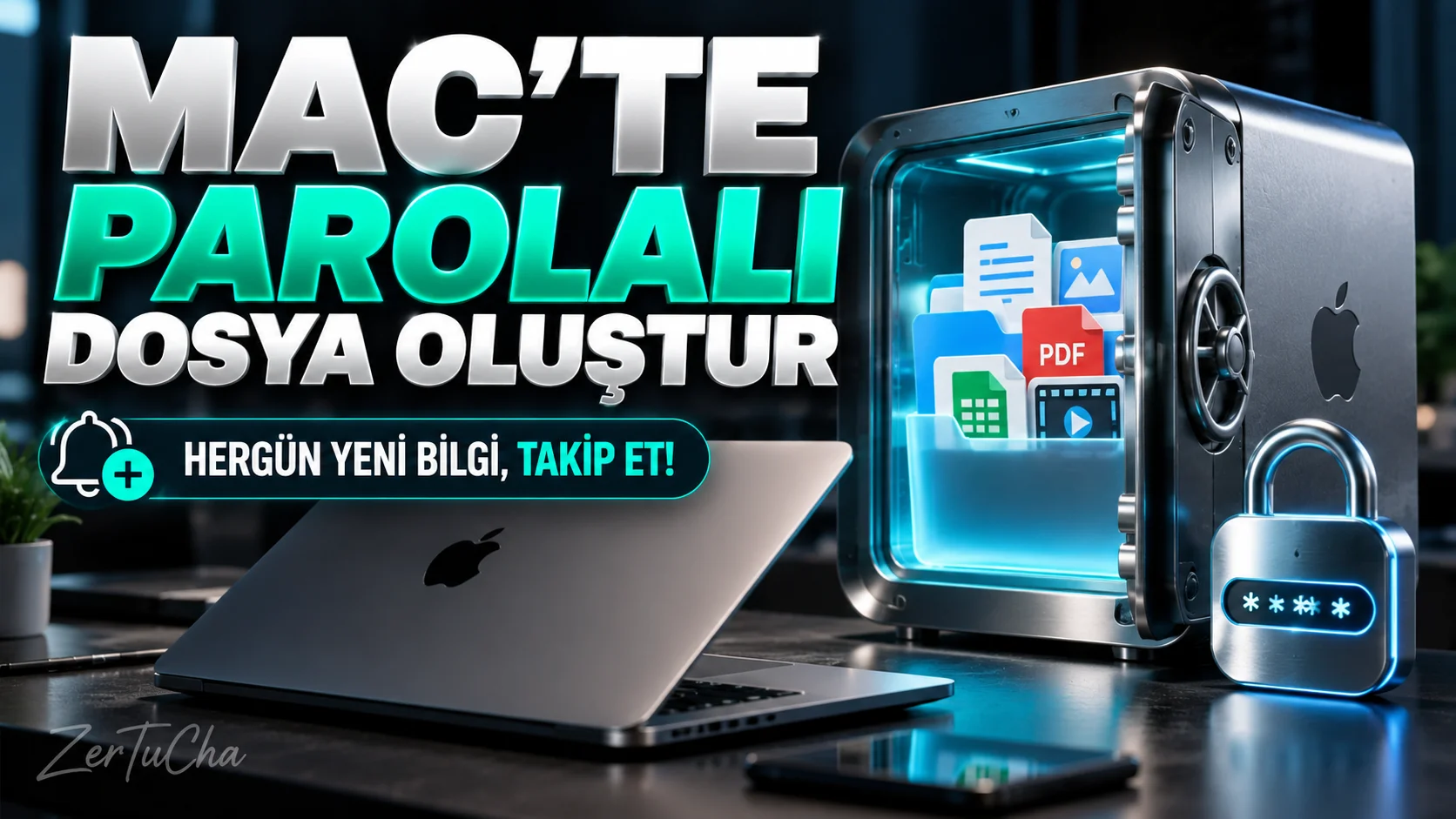
Your Mac contains tax documents, contracts, or other personal files. You want to collect these documents in a single file and make them difficult to open without a password.
macOS Disk Utility tool. This image helps you store files like a virtual disk unlocked with a password. Apple Support
Requirements
- A Mac with Disk Utility.
- Enough free space to store files.
- A strong and unforgettable password.
Step by step application
1. Open Disk Utility
Open Finder, then Applications → Utilities → Disk Utility.
Alternatively search for Spotlight Disk Utility write.
2. Create new blank disk image
From the top menu File → New Image → Blank Image.
3. Specify file name and location
Give the disk image file a name and select the folder to save it in.
For example Personal Documents.
4. Set size
Select a size sufficient for the documents you will store on this virtual disk.
If you choose a size that is too small, there may be insufficient space later.
5. Select format
Apple's guidance recommends APFS or APFS (Case-sensitive) formats for encrypted disk images in macOS 10.13 or newer. Apple Support
6. Turn on encryption option
Encryption menu.
Then fill in the password fields.
7. Set image format
To add and edit files Read/Write format.
Save and wait for the process to complete.
8. Add files and extract image
The disk image appears as a disk in Finder. Copy your documents to this disk.
When you're done, eject the disk in Finder. This way, your files will not remain open in the disk view unless the disk image is mounted. Apple Support
Real usage scenario
You share a MacBook with family members. However, you don't want your personal documents to be opened by everyone in regular folders.
You can create an encrypted disk image and store your documents in this area.
What to do if it doesn't work?
- In Disk Utility Blank Image option, click File → New Image.
- If there is not enough space, create a smaller image or free up space on your disk.
- If the password field does not appear, make sure the encryption option is selected.
- If the image does not open, check your password and the location where the file is saved.
Advantages, limitations and safety
Advantages: You can create an encrypted file space without installing additional third-party applications.
Limitations: This method is not a substitute for encrypting the entire system disk. If you want to protect your entire Mac's disk, you should consider Apple's recommended FileVault feature.
Important: If you forget the password, you may not be able to access the files on the encrypted disk image. Additionally, when the disk image is open and connected, people who can access their computer can see the files. Apple Support
Quick conclusion
First open Disk Utility and create a blank disk image. Test with a non-sensitive file first; Store your password securely.
Official source
Apple explains the steps to create an encrypted disk image, add files, and extract the image.




Henüz yorum yapılmamış. İlk yorumu siz yapın!
Bir Yorum Bırakın