

Know This Before Formatting External Drive on Mac! APFS or exFAT?
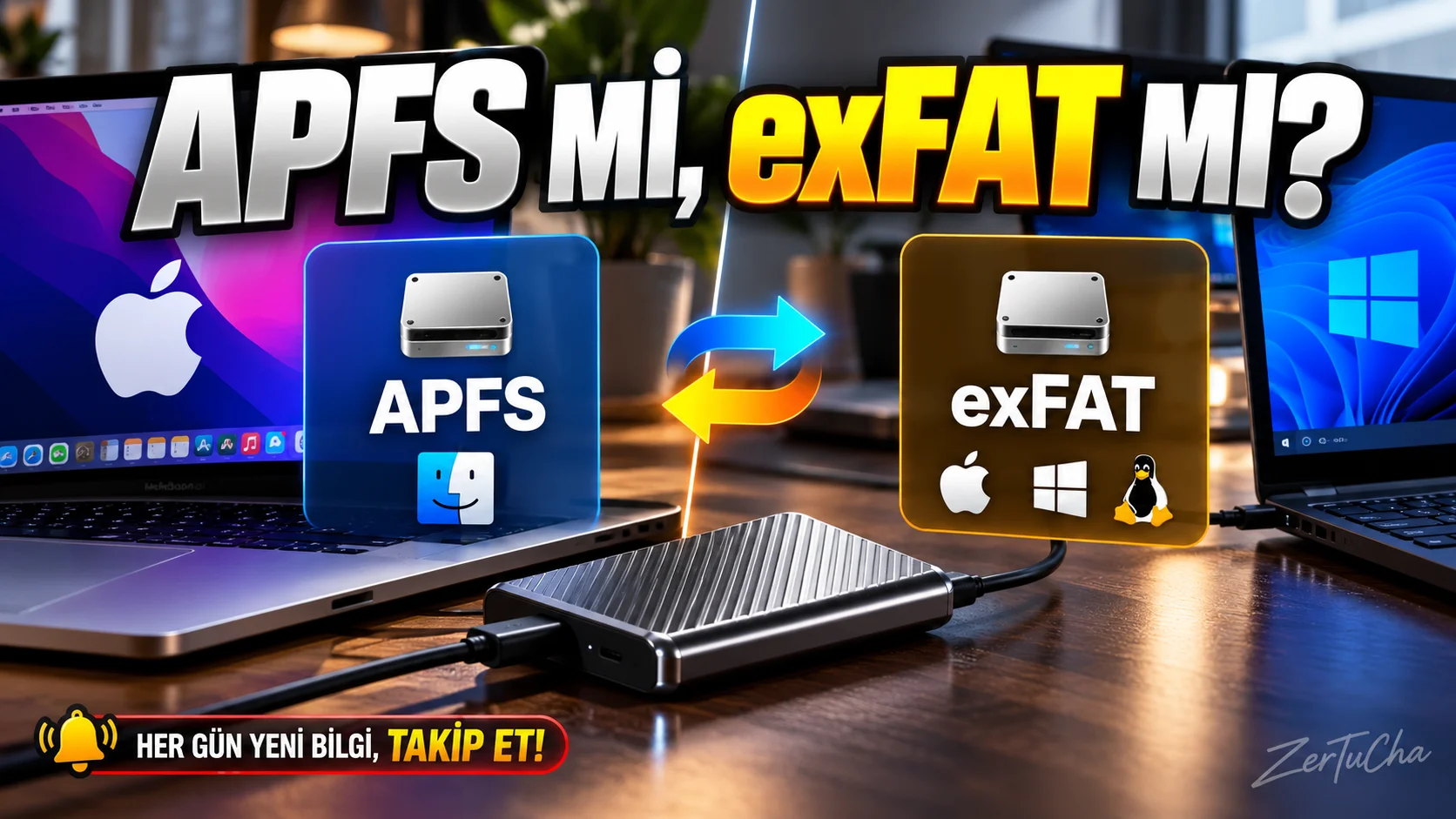
You have received a new external SSD or USB memory stick. You've connected it to your Mac and want to copy your files. However, you plan to use the disk on both a Mac and a Windows computer.
At this point, you will encounter file system formats: APFS, exFAT and FAT32.
Wrong selection may cause problems, especially when you want to use the disk between different operating systems. Moreover, formatting the disk may result in deletion of existing data.
Apple's Disk Utility documentation explains that macOS supports file system formats such as APFS, MS-DOS (FAT), and exFAT. APFS is designed for modern Mac systems, while exFAT can be used for disks that require Windows compatibility. Apple Support
What is the difference between APFS, exFAT and FAT32?
APFS
Abbreviation for Apple File System. Apple file system used in macOS 10.13 and later.
Especially suitable for storage areas to be used on Mac computers. There are variants that support features such as encryption and snapshots. Apple Support
exFAT
A commonly used file system format for moving files between Mac and Windows computers.
It is one of the suitable options if you want to use your external disk in both operating systems.
MS-DOS (FAT) / FAT32
Available when compatibility with legacy devices is required. However, it has limitations such as file size and volume size. Therefore, it is not always the optimal choice for large video files or modern storage needs.
1. Check the current format of the external disk
Do not format your disk immediately. First find out what format it is in.
- Connect the external disk to your Mac.
- Locate the disk in Finder.
- Right click on the disk icon.
- Give Information.
- Review the format information in the window that opens.
Alternatively Disk Utility application. Apple explains that the disk format can also be checked on the Get Information screen in Finder. Apple Support
2. If you will use the disk on both Mac and Windows
If your goal is to use the same disk to move files between two operating systems exFAT is a suitable choice in most cases.
For example:
- You are creating video files on Mac.
- You are saving files to external SSD.
- You connect the same disk to your Windows computer.
- You're still editing your videos in Windows.
In such use, exFAT can provide compatibility between the two systems.
However, just because a disk can be used in two operating systems does not mean that every device will support all features. Check file system support separately, especially on televisions, game consoles and older devices.
3. If you will only use the disk on Mac
APFS may be preferred if you will only use your external disk on modern Mac computers.
Particularly when working with applications designed for Mac, such as Final Cut Pro, it is important that the storage format suits the needs of the application.
Apple recommends the APFS format for best performance on external storage devices used for Final Cut Pro, Motion, and Compressor. Apple Support
However, the requirements of every application and usage scenario are not the same. Evaluate compatibility first, especially for a disk you will be moving between different computers.
4. How to format an external drive on Mac?
Caution: Formatting deletes the data on the disk or volume you selected. Back up your important files to another location before continuing.
Then follow these steps:
- Connect your external disk to Mac.
- Applications > Utilities > Disk Utility section.
- Select the correct disk from the list on the left.
- Make sure you haven't selected the wrong device by checking the name and capacity of the disk.
- Delete button.
- Give the disk a name.
- Choose the format that suits your needs.
- If you are asked for additional options such as partition layout, make the selection appropriate to your intended use.
- Confirm the transaction and wait for it to complete.
Apple's Disk Utility guide explains the importance of selecting the correct device and determining the desired file system format when formatting. Apple Support
5. Things to consider before formatting
- Formatting the disk may delete existing files.
- If the data on the disk is important, take a backup first.
- Consider exFAT if you'll be using it between Mac and Windows.
- APFS may be suitable if you will only use the disk on a Mac.
- If compatibility with older devices is required, investigate the file system supported by the device.
- Follow the manufacturer's instructions for the disk you will use for operating system installation or a specific application.
Result: The best file system for every disk is not the same. Make your decision based on where you will use the disc. The bigger problem than choosing the wrong format is formatting the files without backing them up.



Henüz yorum yapılmamış. İlk yorumu siz yapın!
Bir Yorum Bırakın