

Know This Before Controlling a Computer Remotely: How to Use Windows Quick Assist?
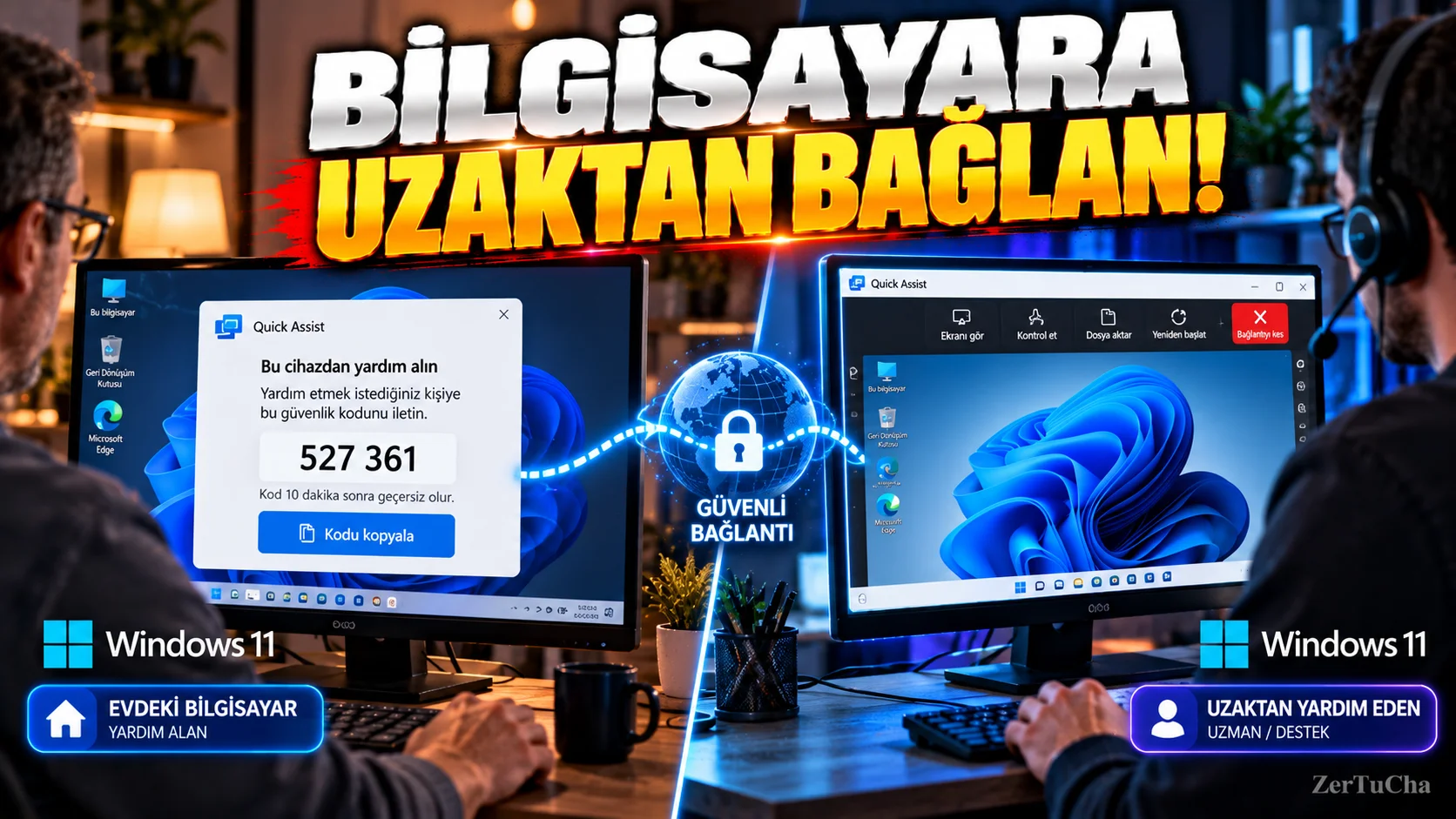
There is a problem with your mother, father, friend or customer's computer.
By phone:
“Now go to Settings, from there press…”
sometimes turns into torture. 😄
Windows Quick Assist application allows you to assist the computer remotely.
According to Microsoft's current documentation, Quick Assist can be used for remote support on Windows 10 and Windows 11 computers. During the connection, the other party can share their screen and grant full control permission if they wish.
What does Quick Assist do?
For example:
-
Setting up Windows
-
Demonstrating how to run a program
-
Examining printer problem
-
Changing an application's setting
-
Seeing an error on the computer
-
Teaching an elderly relative to use a computer
.
First open the app
On Windows:
-
Start menu.
-
Search section Quick Assist or Quick Help.
-
Open the application.
In the current version of Microsoft, Quick Assist is distributed through the Microsoft Store. If you see the old icon, make sure you're using the new Store app.
If you would like to help someone else
On the computer that will help:
-
Turn on Quick Assist.
-
Help someone.
-
Verify with your Microsoft account.
-
On the screen A 6-digit code is created.
-
Send this code to the person you will help.
What will the person receiving help do?
On other computer:
-
Turn on Quick Assist.
-
Code from helper section.
-
Send.
-
Accept the screen share request.
From now on, the person helping can see the other party's screen.
Can you give full control of the computer?
Yes, but this requires explicit permission from the other party.
Helped by:
Request control
option.
If the owner of the computer agrees, the helper can gain control over the computer.
You can stop the control at any time
If the computer owner does not want the control to continue:
Cancel check
option.
Also, the connection can be terminated completely.
Quick Assist's most important safety rule
There is a very serious warning here.
Do not open your computer via Quick Assist to a person you do not know.
Microsoft specifically warns against technical support scams.
For example, someone on the internet:
“There is a virus on your computer, open Quick Assist immediately.”
says do not accept.
Microsoft's own security recommendation is that you only allow people to connect who you trust and who initiated the help request.
What can the connected person see?
You can see the screen on your computer during screen sharing.
If you give full control permission, it can also perform operations on the computer.
Therefore during connection:
-
Do not open banking sites.
-
Do not write down your passwords.
-
Do not leave your personal documents open.
-
Do not show your private messages.
-
Close the connection when you are finished.
If Quick Assist does not turn on
According to Microsoft's current documentation, for Quick Assist to work Microsoft Edge WebView2 is required.
If you have problems:
-
Make sure Microsoft Edge is up to date.
-
Check Windows Update.
-
Check if WebView2 is installed properly.
-
Update Quick Assist via Microsoft Store.
Most practical use
If there is someone in your family who constantly asks you for help with the computer, Quick Assist can save you serious time.
By phone:
“Now there is something at the bottom right of the screen…”
, you can directly see the screen and solve the problem.


Henüz yorum yapılmamış. İlk yorumu siz yapın!
Bir Yorum Bırakın