

Connecting Android Phone to Computer Wirelessly (Phone Link)
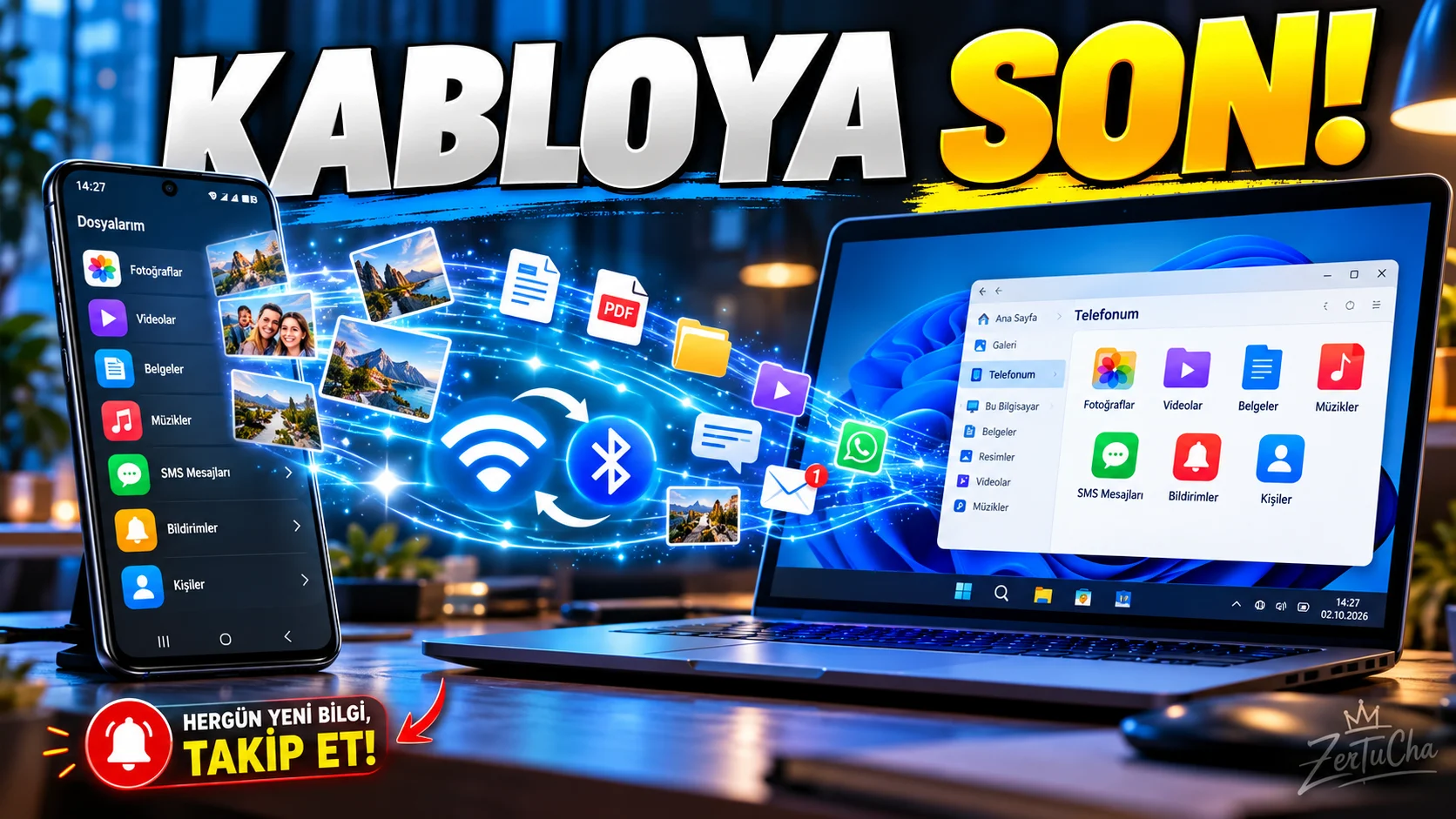
“There is no need to look for a cable to manage notifications, messages and photos on your phone from the computer!”
“Friends, if you always have your phone with you, but you reach for it every time you get a notification while working on the computer, I will show you a very useful feature.
And you don't need a cable for this.
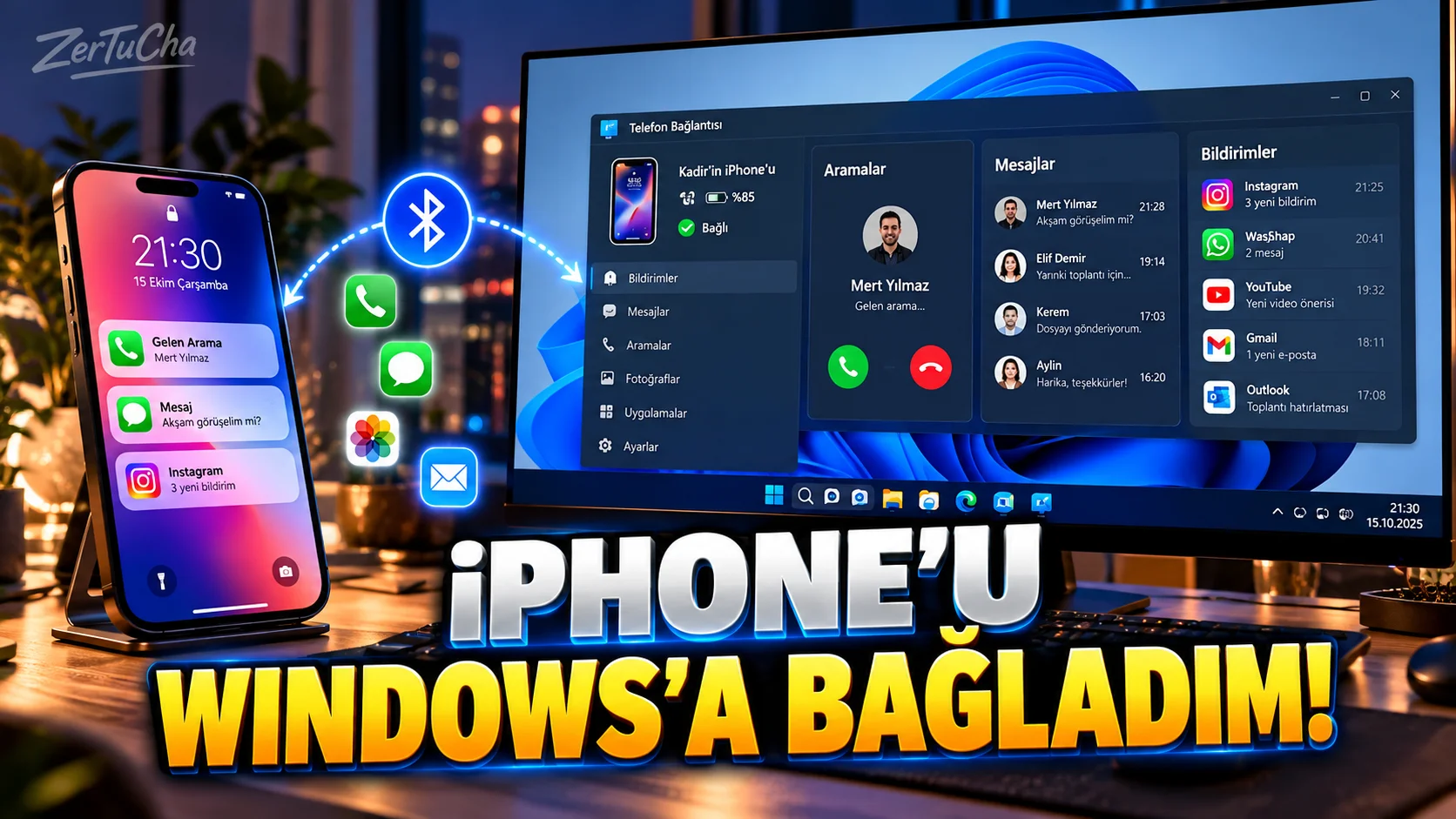
Windows own Phone Connection, that is, thanks to the Phone Link feature, you can connect your Android phone to your computer wirelessly.
And after making the connection, you can see notifications on your phone from the computer, read and reply to SMS messages, access photos on your phone, and even use your phone as a camera for your computer on supported devices.
Now let's build this together from scratch.”
1. LET'S PREPARE THE PHONE AND COMPUTER FIRST
“First of all, it would be good to have an updated version of Windows 11 on our computer.
According to Microsoft's current requirements, your Android device must have at least Android 10 and the phone and computer must be connected to the same Wi-Fi network.
Now I open the start menu on the computer.
Search:
Phone Connection
I'm writing.
I open the application.
Here we select the Android option.
Now it's time for the phone.
On our phone Windows Connection application.
Some phones come with this application already installed.
If it is not installed, you can download it from Google Play Store. Microsoft also states the Samsung Galaxy Store option for supported devices.
Now pay attention to the computer screen.
We have a QR code appears.
We open the Windows Connection application on our phone.
We go to the 'Connect your phone and computer' option.
We scan the QR code.
And within a few seconds, the two devices see each other.
This QR code pairing method is directly included in Microsoft's own installation steps. If you wish, you can also use the manual pairing option by entering the code manually.
Here your phone will ask you for some permissions.
Access to notifications…
Access to photos…
Access to messages…
We grant the necessary permissions.
Because these permissions are required to access phone features from your computer. Especially in Android 13 and later, notification permission can be requested separately.
And our connection is ready.”
2. SEE NOTIFICATIONS ON THE PHONE FROM THE COMPUTER
“Now comes one of the best parts.
You received a notification from WhatsApp on your phone.
Notification received from Instagram.
Message arrived.
Normally you have to pick up the phone.
But you can see these notifications from your computer when Phone Link is turned on.
You can even manage which application sends notifications.
This is especially nice for those who work in front of the computer.
Because the phone does not have to stay on the table all the time.
The phone can stay in your pocket or on the other side of the table.
You continue your work from the computer.”
3. ANSWER SMS MESSAGES FROM COMPUTER
“Now let's look at the second feature.
An SMS has been sent to your phone.
Normally you have to go back to the phone and open the message.
But you can read and reply to messages from your computer via Phone Link.
So you type on the keyboard.
You are sending.
The message is going through the phone.
You can imagine how comfortable this is, especially if you are going to write a long message.
Instead of dealing with the phone's small screen keyboard, you directly use the real keyboard of the computer.
But here's an important warning for you:
Since you grant notification and message permissions, sensitive notification content may also appear on the computer.
Microsoft also states that the message permissions granted for Phone Link may make sensitive data such as two-factor authentication SMS visible on the computer.
So be careful when granting these permissions on a shared computer.”
4. VIEW PHONE PHOTOS ON COMPUTER
“This is a feature that content creators will particularly like.
You took a photo with your phone.
Normally the USB cable is removed.
Connect the phone to the computer.
Turn on file transfer.
Find folder.
Copy photo.
Ordinary operation.
With Phone Link, you can access the latest photos on your Android phone via computer.
So it becomes much more practical to quickly check the photo you took on the phone or use it on the computer.
Especially when creating content:
'There was a photo on the phone, I need to send it to the computer.'
It really saves time when you say it.
Moreover, Microsoft now supports file and content transfer also supports it. There are corresponding version requirements for Windows 11 and Android 10+. ”
5. USE YOUR PHONE AS A CAMERA
“Now a much more interesting feature.
Use your Android phone's camera on the computer you can use it as a webcam.
Yes.
You can select the phone's camera as the camera source in computer applications. According to Microsoft's current support, this requires Windows 11 or later, Android 10 or later, and the appropriate version of the Windows Link app.
On PC:
Settings → Bluetooth & devices → Mobile devices
.
You select your connected Android device.
Then Use as connected camera option.
Thus, your phone becomes a camera source that can be used in camera applications on the computer.
Now here is a good scenario for YouTubers.
The laptop's camera is bad.
But your phone's camera is much better.
You fix the phone in a suitable place.
You select the camera from the computer.
And you can use the phone's camera in video calls or supported computer applications.
Here, it is necessary to pay attention to the phone model and whether the feature is supported.”
6. WHAT TO DO IF SETUP DOES NOT WORK?
“Now three quick checks for those saying 'I did it but it didn't connect'.
A:
Make sure the phone and computer are connected to the same Wi-Fi network. Microsoft states this as a basic requirement.
Two:
Make sure Windows and Windows Link are up to date.
Three:
Check the permissions requested on the phone.
You may not see phone notifications on the computer, especially if notification permission is not granted. Microsoft clearly states that the necessary notification permission must be granted on Android devices.
If there are still problems after checking these, unlinking and re-pairing with the QR code is usually the cleanest way to start.”
“Now friends, the thing is actually very simple.
Phone:
Android 10 or above.
Computer:
Windows 11.
The two are connected to the same Wi-Fi network.
Link to Windows on your phone.
Phone Connection on Computer.
You scan the QR code and establish the connection.
Then from your computer:
You can see phone notifications.
You can read and reply to SMS messages.
You can access phone photos.
And on supported devices, you can use the phone's camera as a webcam on the computer.
So some of the hassle of plugging in cables, searching for files, copying photos is really eliminated.
Install this once, especially if you spend long hours in front of the computer.
I think after a few days of use you will notice that you reach for the phone less.
If you want to see more useful Windows and Android tips like this follow the channel.
Because every day we share new information, a new program and practical technology tips that will make your daily life easier.
Do not search for the cable… open Phone Link.”
BRIEF APPLICATION SUMMARY
On PC
Start → Phone Connection → Android
On the phone
Link to Windows → Microsoft account → Scan QR code
Basic requirements
Windows 11
Android 10 or above
Same Wi-Fi network
Available Features
Notifications
SMS
Photos
Calls
Supported applications
Using the phone camera on the computer

Henüz yorum yapılmamış. İlk yorumu siz yapın!
Bir Yorum Bırakın