

Connect iPhone to Windows Computer and Manage Calls and Messages from Computer
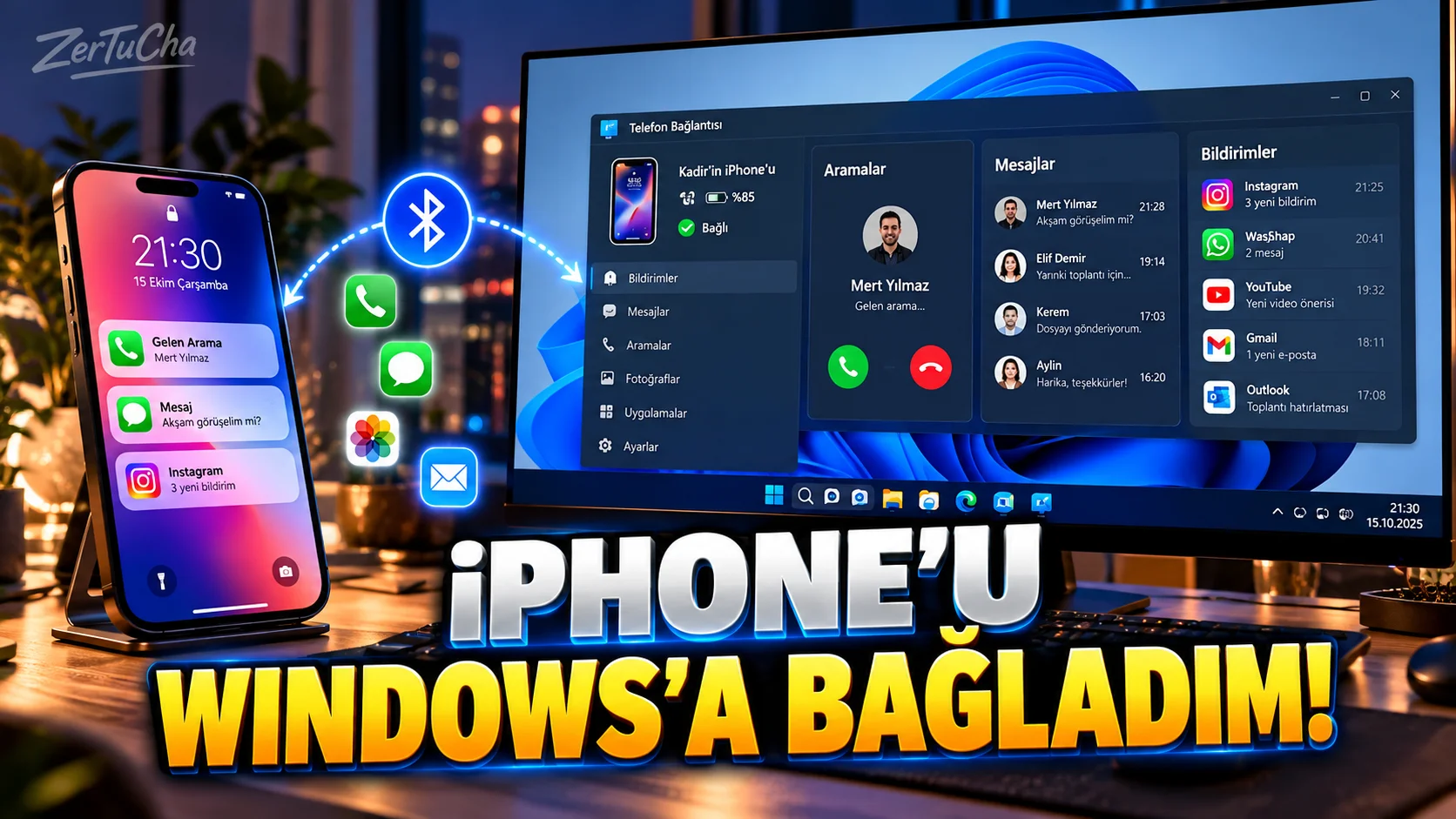
You are using a Windows computer, but your phone is an iPhone.
Normally:
The phone rings → you pick up the phone.
Message appears:
You turn on the phone again.
Microsoft's Phone Link feature, you can connect your iPhone to a Windows computer and access some phone features from the computer.
According to Microsoft's current documentation, on supported iPhones via Windows:
- View and reply to messages
- Making and receiving calls
- See iPhone notifications
possible. Microsoft Support
Requirements
According to Microsoft's current requirements:
- Windows 10 or Windows 11 computer
- Bluetooth Low Energy support
- iPhone with iOS 16 or later
required. Microsoft Support
How to make the first connection?
On Windows:
Start → Phone Connection
app.
Phone type:
iPhone
select.
A QR code is displayed on the computer.
Scan this QR code with iPhone's camera. Microsoft Support
Bluetooth connection
Pairing is done via Bluetooth.
Therefore:
iPhone Bluetooth is on
and
Windows Bluetooth is on
.
Grant permissions on iPhone
After pairing, you need to grant the permissions requested by Microsoft.
Specifically:
Settings → Bluetooth → your computer name
via:
Show Notifications
and
Sync Contacts
can be used. Microsoft Support
Calling from the computer
In the Phone Link application:
Calls
section.
Search for the person's name or phone number.
Click the search icon.
The call is made through the iPhone but is managed through your computer. Microsoft Support
Answering incoming calls from the computer
As long as the iPhone Bluetooth connection continues, you can answer the incoming call via the computer.
This is especially useful for people who work in front of the computer for long periods of time.
Reading messages from the computer
Phone Connection:
Messages
tab.
You can create and send a new message. Microsoft Support
But there are significant restrictions on the iPhone side
According to Microsoft's current documentation, Phone Link for iPhone:
send/receive photos, GIFs and Memoji
. There are also limitations on group messages. Microsoft Support
So:
“I use all of iMessage on Windows.”
.
This system does not port Apple's iMessage to Windows.
Notifications
iPhone notifications can be streamed to Windows.
However, for this, the necessary Bluetooth and notification permissions must be turned on. Microsoft Support
Important for security
Microsoft, when you grant message permission to Phone Link:
sensitive information such as two-step verification SMS
also warns that it can be seen on the computer. Microsoft Support
Therefore, do not turn on this feature randomly on a shared computer.
What happens if the connection is lost?
If the Bluetooth connection is lost, the visibility of iPhone message history on the Phone Link side may be affected.
Microsoft states that the message history visible on the iPhone via Phone Link is related to the Bluetooth connection. Microsoft Support
Who is it most useful for?
Specifically:
- Desktop workers
- Laptop users
- Content creators
- Office workers
- Those who make too many phone calls during the day
.


Henüz yorum yapılmamış. İlk yorumu siz yapın!
Bir Yorum Bırakın