

Does YouTube Have Sound on Windows, but Discord Doesn't? Application Specific Sound Setting
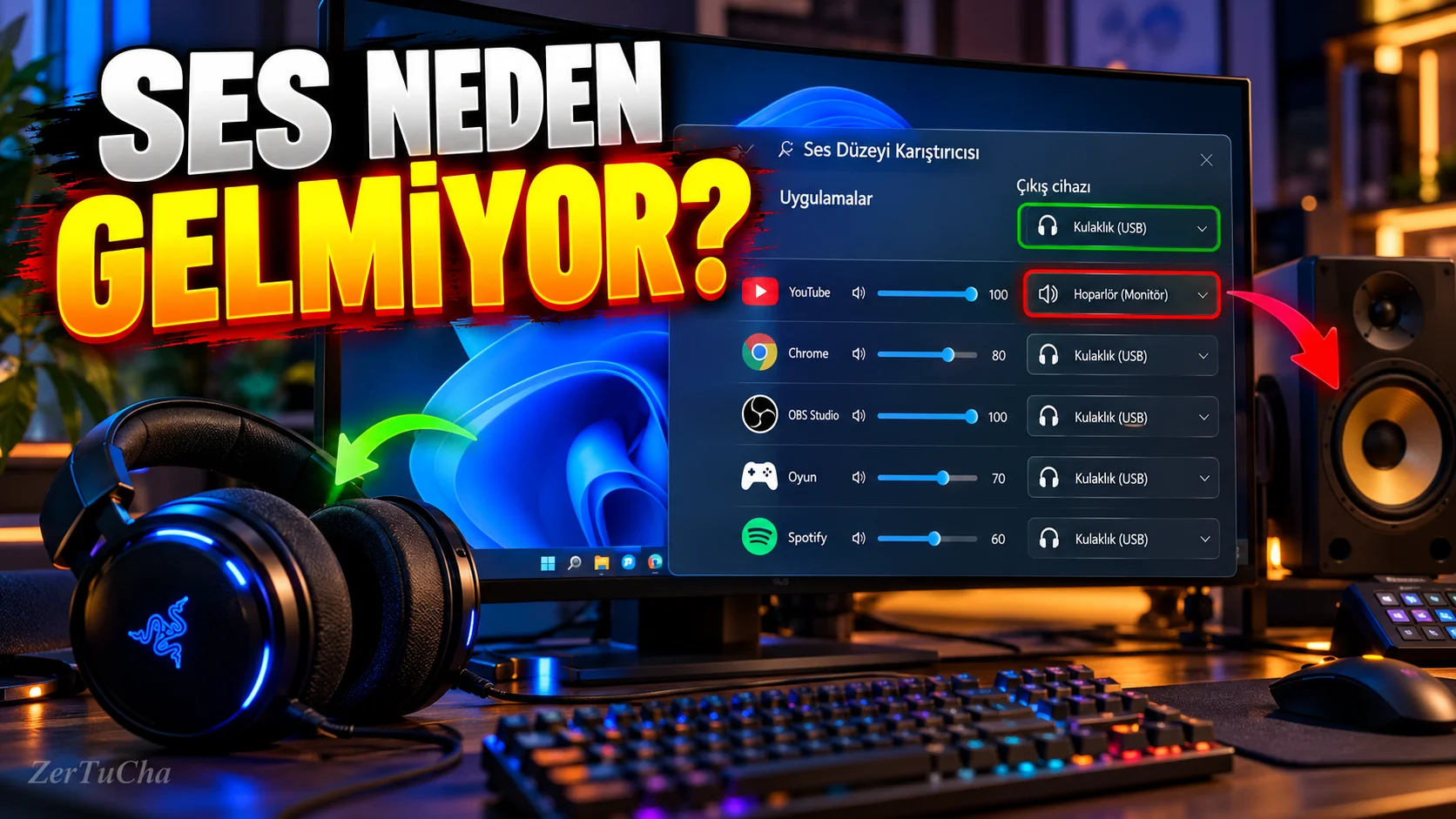
You open a YouTube video on your computer, sound is heard.
Then you enter Discord, there is no sound.
Or the browser's sound goes to the monitor speakers while the game's sound comes from the headset.
The first solution that comes to mind is to restart the computer.
But the problem may be that Windows can assign separate volume and separate audio output devices to applications.
According to Microsoft's current Windows support documentation, there is no sound from certain applications while system sounds are running; Application-specific audio settings may be related to the selected output device, audio services, or drivers. support.microsoft.com
1. Open Audio Mixer
On Windows 11:
- Start menu.
- Settings.
- System → Sound.
- Audio Mixer section.
In this section you can see the overall volume level of the system and the individual sound settings of the applications. support.microsoft.com
2. Check app volume
For example, there is no sound in Chrome.
Find Chrome in the apps section of Audio Mixer.
Check these:
- Is the sound muted?
- Is the app volume at zero?
- Is the application's own sound setting turned off?
Increase the volume if Chrome is muted.
You can also do the same check for Discord, Spotify, games and other applications.
3. Fix wrong audio output device
Let's say both a Bluetooth headset and a monitor are connected to your computer.
Windows' general audio output may be set to headphone. However, a particular application may be using the monitor's speakers.
Find the corresponding app in Audio Mixer.
Application Output device.
Select the headphone or speaker you want. Microsoft notes that applications may use a different audio output than the system's default device, and this setting can be changed in the Audio Mixer. support.microsoft.com
4. Assign different audio devices to multiple applications
For example, you can set up a layout like this:
| Application | Audio output |
|---|---|
| Discord | Headset |
| Game | Headset |
| Scanner | Monitor speaker |
| Music application | External speaker |
You can do this distribution via Windows' Audio Mixer for supported applications.
So you don't have to change the overall audio output every time.
However, note that application and driver behavior may differ.
5. If there is still no sound from the Bluetooth headset
Check these:
- Make sure the headset is connected.
- Check Windows' sound output device.
- Reselect the output device of the corresponding application.
- Close and reopen the application.
- If the problem persists, re-establish the Bluetooth connection.
Some applications may require a restart to switch to the new device when the audio device is changed.
6. Restart audio services
If the above methods do not work, there may be a temporary problem with Windows audio services.
Save your open work before trying this.
Then:
Windows + R.services.msc.- Press Enter.
- Windows Audio service.
- Right click and Restart.
- Windows Audio Endpoint Builder service, if necessary.
Microsoft recommends restarting these services as one of the steps to resolve the issue of no sound in certain applications. support.microsoft.com
7. Check for driver problems
If the sound still does not work:
- In the start menu Device Manager.
- Sound, video and game controllers section.
- Find your audio device.
- Check for driver updates.
If the problem persists, check the compatible audio driver on the computer manufacturer's support page. Microsoft also states that outdated or incompatible drivers may affect application audio. support.microsoft.com
Why is it important for content creators?
Directing an app's audio to the wrong device when live-streaming or editing video can waste a lot of time.
For example, if the game sound goes to the headset and the video call sound goes to another device, the problem is not always with the application itself.
Controlling Windows' application-based sound settings can prevent unnecessary driver uninstallation and reinstallation.
Result: If the computer's sound is not completely muted, first check the application's volume and output device. Most of the time the problem can be solved here.


Henüz yorum yapılmamış. İlk yorumu siz yapın!
Bir Yorum Bırakın