

Searching public folder every time in Windows: Mount as network drive
Official source: Microsoft Support — Network file sharing in Windows
Problem in daily life
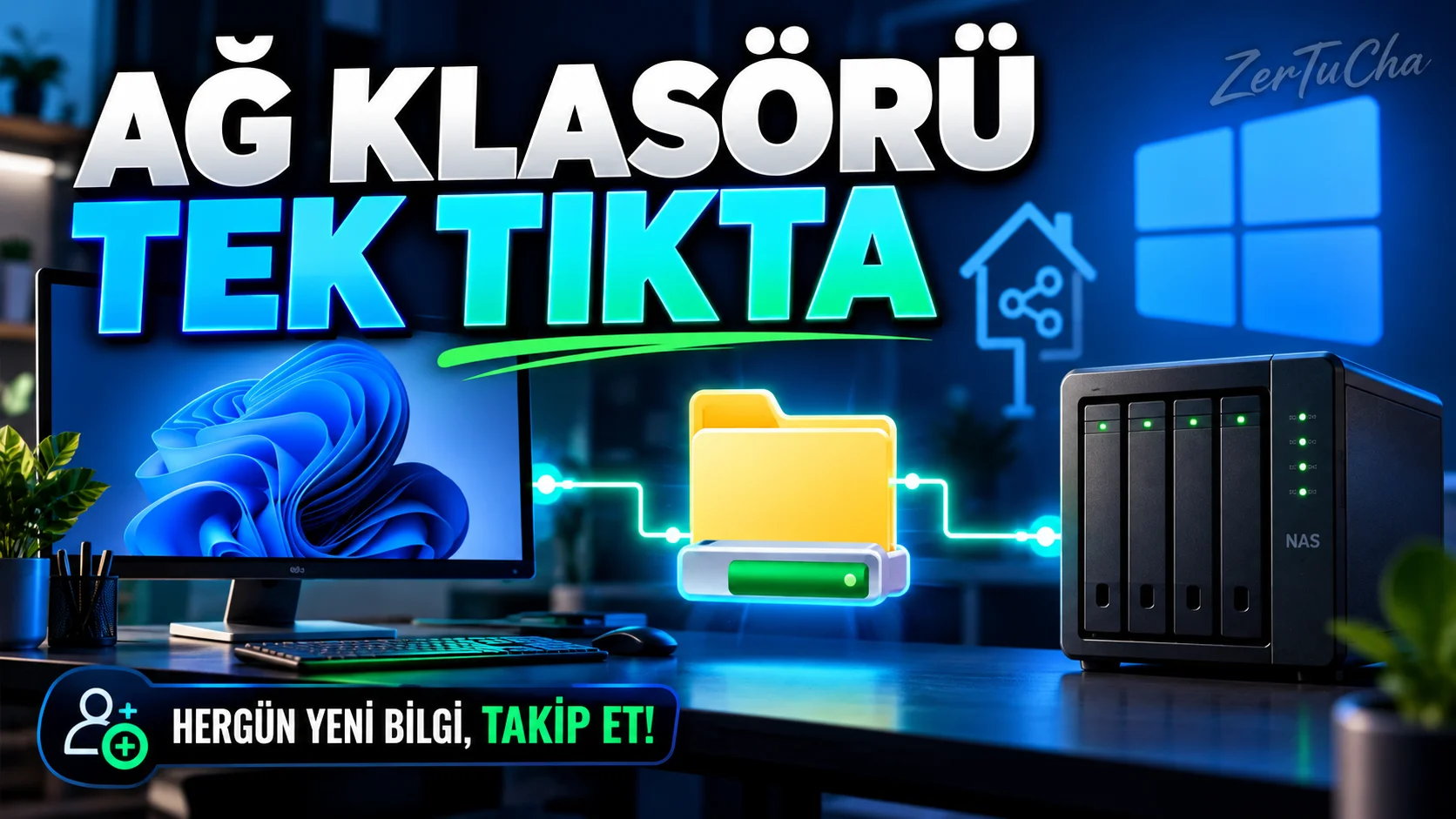
You have a public folder on a NAS device or another computer at home. You have to type the network address every time.
In Windows, you can mount this folder to a drive letter. This will make it look like a regular drive in File Explorer, and you can set it to remount when you log in. Microsoft Support
Requirements
- Windows 11 computer.
- File server, NAS, or other computer that is open and connected to the same network.
- Network address of the shared folder.
- Username and password required for access.
An example network path might look like this:
\\NAS-NAME\Partner
In this example NAS-NAME and Common should be replaced with the server and share names on its device.
Creating a network driver step by step
1. Open File Explorer
Windows + E.
From the left panel This PC.
2. Find the network drive mount command
In the top toolbar More (…) → Map network drive.
If this option is not visible, you can right-click This PC and search for the same command. Microsoft Support
3. Select a drive letter
Specify an available letter in the window that opens. For example Z:.
This letter determines how you see the network folder in File Explorer.
4. Write the path to the network folder
Enter the network path in the folder field.
For example:
\\NAS-NAME\Partner
You should use the real address on your network. If you write the sample address exactly, it will not work.
5. Use the reconnect option when signing in
If you want this folder to be linked again every time you log in to your computer Reconnect at sign-in box.
If sharing requires a different user account, use the relevant credentials option.
6. Click Finish
Windows will attempt to establish the connection. If access is successful, the network folder appears with the drive letter you selected under This PC.
7. Test connection
Open the new drive and view the folder contents. If you have authority, you can verify access by creating and deleting a junk test file.
Before making changes to the files, make sure that the folder is the correct share.
Microsoft's official instructions also explain the steps of choosing a drive letter, entering the network path, and reconnecting when logging in. Microsoft Support
Real usage scenario
You keep your content projects on your home NAS. Instead of retyping the network address to access each video project's folder, you can quickly access it via File Explorer by pairing the drive once.
If the connection is not working
- Check that the NAS or other computer is turned on.
- Verify that the two devices are connected to the same network.
- Make sure you typed the network path correctly.
- Check that the user account has permission to access the shared folder.
- If you are working on a corporate network, consider restrictions imposed by the administrator.
Turning off unnecessary security measures when changing network discovery and sharing settings. In particular, haphazardly disabling password-protected sharing just to solve the connection problem is not the right approach.
Advantages, limitations and safety
Advantages
- Access the public folder without typing the network address repeatedly.
- Easy to use in File Explorer.
- Reconnect option when logging in.
Limitations
- The server and the network must be reachable.
- Authority and authentication issues may prevent the connection.
- Creating a network drive does not mean that files are automatically backed up.
Security: Only use it on networks you trust and shares you have permission to access.
Result
For the first try, map the network drive from the This PC section and mount a public folder to which you have access permission to the drive letter.



Henüz yorum yapılmamış. İlk yorumu siz yapın!
Bir Yorum Bırakın