

Program that Reveals Hidden Settings of Windows 11! Yamicsoft Windows Manager
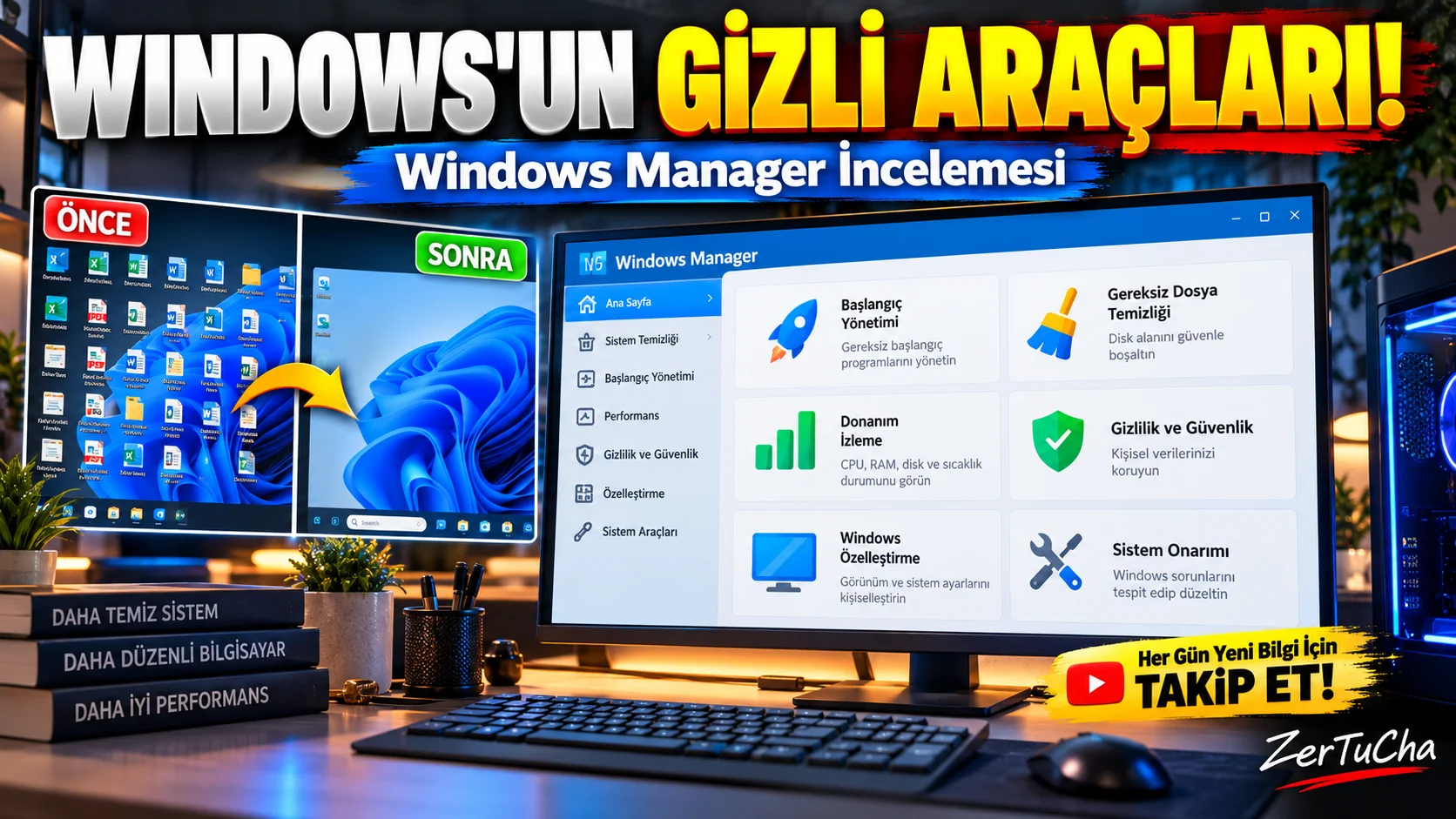
All Windows maintenance tools in one program!
Friends, if your computer has started to slow down over time, if too many programs are running while Windows is opening, if unnecessary files are accumulating on your disk, or if you want to change some settings of Windows, the program I will show you today may interest you.
The name of our program is Yamicsoft Windows 11 Manager. But there is a small detail: On the developer's current product page, the program is no longer Windows Manager and supports both Windows 10 and Windows 11.
So what does this program do?
Normally, we go to a setting of Windows to manage startup applications, another tool to clean unnecessary files, and a different section to see system information. Windows Manager, on the other hand, combines cleaning, maintenance, repair, privacy, network management and personalization tools in a single interface.
But does it really speed up the computer? Is it free? Are all the tools in it safe to use? Let's take a look together.
1. Manage unnecessary programs that run when the computer starts
In my opinion, one of the most useful parts of the program is the startup manager.
You turn on your computer, but it takes a long time for the desktop to appear. Even after Windows starts, the computer cannot recover for a while. One of the reasons for this may be the large number of applications that start automatically with Windows.
Startup Manager helps you view and manage programs running at startup.
Usage as follows:
-
Open Windows Manager.
-
Enter the Startup Manager section.
-
Examine programs that start with Windows.
-
Identify applications that you recognize and that do not need to run at every startup.
-
Check what the app does before disabling it.
For example, you can remove a music application that does not need to run or a utility that you do not use from the startup as soon as the computer starts.
However, do not turn off hardware-related components such as the graphics card, sound, security or touchpad just because you do not recognize the name. Not every startup entry is redundant.
Also, reducing startup applications may improve startup time, but it does not provide the same speed increase on every computer. The result depends on which applications are running and the current state of the computer.
2. Find files taking up disk space
Now let's talk about storage issues.
There may be hundreds of gigabytes of files on your computer, but you may not know which of them takes up how much space.
Disk Analyzer in Windows Manager helps you analyze the disk usage of folders and files.
For example, if you are running out of free space on your C drive, you can find large folders and examine which files take up a lot of space.
The program also includes tools for cleaning temporary and unnecessary files.
The important distinction here is: Disk Analyzer helps you understand where files are; Not every large file is a file that needs to be deleted.
For example, your video projects, photo archives or game files may be taking up a lot of space. Deleting these as unnecessary files may cause serious data loss.
When cleaning, check what the file is and do not delete personal files that you are not sure about.
3. One-click cleaning and repair tools
Another notable feature of Windows Manager is its automation tools that combine multiple maintenance tasks.
1-Click Cleaner can run some cleanups of junk files, registry, privacy traces, and startup items in a single flow.
1-Click Fixer provides tools to fix some common Windows problems. You can also examine different system problems in the Repair Center section.
These may seem especially useful for people who do not want to deal with Windows settings too much.
However, I have an important advice for you here: Just because a program says "Clean with one click" does not mean that you should run it without thinking about all the options.
Examine what changes will be made, especially those related to the registry and system settings. If possible, create a system restore point first and backup your important files.
If there is no problem with your computer, it is not necessary to constantly run all maintenance options just to make it faster.
4. Change the appearance and right-click menu of Windows
If you are bored with the standard appearance of Windows, you may like this section.
Windows Manager doesn't just focus on cleaning up the computer; It also includes tools for customizing the Windows interface.
For example:
-
You can change some of the behavior of File Explorer.
-
You can customize the Start menu and taskbar.
-
You can manage the options in the right-click menu.
-
You can edit the Win+X menu.
-
You can change the navigation area and This PC view of File Explorer.
-
You can edit some shortcut and quick launch options.
Context Menu Manager tool may be useful, especially if you have accumulated options in the right-click menu that you do not use.
The relevant customization options may also be useful for those who want a layout similar to the classic menu of Windows 11. However, the available settings may vary depending on the Windows version and the program version.
If you encounter unexpected behavior after making a change, it is important to know which setting you changed. Therefore, I recommend that you proceed one by one instead of changing everything at once.
5. Track hardware and running processes
When your computer slows down, sometimes just looking at the task manager may not be enough to find the source of the problem.
Windows Manager; It offers different tools to examine system information, running processes, Windows event logs and hardware status.
Hardware Monitor you can follow some information about processor, memory and disk status. Process Manager helps you review running processes.
For example, if the processor usage is increasing even though you are not doing anything on your computer, you can investigate which processes are consuming resources.
But high processor or memory usage does not always mean there is a virus. Windows updates, scans, games, and video editing applications can also consume resources.
Before closing a transaction, investigate what it does. In particular, do not randomly terminate Windows system processes.
6. Privacy and file security tools
There are also different tools in the Security section of the program.
Privacy Protector offers options to remove some usage and browsing traces. File Security includes features to protect sensitive files, and Security Lock includes features to restrict access to some applications and system settings.
Some versions also include the File Undelete tool to recover deleted files.
It is necessary to distinguish two things here.
First, cleaning up traces of usage does not make you completely anonymous on the internet. This process may remove certain traces, such as browser history or some local usage records; It does not erase all traces of you from your internet service provider, websites or online accounts.
Secondly, the ability to recover deleted files is also not guaranteed. If the file has been overwritten with new data, the chances of recovery may be reduced. If you accidentally deleted an important file, it would be better to write as little as possible to that disk.
7. Manage network settings and Wi-Fi connections
Don't think that Windows Manager only offers cleaning and customization tools. It also has options for network management.
Wi-Fi Manager helps manage registered wireless networks. IP Switcher can allow you to switch between saved configurations for different networks. Network Monitor offers tools to monitor network traffic.
For example, you use your laptop both at home and at work and you need different IP configurations in these networks. Switching between saved profiles can be useful in this case.
However, changing network settings incorrectly may disrupt your internet connection. If you don't know which setting does what, keep the default configuration or note the current values.
Also, if your internet speed is low, changing the network settings of this program does not necessarily increase the speed. The problem may be caused by the modem, the Wi-Fi signal, the internet service provider, or server-side conditions.
8. Does Windows Manager really speed up the computer?
Let's come to the most curious question.
Short answer: It may help in some cases, but it won't magically speed up every computer.
If unnecessary applications are running at startup, reducing them may improve startup. If temporary files take up a lot of space on the disk, cleaning can free up space. If there is a faulty setting or a specific Windows issue, the relevant repair tool may be able to help.
But if the reason for your computer's slowness is insufficient RAM, an old mechanical disk, overheating, hardware failure or a busy application, maintenance software alone cannot solve this problem.
Similarly, cleaning the registry does not necessarily provide a noticeable performance increase on modern Windows systems.
Therefore, it is more accurate to consider the program not as a miracle accelerator, but as a utility that brings together Windows maintenance and management tools.
9. Free or paid?
A 20-day fully functional trial version is offered on the current product page of Windows Manager. To continue using it after the trial period, you need to examine the paid license options.
The manufacturer lists annual, bi-annual, and lifetime use options. There are also conditions such as the license can be used on more than one computer.
However, since prices and license conditions may change, I recommend you check the official purchase page instead of giving an old price here.
Remember that: It is already possible to manage startup applications, control storage space and view system information with Windows' own tools. Therefore, if you only want to do one job, you may not need an additional program.
The real advantage of Windows Manager comes when you want to access many different tools from a single interface.
10. Advantages and disadvantages
Advantages
-
Able to manage startup applications and Windows services.
-
Offers disk analysis and junk file cleaning tools.
-
Can customize the Windows interface and right-click menu.
-
Makes it easy to review system information, operations and hardware status.
-
Combines privacy, file security and network management tools.
-
Provides protection options such as system restore point and registry backup.
Disadvantages
-
Uses a trial and paid license model instead of a free, indefinite full version.
-
Since it contains many tools, it may seem complicated for beginners.
-
Changing some settings incorrectly can cause problems in Windows.
-
Cleaning and optimization operations do not provide significant performance increases on every computer.
-
It may not be necessary to purchase additional software for some operations that can be performed with Windows' built-in tools.
11. Who should use it?
Windows Manager; It can be considered for users who want to maintain their computer regularly, manage startup programs, access hidden or messy settings of Windows more easily, and collect different auxiliary tools in one place.
Especially those who manage multiple Windows computers or those who like system customization can benefit from the program's extensive toolset.
But if you just want to delete unnecessary files, Windows' own Storage settings and Disk Cleanup options may be sufficient. Even if there is no problem with your computer, I do not recommend constantly cleaning the registry just to speed it up.
In summary, friends, this software, known as Yamicsoft Windows 11 Manager, currently known as Windows Manager, is a comprehensive toolbox for those who want to collect Windows maintenance and customization in one place.
The strongest point is not that it only does one job; It brings together many options, from startup management to disk analysis, from privacy tools to network settings.
But it is important to use it correctly. Do not randomly change unfamiliar system settings, take a backup before cleaning the registry, and do not believe that every optimization tool will speed up the computer.
Do you use such maintenance programs on your computer, or do you prefer Windows' own tools? Share in the comments.


Henüz yorum yapılmamış. İlk yorumu siz yapın!
Bir Yorum Bırakın