

Connect Your Phone to the Monitor, Use Apps in Separate Windows: Android Desktop Mode
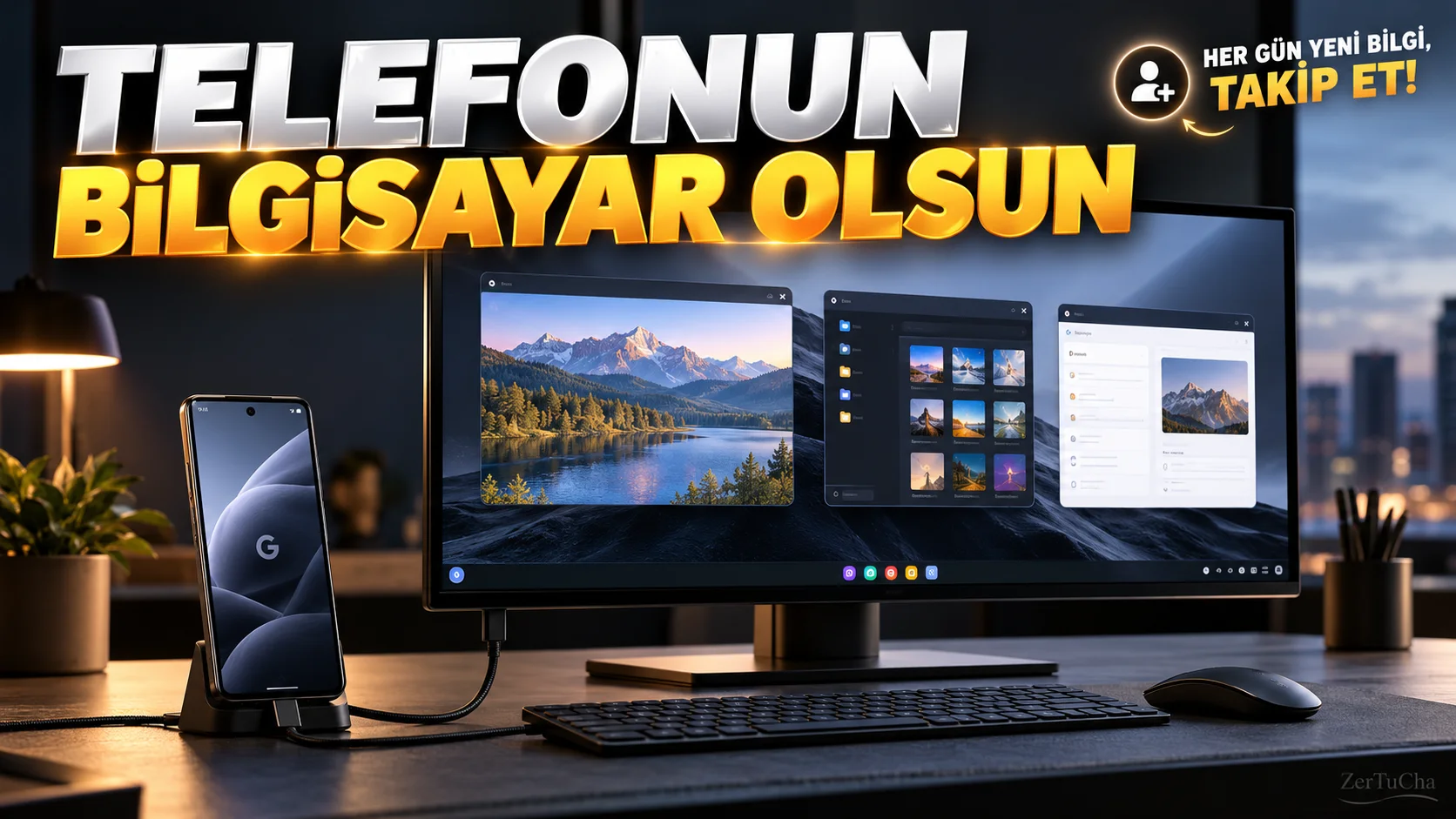
Version and compatibility: Android 16 QPR1 and later compatible versions; desktop windows and external display usage depends on supported Pixel devices. Google announced desktop working experience that supports multiple resizable windows with Android 16. The first version of Android 16 should not be confused with later updates. blog.google
What problem does it solve?
When you're reading a document on your phone, you have to switch to another app, check messages, and work through files. Instead of constantly switching applications, you can turn your phone into a desktop-like workspace on an external monitor.
Android's desktop windows allow you to open multiple applications on the same screen on supported devices and move and resize their windows. This is a more flexible working arrangement than the classic single app and split screen usage. blog.google
Step by step usage
-
Verify your device. Check your phone's Android version in Settings → About phone. Don't assume desktop mode is available; The supported model and software version are important.
-
Check display output. Verify that your phone supports image transfer to an external display via USB-C. The presence of a USB-C input alone does not guarantee video output support.
-
Connect monitor. Use a compatible USB-C–HDMI adapter or direct USB-C display cable. Select the correct input source on the monitor.
-
Open desktop interface. Once the desktop experience is enabled on supported software, follow the on-screen instructions. If the desktop interface does not open automatically, check Android's display and connected device settings; The menu path may vary depending on the device and version.
-
Launch multiple applications. For example, open a browser, document application, and messaging application. Place application windows in separate locations on the monitor.
-
Resize windows. Adjust the size of the window by dragging it from the edges. Thus, the document can remain open on one side and the research page on the other.
-
Try input devices. Connect a keyboard and mouse via Bluetooth or USB if supported. Test text typing, window switching and selection operations.
Expected result
With a compatible phone and monitor, you get a larger workspace where you can use applications in separate windows. This is especially useful for research, document review, and multi-application use.
What should you do if it doesn't work?
- If there is no image on the monitor, check that the adapter supports display output and the correct display input is selected.
- If the desktop interface does not open, verify the Android version and support status of your phone.
- If the window sizes do not change, check whether the relevant application supports desktop windows.
- If there is a problem with the mouse or keyboard, reconnect the device and check if the operating system recognizes the input device.
Security, privacy and licensing
- Displaying notifications or open documents on the external display may expose nearby persons to sensitive information.
- Be careful of unknown USB devices and data access permissions when connecting your phone to a public monitor.
- Hardware and feature support required for this use vary by model; Not every Android phone works like a desktop computer.
- External monitor, adapter, keyboard and mouse may be hardware that needs to be purchased separately.
Official source:
Independent verification:

Henüz yorum yapılmamış. İlk yorumu siz yapın!
Bir Yorum Bırakın