

Is Your Samsung Phone Running Out of Battery Fast? Check Background Apps
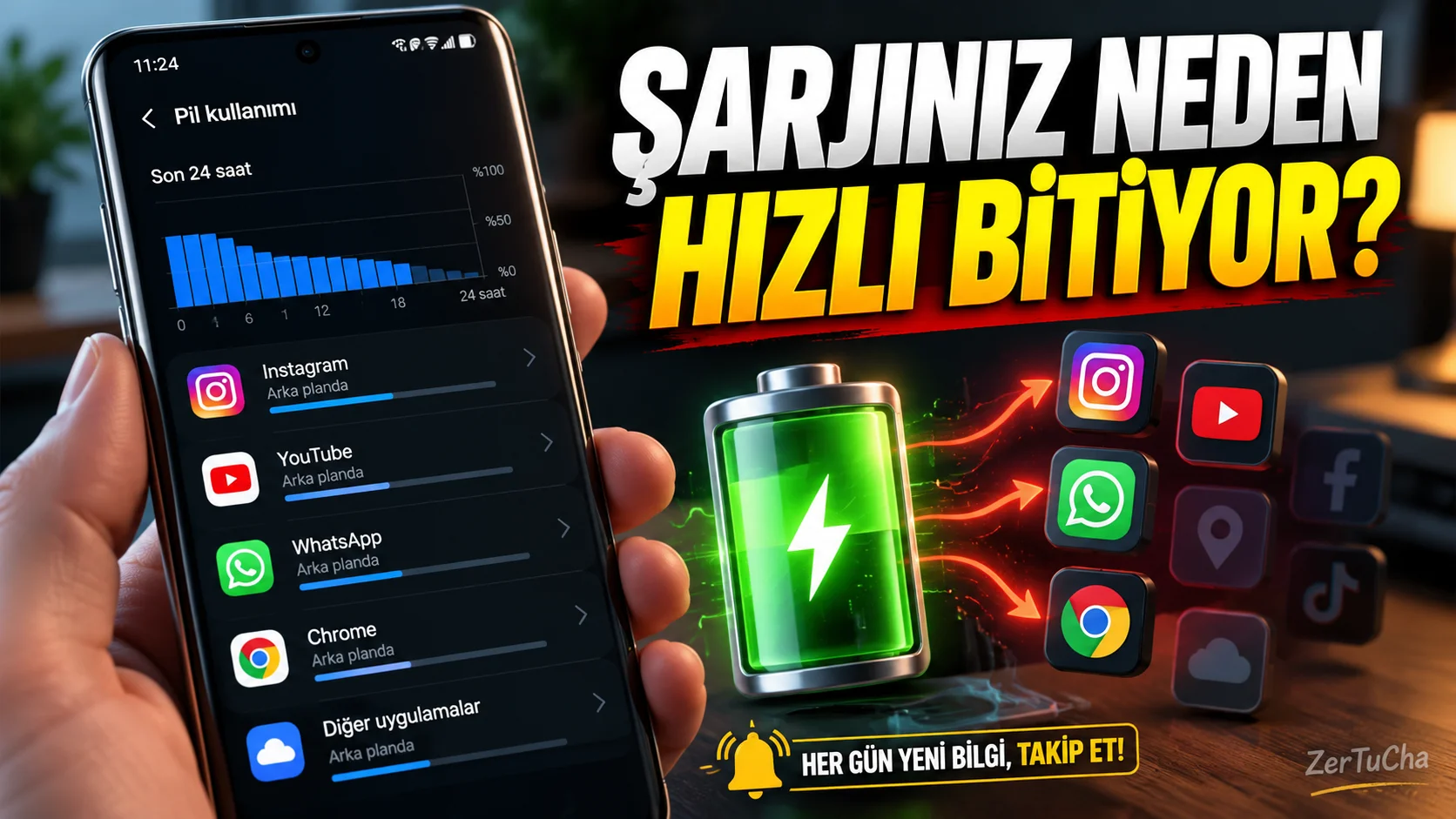
Hidden Battery Saver in Samsung Phones! Put Apps You Don't Use to Sleep
If your phone's battery drains faster than you expect during the day, the problem may not only be the screen brightness. Some apps may continue to run in the background even if you haven't opened them.
found on Samsung Galaxy phones Background usage limits settings help limit background activity of unused applications.
Samsung's official support documentation explains the options for putting unused applications to sleep, managing sleeping applications, and viewing applications that are put into deep sleep. The appearance of the menus may vary depending on the model and software version. Samsung nl
What does application sleep mean?
Samsung phones may have different options for using the background:
- Sleep unused applications: Allows applications that you have not opened for a long time to be automatically put to sleep.
- Sleeping apps: Lists applications whose background activities are restricted.
- Deep sleeping applications: Lists applications that are blocked from running in the background.
- Apps that never sleep: Lists the applications you want to continue running in the background.
These options help you manage when your phone runs applications. However, notifications or updates may be delayed in applications with limited background. Samsung nl
1. Find background usage limits
Try these steps on your Galaxy phone:
- Settings application.
- Battery.
- Background usage limits.
- Check the status of the auto-sleep unused apps option.
- Examine application lists.
Menu names or locations may be different on some Galaxy models. Background usage limits or Sleeping apps might also help. Samsung nl
2. Sleep apps you don't use
For example, consider a shopping app that you only open a few times a month.
If you do not need this application to constantly run in the background, you may consider adding it to the list of hibernated applications.
- Open the background usage limits screen.
- Select the sleeping apps list.
- Use the append option.
- Select the app you want to sleep.
- Confirm transaction.
This method can be especially useful for applications you rarely use.
3. Be careful with applications that are put into deep sleep
Applications that are hibernated will not run in the background unless you open them.
This may prevent background updates and notifications from arriving in some apps. Therefore, putting all applications into deep sleep indiscriminately is not the right approach.
Applications that may be suitable for deep sleep:
- Shopping apps you rarely use
- Campaign applications that do not require constant notifications
- Some games you open from time to time
- Applications that you do not need to run in the background when not in use
Applications you should be careful with:
- Messaging apps
- Applications where you need instant email notifications
- Navigation and location services
- Applications that send important safety or health notifications
Make the right choice based on the type of application and your usage pattern.
4. Find out which app is consuming battery
Check the battery usage information on your phone instead of guessing.
- Settings > Battery section.
- Locate the battery usage screen.
- Check out battery consumption of apps.
- Identify applications that show unexpectedly high consumption.
- Evaluate the background usage settings of these applications.
Just because an app consumes high battery doesn't always mean it's faulty. For example, watching videos or using navigation for a long time may normally consume more energy.
5. What should you do if notifications are not coming?
If notifications started to lag after putting an app to sleep:
- Enter the background usage limits screen.
- Check which list the relevant application is in.
- If necessary, remove the application from the sleeping or deep sleeping applications list.
- For applications that you want to run continuously Apps that never sleep.
- Check if notifications are working properly again.
Samsung notes that these settings may restrict some background functions. Therefore, the goal is not to close all applications, but to limit background activities that you do not really need. Samsung nl
What should be the realistic expectation?
This setting may help extend the phone's battery life, but it's not a miracle worker. Earning; Depends on phone model, applications, network conditions and usage habits.
If the charge still drains too quickly, check the battery usage screen, keep the phone software updated and have the general condition of the battery checked if necessary.
Official source: Samsung Galaxy battery management guide



Henüz yorum yapılmamış. İlk yorumu siz yapın!
Bir Yorum Bırakın