

RUFUS: Prepare the Windows Installation USB Yourself!
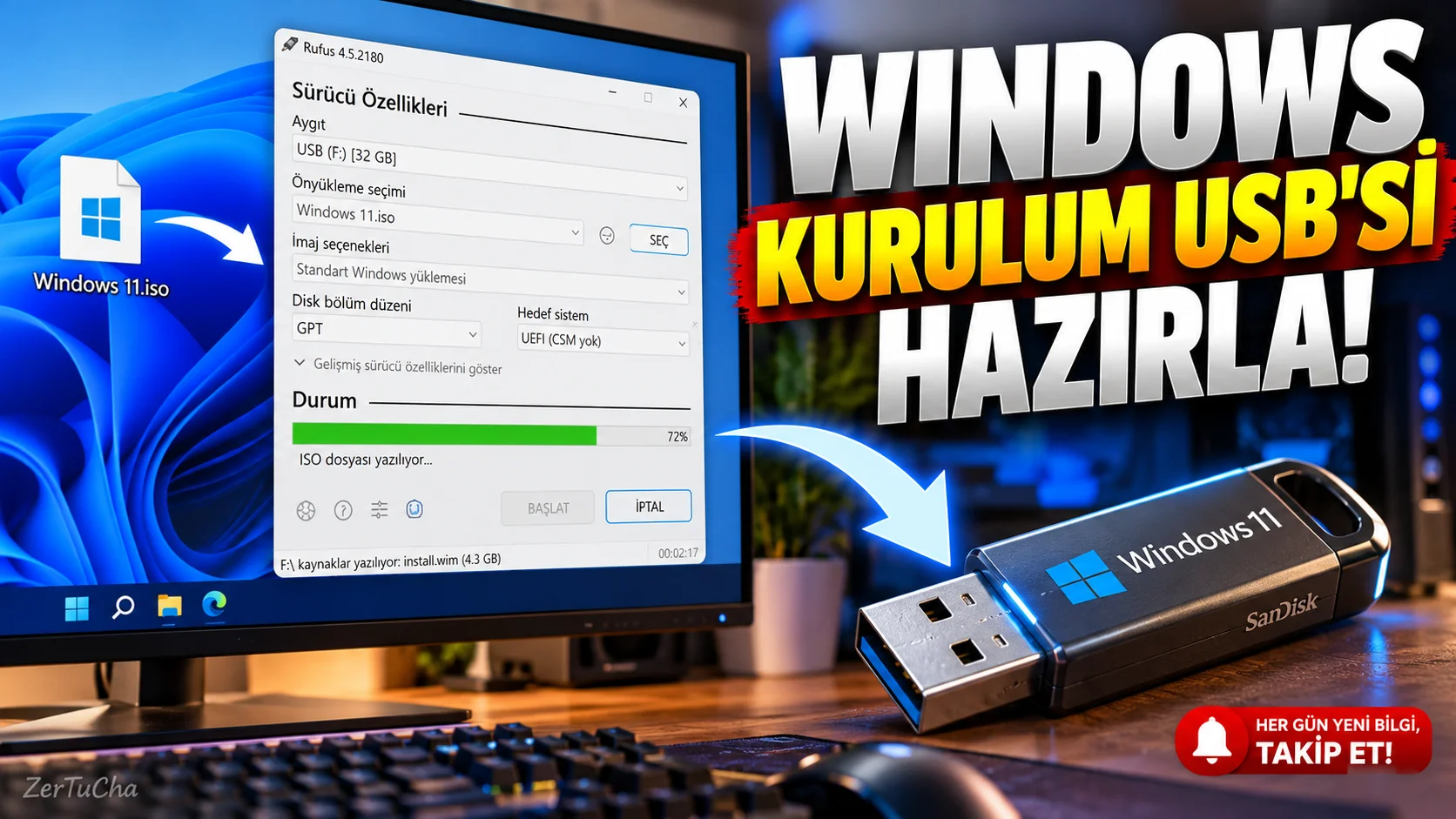
You want to reinstall Windows, repair a computer, or try Linux. You may need to prepare a bootable USB for this.
Rufus is a tool that prepares bootable USB drives from ISO files. It simplifies operations such as creating installation media and burning different operating system images to USB. The program runs on Windows and is available under GPL license on the developer's official website. Rufus
Creating a Windows installation USB step by step
1. Prepare your USB memory.
Use a USB memory stick with sufficient capacity. If there are important files in it, copy it to another location.
Important: Writing to USB with Rufus may delete data on the selected drive.
2. Get the Windows ISO file.
Download the Windows installation file from Microsoft's official distribution channel. Do not use ISO files from unknown sources.
3. Open Rufus.
Get the program from the developer's official website. Rufus can run as a portable application that requires no installation in its many versions. Rufus
4. Select the USB device.
Device field. If there are other external drives connected to the computer, make sure you do not accidentally select them.
5. Select the ISO file.
Select Disk or ISO image from the Boot selection area and open the ISO file you downloaded with the Select button.
6. Specify the partition layout.
GPT is often preferred for modern UEFI systems. Legacy BIOS-based systems may require different partition layouts. Take into account the boot method of the target computer here.
7. Press the start button.
After checking the options, click the Start button.
8. Confirm data deletion warning.
Rufus may display warnings indicating that the contents of the USB may be deleted. Do not proceed without making sure you have selected the correct driver.
9. Wait for the process to complete.
After the process is completed, remove the USB memory safely.
10. Test the installation media.
Select USB from the boot menu of the computer on which you will install. Check if the installation screen is reached; If you do not want to install, do not continue with the disk formatting or installation steps.
In what situations is it useful?
- When you want to clean install Windows.
- When you want to try a Linux distribution.
- Trying to repair a computer whose operating system will not boot.
- When creating bootable USB from ISO file.
Things to consider
Just because Rufus works correctly does not mean that the ISO you choose is valid and compatible with the target computer. Incorrect architecture or boot settings may cause the USB not to boot.
Also check the official hardware and security requirements of the target operating system when using the advanced Windows installation options that Rufus offers.
Official source: Rufus – Official download and usage page


Henüz yorum yapılmamış. İlk yorumu siz yapın!
Bir Yorum Bırakın