

Overlooked Innovations in One UI 9: How to Customize Quick Settings on Samsung Phones?
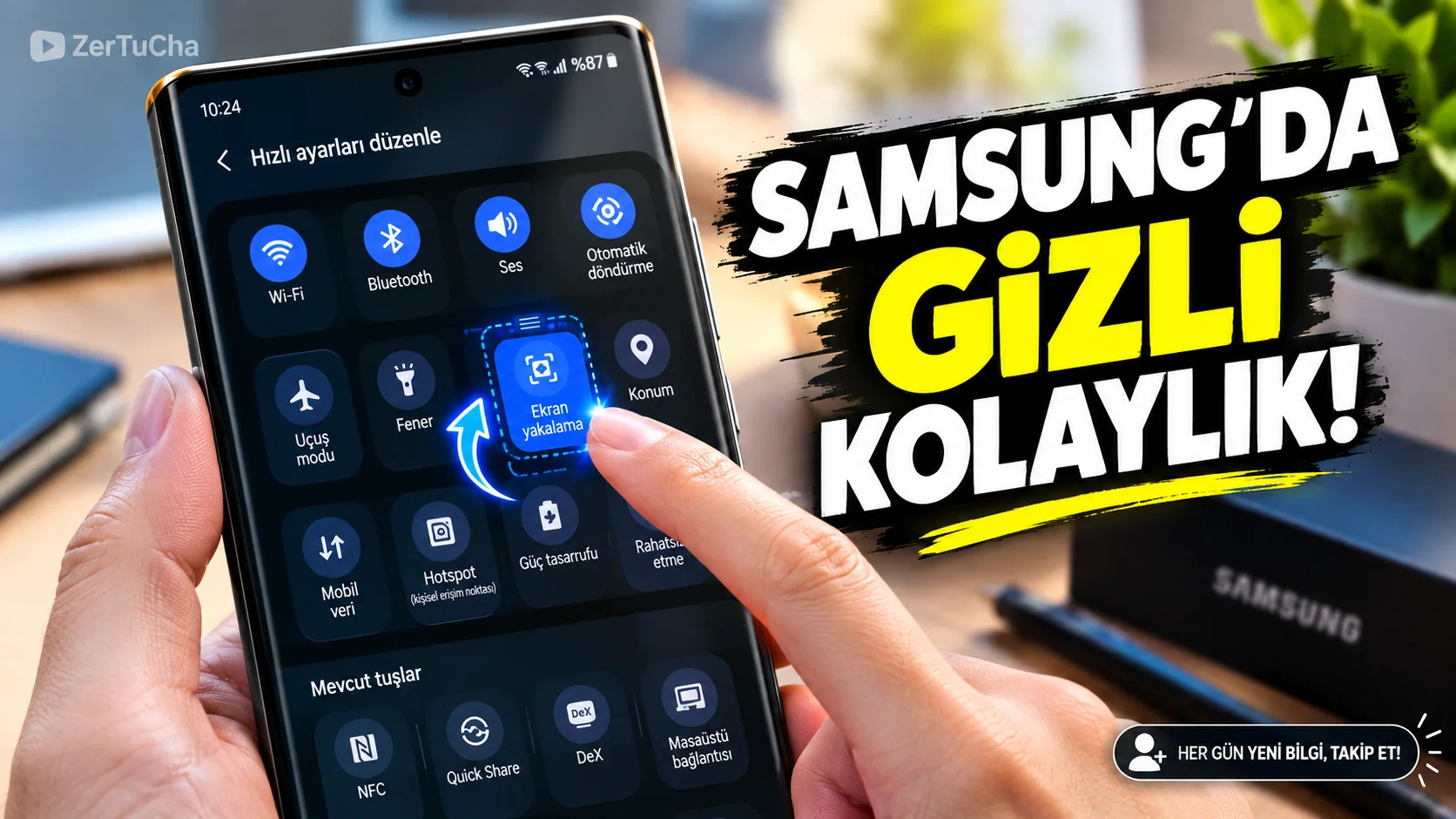
Why do the settings you use on your Samsung phone seem further away than before?
The quick settings panel on Android phones allows you to quickly access frequently used functions such as Wi-Fi, Bluetooth, sound mode and screen brightness.
However, when the operating system is updated, the location of some buttons may change. When you continue to use your phone with old habits, you may unnecessarily navigate through menus to find a feature.
Android Authority's One UI 9 review dated October 8, 2026 states that the layout of the quick settings panel has changed in Samsung's new interface and some controls have become more easily customizable.
The goal here is not to magically improve the phone's performance; Moving your frequently used controls to a more easily accessible place.
How do you organize the quick settings panel?
Options may vary depending on One UI version and phone model. Therefore, the following steps should be considered as a general guide for the supported One UI 9 interface.
-
Open quick settings panel. Swipe down from the top of the screen. In some interfaces, swiping a second time opens the full panel.
-
Search edit mode. There may be a pencil icon or an option similar to Edit.
-
Examine available buttons. Check the order of options such as Wi-Fi, Bluetooth, mobile data and screen recording.
-
Move your frequently used buttons to the front. If the interface allows, change their positions by drag-and-drop.
-
Remove buttons you don't use. Move controls that create unnecessary crowding on the panel to the supported editing area.
-
Save changes. Finish editing with Done or similar button.
-
Test by reopening the panel. Verify that a control appears where you expect it, such as Wi-Fi or sound mode.
This method is used to edit the interface only. Not all buttons are moved the same way and some controls may be fixed by the manufacturer.
What should you do if the feature is not visible?
First, check if your device is actually on One UI 9. Features of the version reviewed by Android Authority may not be available on all Samsung phones with older One UI versions.
Settings → About the phone → Software information. Menu names may vary depending on model and region.
If the edit icon is not visible, make sure the quick settings panel is fully opened. Additionally, if you use a business phone, some corporate governance policies may restrict changing certain controls.
Why does this change work?
Being able to open a setting you use many times during the day with two swipes seems like a small convenience. However, shortening the access time for frequently repeated operations may improve the usage experience.
For example, if you use screen recording frequently, moving this button to a more accessible location may reduce the need to search for the full menu each time.
However, the quick settings panel does not replace app permissions and security settings. It simply provides a more organized access area for frequently used controls.
Quick conclusion: The most useful approach when evaluating the interface changes in One UI 9 is to organize your phone according to your habits. Check your version first, then make your frequently used controls accessible.



Henüz yorum yapılmamış. İlk yorumu siz yapın!
Bir Yorum Bırakın