

macOS: Convert HEIC Photos from iPhone to JPEG Without Opening One by One!
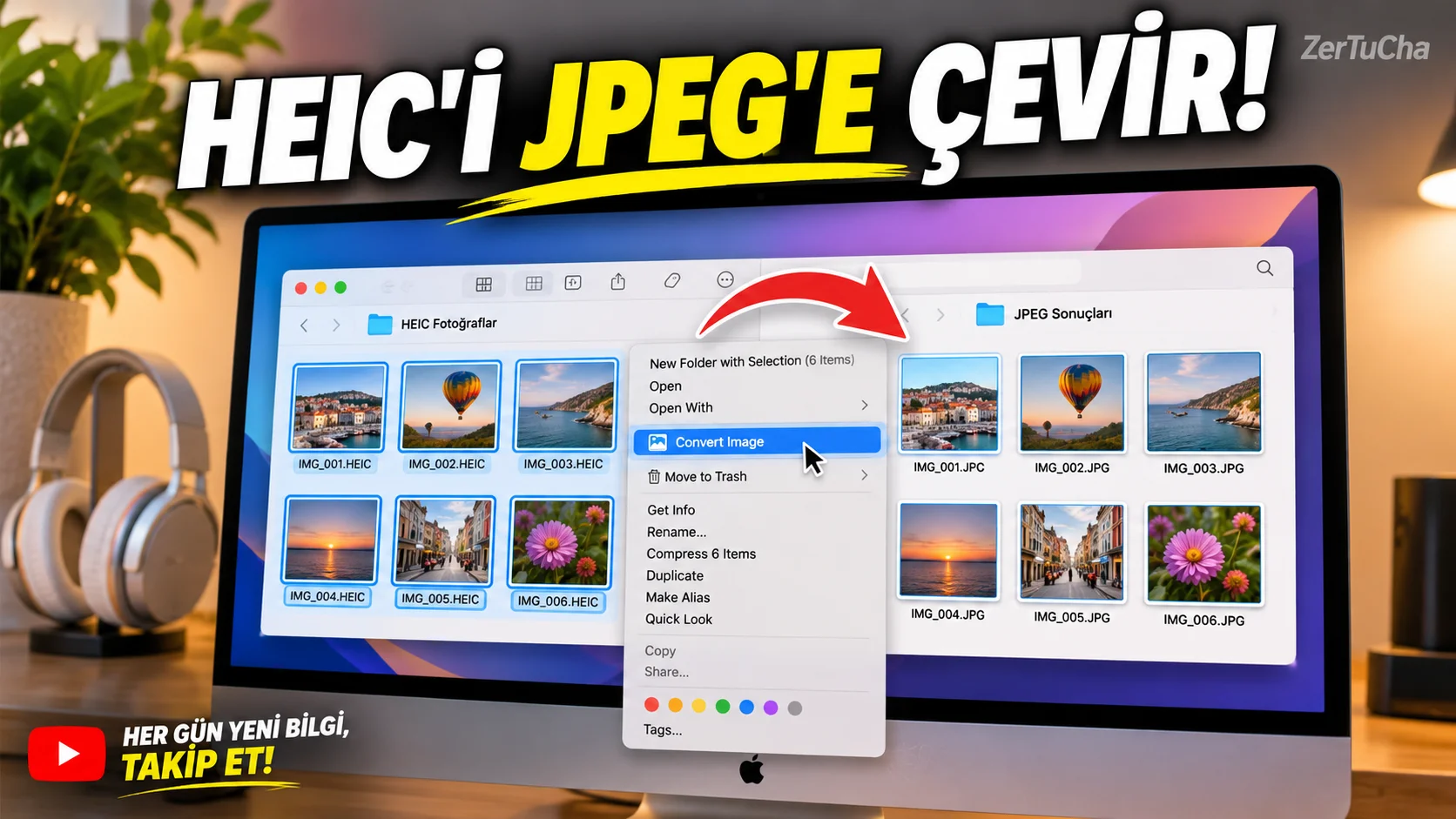
You transferred the photos you took with your iPhone to your Mac. However, a website, an old program, or another device does not accept photos in HEIC format.
You do not need to open each photo in a separate application for this. Finder on macOS Quick Actions → Convert Image feature helps you convert one or more images to other formats such as JPEG or PNG and choose an appropriate size. Apple Support
How to do it?
1. Open Finder.
Go to the folder on your Mac that contains the photos you want to convert.
2. Select multiple photos.
Select the HEIC files you want to convert to JPEG. You can select multiple files in the same operation.
3. Right click on the selection.
Control-click on one of the files or the selected file group to open the context menu.
4. Find the Quick Actions section.
In the menu Quick Actions. On some macOS versions, the corresponding process is More (More) submenu.
5. Select Convert Image.
Convert Image.
This option is one of the built-in functions described in Apple's Finder quick guide. Apple Support
6. Specify the output format.
JPEG or PNG. If you are going to upload photos to a website, choose the format accepted by the site.
7. Select the image size.
Choose the size option that suits your needs from the size options offered in the menu. If you just want to make the files compatible, don't choose an unnecessarily small size.
8. Complete the conversion process.
Confirm the operation and check the created files. If you want to preserve your original photos, test with a few files first to see how the output is created.
In what situations is it useful?
- When uploading HEIC files to websites that accept JPEG.
- When sharing photos with people using different operating systems.
- When converting a large number of photos to the same format.
- When you want to export photos in smaller sizes.
Things to consider
This method is a built-in feature in Finder; You don't need to install a conversion program separately. However, the appearance and availability of options may vary depending on macOS version, selected file type, and active Finder extensions.
Changing the display format does not necessarily mean that the file size will decrease. The result depends on the selected format, quality and size. Use a small test batch of important files first to avoid losing your original photos.
If the Convert Image option is not available in the menu, you can also use the option to convert multiple images with Apple's Preview app.

Henüz yorum yapılmamış. İlk yorumu siz yapın!
Bir Yorum Bırakın