

What Happens to Your Files If Your MacBook Is Stolen? Protect Your Data with FileVault
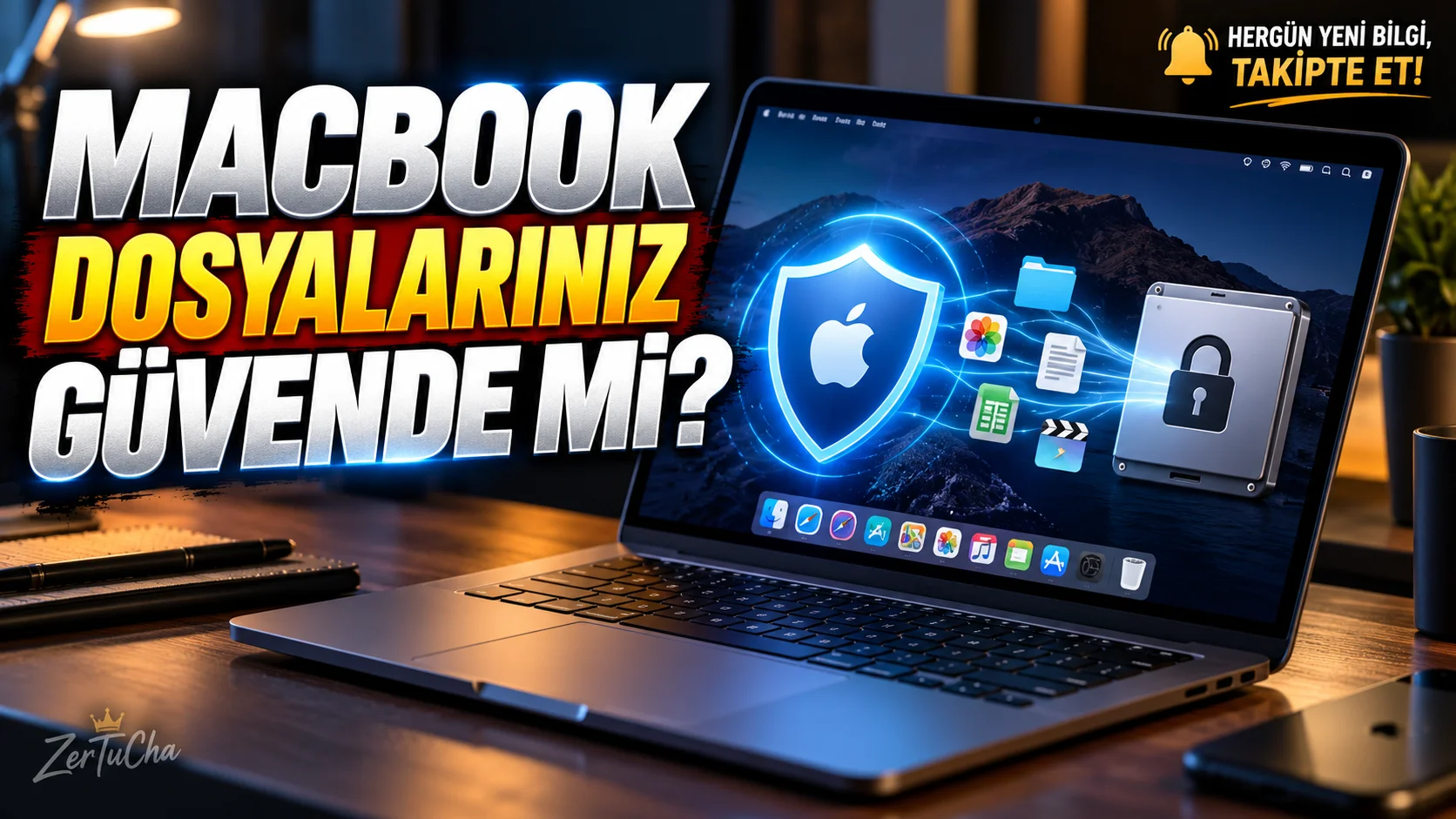
When you lose your laptop, the real risk is not just losing the device itself. Personal photos, business documents, saved files and other data on the computer may also be compromised.
Featured in Apple's macOS operating system FileVault helps encrypt data on the disk, making it difficult for anyone with physical access to your computer to gain unauthorized access to that data.
On Mac computers with Apple silicon processors or the Apple T2 Security Chip, data is already automatically encrypted. Enabling FileVault provides an additional layer of security to this protection. On older Mac models that do not have this hardware, FileVault may be a feature that must be enabled separately to encrypt data. Apple Support
What does FileVault do?
FileVault protects data on your Mac's startup disk through encryption.
Encryption helps ensure that files are not kept in a format that can only be easily read by someone who physically obtains the disk. Authorized access requires credentials or appropriate recovery method.
Can be particularly useful in these situations:
- If your MacBook is lost or stolen
- If you frequently carry your computer with you for business or travel
- If you store sensitive business documents on your device
- If you want to make it difficult for unauthorized people to access the files by connecting the disk to another computer
However, FileVault alone will not find a stolen computer, lock it remotely, or protect all your online accounts. Therefore, it should be considered along with a strong login password and other security measures.
1. Check the status of FileVault
For versions such as macOS Tahoe 26 and macOS Sequoia 15, you can follow this path:
- In the upper left corner of the screen Apple menu.
- System Settings.
- Privacy and Security.
- FileVault section.
- Check whether the feature is on or off.
Administrator privileges may be required to change FileVault settings. The menu location may vary depending on the macOS version you are using. Apple Support
2. How do you turn on FileVault?
If FileVault is turned off and you want to enable it:
- Apple menu > System Settings.
- Privacy and Security section.
- FileVault.
- Open.
- Enter your administrator password if prompted.
- Choose the recovery method you'll use to unlock your Mac or reset your password.
- Complete the on-screen instructions.
Apple may provide options to use an iCloud account or create a recovery key when setting up FileVault. Available options may vary depending on your Mac and configuration. Apple Support
3. Don't lose the recovery key
One of the most important issues you should pay attention to when using FileVault is the recovery method.
If you are using the recovery key option:
- Record the key completely and accurately.
- Keep a copy in a safe place outside the encrypted disk.
- Do not keep the key in a publicly accessible file.
- Make sure your recovery method is working in case you forget your password.
Apple warns that if you forget your login password and cannot reset it, you may not be able to access your files if you have also lost your recovery key. That's why it's important to keep the recovery method safe as well as turning on FileVault. Apple Support
4. Is the situation different for Macs with Apple silicon processors?
Yes, there is an important distinction.
Internal storage data is automatically encrypted on Mac computers with Apple silicon processors and Apple T2 Security Chip. Turning on FileVault adds additional protection to this encryption mechanism based on user credentials.
So if you're using a modern Mac, don't jump to the conclusion that "FileVault appears to be disabled, so all my files are unencrypted." The situation may vary depending on your device's hardware and security configuration. Apple Support
5. Does turning on FileVault slow down my computer?
The impact of encryption on system behavior may depend on the hardware and workload used. Leverages encryption hardware security features on Macs with Apple silicon and T2 chips.
Therefore, it would not be correct to say that the same performance impact will be experienced on every Mac. The main consideration when evaluating FileVault is how well the data on your device is protected from unauthorized access.
6. What risks does FileVault not solve?
Although FileVault is an important security layer, it alone is not sufficient against every threat.
Also apply
- Use a strong login password on your Mac.
- Install macOS updates.
- Back up your important files regularly.
- Secure your Apple account.
- Check ahead for Find My features in case you lose your device.
- Keep your recovery key in a safe place.
Result: If you carry important documents on your MacBook, checking the FileVault setting is a good security habit. But encryption and backup serve different purposes: Encryption makes unauthorized access difficult; Backup provides the opportunity to return data in case of loss or deletion.




Henüz yorum yapılmamış. İlk yorumu siz yapın!
Bir Yorum Bırakın