

You Connected a Second Monitor to MacBook, But Is It on the Opposite Side? Arrange Screens Like This
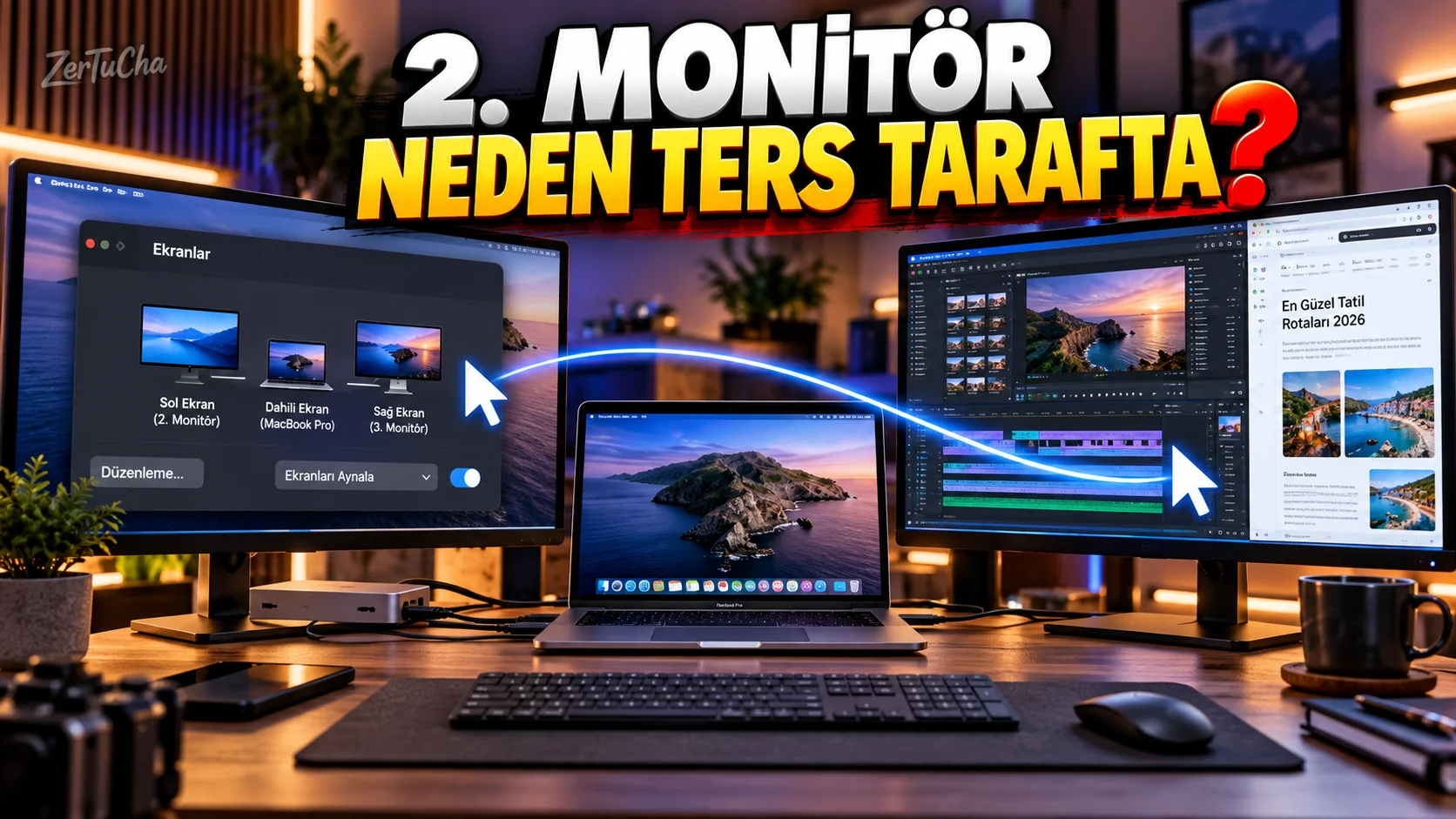
You have connected the second monitor to the MacBook.
But you move the mouse to the right…
Appears on the left screen.
A real “the computer is making fun of me” moment. 😄
Actually, the problem is not with the monitor. You need to properly arrange the physical location of displays in macOS.
Apple's current macOS documentation explains the location of external displays, the way they are mirrored, and on which screen the menu bar will be located. Displays settings.
Where are the display settings?
On Mac:
-
Apple menu
-
System Settings
-
Displays
.
Relocating the monitor
Shows the location of macOS displays when an external display is connected.
For example physically:
MacBook → left
Monitor → right
you can also position the on-screen icons in macOS accordingly.
So when you move the mouse out from the right edge of the MacBook screen, it switches to the second monitor.
Mirroring or extending the screen?
Apple offers two primary uses:
Mirror: Same image on two screens.
Extended desktop: Different content on each screen.
According to Apple's current documentation Displays → How to use menu.
Which makes more sense for content creators?
In most cases:
Extended desktop
more useful.
For example:
MacBook display: Scenario + research
External monitor: Video editing
.
Moving the menu bar to another screen
Apple's Displays settings also include the option to determine which screen the menu bar will be on.
You can select the monitor you want to use as the main screen accordingly.
Can two screens show different things at the same time?
Yes.
In extended desktop mode, you can run different applications on two screens.
For example:
Display 1: Chrome
Display 2: Final Cut Pro
Display 3: Notes
can be established.
Closing the MacBook lid and using an external display
Using an external display with the lid closed is also possible on supported MacBook and external display combinations.
In the document published by Apple for the M3 MacBook Air and MacBook Pro, it is stated that use with two external displays is supported with the lid closed under certain conditions.
In this scenario:
-
External keyboard
-
Mouse or trackpad
-
Power connection
may be important depending on the model.
If the monitor does not work
According to Apple's documentation, if the display is only mirroring via a hub or dock, one can try connecting the display directly to a port on the Mac.
Also:
-
Check cable.
-
Check adapter.
-
Check the monitor's input source.
-
Check for macOS updates.
-
Remove and reconnect the display.
Important: Not every Mac supports the same number of displays
This is very important.
Number of external displays:
-
Mac model
-
CPU/chip
-
Link used
-
Resolution
-
Refresh rate
.
For example, Apple's M3 MacBook Air supports two external displays under certain conditions.
Therefore:
“3 monitors can definitely be connected to the MacBook.”
is not true.

Henüz yorum yapılmamış. İlk yorumu siz yapın!
Bir Yorum Bırakın