

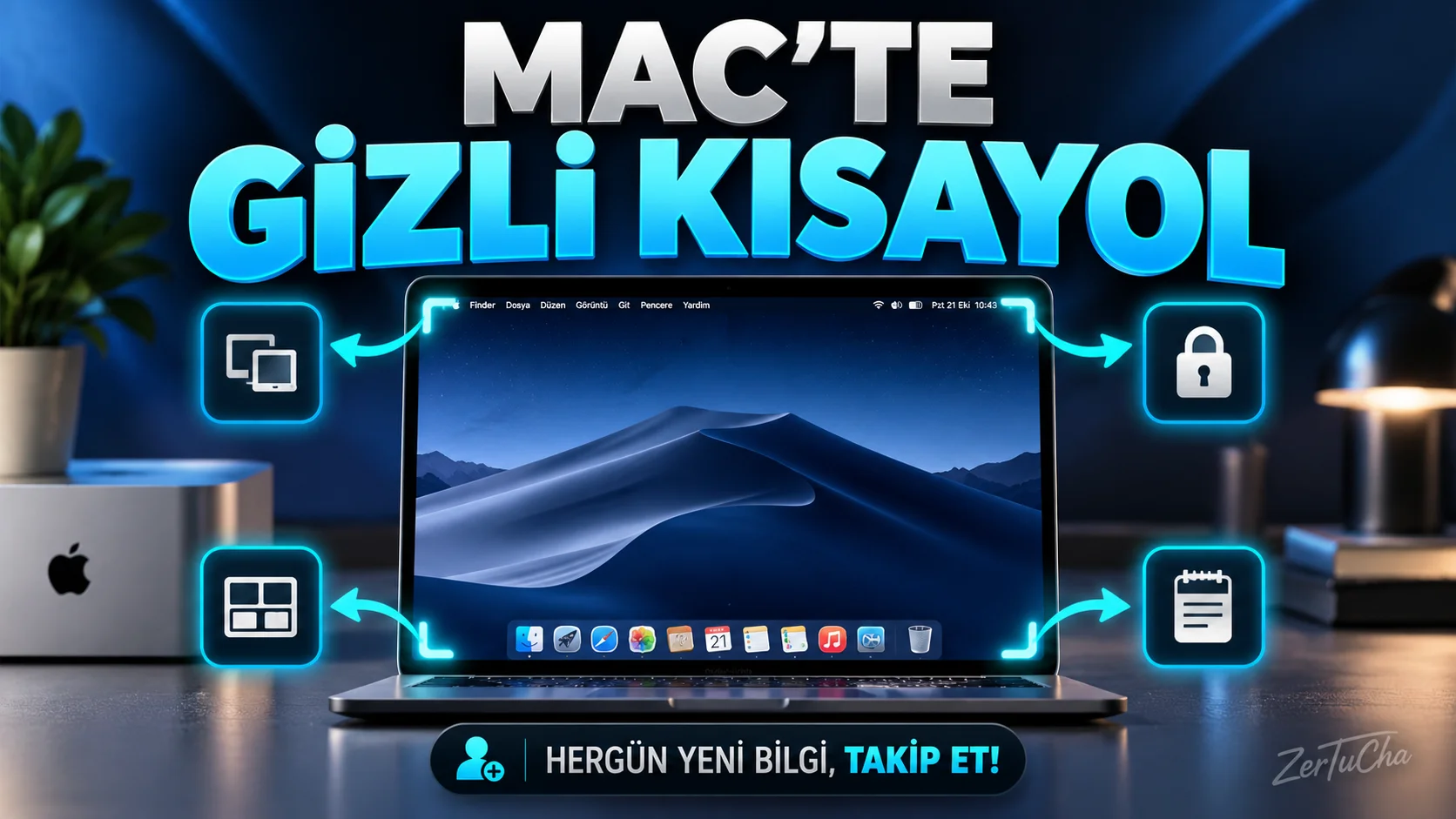
Turn Mac's screen corners into shortcuts: Hot Corners
Official source: Apple — Using Hot Corners on Mac
Problem in daily life
On your Mac, you switch between windows, return to the desktop, or lock the computer throughout the day. You don't want to remember a separate shortcut for each action.
macOS' Hot Corners feature lets you trigger an action when you move your mouse cursor to certain corners of the screen. For example, you can show the desktop, lock the screen, or open Quick Note. Apple Support
Requirements
- A Mac that supports Hot Corners.
- Access System Settings.
- A mouse or trackpad that allows you to easily reach the corners of the screen.
Menu names may vary slightly depending on macOS version. In Apple's current user guide, this setting is Desktop & Dock. Apple Support
Step by step installation
1. Open System Settings
From the Apple menu System Settings.
2. Select Desktop and Dock
In the list on the left Desktop & Dock.
3. Turn on Hot Corners setting
Scroll down to Hot Corners.
4. Select the corner you want to use
A window opens where you can specify separate actions for the four corners of the screen.
For example, you can use the upper right corner to lock the screen and the lower left corner to show the desktop.
5. Set actions
Select the action you want from the drop-down menu of each corner. Available actions may include desktop, Mission Control, screensaver, and locking the screen.
6. Reduce accidental triggering
If you don't want the action to run every time the cursor touches the corner, consider using a modifier key in the pop-up menu. Apple explains that the Command, Shift, Option or Control keys can be used. Apple Support
7. Click OK and try
Close window. Move the mouse cursor to the corner you set.
For example, if you assigned a lock screen action, verify that the lock screen is turned on.
Real usage scenario
As a content creator, you work with a browser, editing application, and file windows simultaneously. By adjusting the corner of the screen to point to the desktop, you can access the desktop without having to minimize open windows.
Using another corner to lock the screen can also be practical when leaving the computer.
What to do if it doesn't work?
- Check that the Hot Corners setting is saved.
- Reach the corner you assigned exactly.
- If you used a modifier key, hold it down during testing.
- If an action runs accidentally, move it to a less accessible corner or add a modifier key.
- If you are using an external display, check which corner of the screen the cursor reaches.
Advantages and limitations
Advantages
- No additional software required.
- Actions can be assigned to four different corners.
- Provides quick access to operations such as the desktop and lock screen.
Limitations
- Moving the mouse into a corner may be unnatural for some users.
- There is a possibility of accidental triggering.
- Actions and menu names may vary depending on macOS version.
Result
First, set one corner to display the desktop and the other to lock the screen. After using it for a few minutes, you can see whether it really works for you.


Henüz yorum yapılmamış. İlk yorumu siz yapın!
Bir Yorum Bırakın