

Can an Application See All Your Files in Linux? Check Permissions with Flatseal
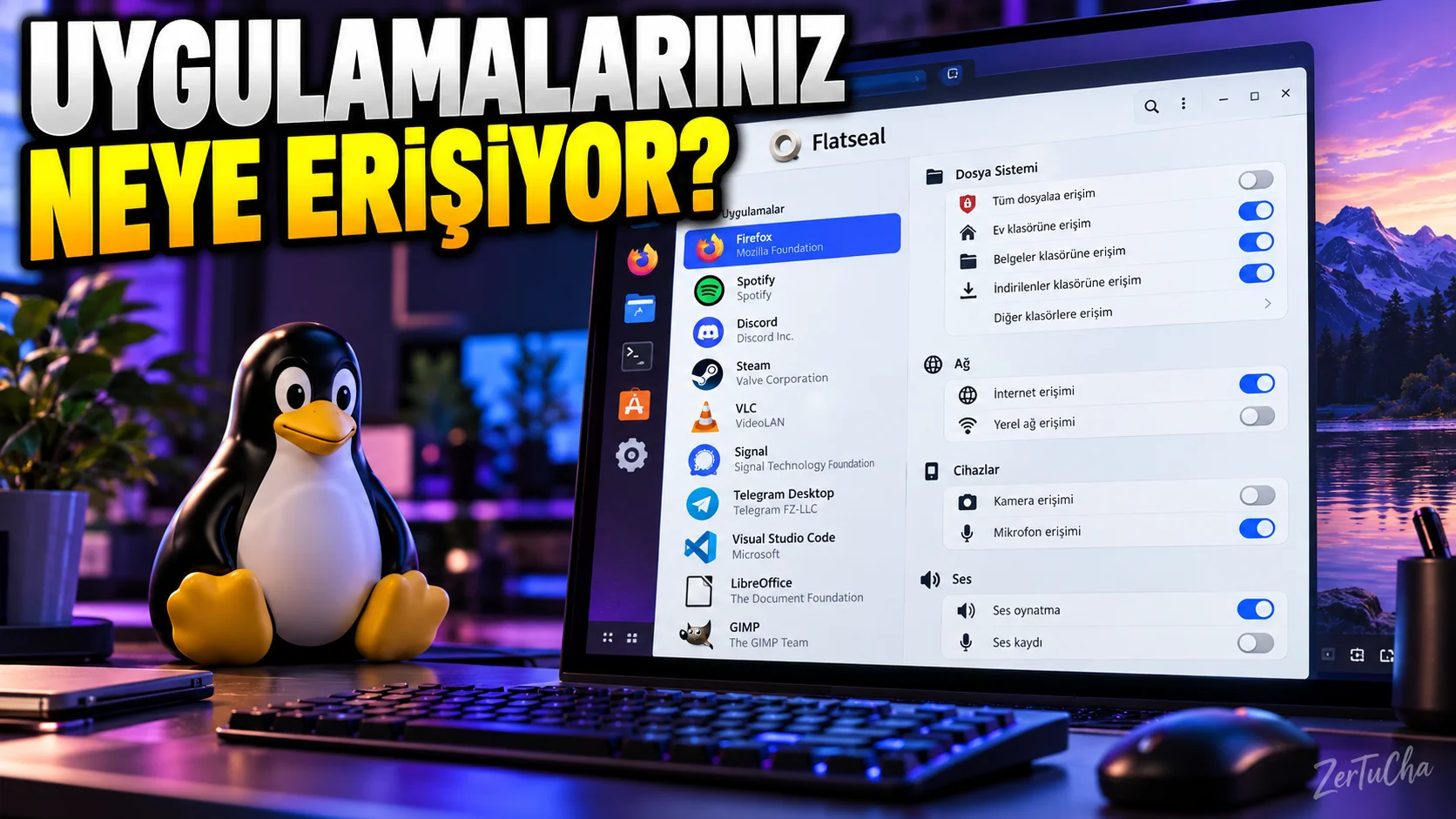
You use Linux and usually download your applications from the software store.
But have you ever thought about this?
How do you know which files, devices, or network resources on your computer an application can access?
In Linux, the Flatpak packaging system uses the sandbox approach to run applications within certain limits.
According to Flatpak's official documentation, this system can limit applications' access to the host environment by default. However, an app may need some file, network or device permissions to run. Flatpak
Here Flatseal makes it easy for you to review and manage these permissions via the graphical interface.
Flatseal is described as a utility tool used to review and change application permissions on Flathub. Flathub
1. What is Flatpak?
Flatpak is a system for distributing and running Linux desktop applications.
Applications can run within a specific sandbox, unlike traditional installation methods.
The purpose of this sandbox is to help prevent the application from gaining unrestricted access to the entire computer.
For example, a photo editing application must be able to open your photos. However, this does not require unlimited access to all personal files on your computer.
Flatpak's permission system helps manage this distinction. Flatpak
2. How to install Flatseal?
First make sure Flatpak is installed and enabled in your Linux distribution.
In a Flatpak supported distribution, you can use the following command via the terminal:
flatpak install flathub com.github.tchx84.FlatsealThe command aims to install the Flatseal application from the Flathub repository.
If warehouse confirmation or other verification is requested during installation, check the information on the screen.
You can access Flatseal's official Flathub page here:
If you do not want to use a terminal, you can also search for Flatseal in your distribution's software store.
3. Select the app whose permissions you want to review
When you open Flatseal, you can see the list of your Flatpak applications.
Select the application whose permissions you want to review.
Then check the permission categories the app has.
These may vary depending on the application's version and defined permissions.
4. Check file access permissions
Pay particular attention to these permissions:
- Access to main folder
- Access Downloads folder
- Access to Documents folder
- Accessing external drives
- Access to specific files and folders
Flatpak documentation recommends limiting file system access as necessary, granting only read permissions whenever possible, and avoiding extensive access. Flatpak
For example, a simple text viewer may not necessarily be able to read your entire home folder.
On the other hand, the file manager or backup application may need wider access.
The important thing here is not to give the same permissions to every application, but to grant the access it needs.
5. Check network access
Some applications need to connect to the internet.
For example:
- Web browser
- Email application
- Online music application
May require network access.
However, if an application that does not need to connect to the internet has network access, you can also consider this permission.
Flatpak's permission system can also manage network access for applications. Flatpak
Attention: Turning off network permission may render some or all features of an application that requires an internet connection inoperable.
6. Camera, microphone and other device permissions
Some Flatpak apps:
- Camera
- Microphone
- Sound system
- Graphics
- USB devices
.
For example, the video calling application is expected to use the camera and microphone.
But it makes sense to check whether these permissions are actually required.
Flatpak's official permissions guide states that audio and some device access may be sensitive. Flatpak
7. What should you do if the application does not work after turning off permissions?
This is quite a normal possibility.
For example, you turned off file access for a photo editing application.
If it can no longer open photos, you may have restricted the access the app needs too much.
Proceed like this:
- Open Flatseal.
- Select the application you are having problems with.
- Check the last permission you changed.
- Restore if necessary.
- Restart the application and test.
Not changing multiple permissions at once makes it easier to figure out which setting is causing the problem.
8. Does Flatseal make all applications safe?
No.
Let's make this distinction clear.
Flatseal helps you manage permissions for Flatpak apps. However, it does not automatically make a malicious application safe.
Also, incorrect permission settings can disrupt the operation of applications.
Therefore:
- Download apps from trusted sources.
- Limit unnecessary permissions.
- Do not randomly open permissions you do not know about.
- If you have problems, check the last setting you changed.
9. Who is it useful for?
Flatseal especially:
- Linux desktop users
- Those who install applications via Flatpak
- Those who care about their privacy
- Those who want to control application permissions in detail
- Those who are trying to learn system security
.
Result: Installing applications on Linux alone is not enough; It is also important to understand which application can access which resources. Flatseal can make this control more understandable.




Henüz yorum yapılmamış. İlk yorumu siz yapın!
Bir Yorum Bırakın