

HANDBRAKE: LINE UP AND REDUCE 10 VIDEOS ONE BY ONE WITHOUT EFFORT!
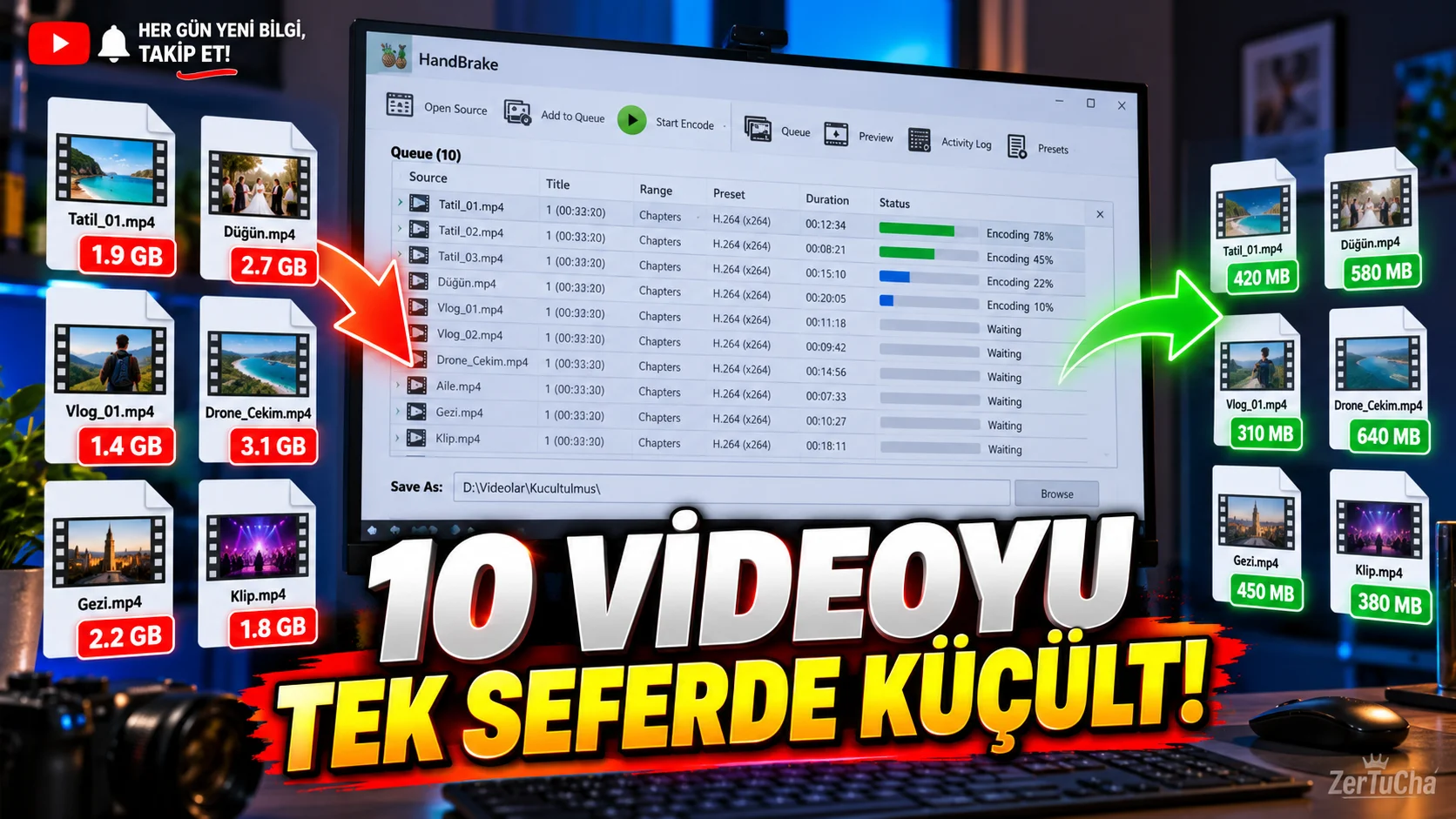
Imagine you have 10 large videos on your computer that you want to share or archive. Converting each one separately, re-adjusting the settings, and starting the process wastes time.
Free and open source HandBrake allows you to convert videos to different formats and process multiple videos. This way, you can prepare the files in advance and perform the operations one after the other. HandBrake
How to do it?
1. Download HandBrake from its official website.
Select the version appropriate for your operating system. The program is available for Windows, macOS and Linux.
2. Open the first video.
Run HandBrake and select the video you want to convert as the source.
3. Choose a ready-made quality profile.
For beginners Fast 1080p30 is a suitable starting point. This profile aims to produce output compatible with a wide range of devices and applications.
However, if your source video is 4K or 60 frames per second, this profile may reduce the resolution or frame rate. You may need to choose another profile depending on the characteristics of the source video. HandBrake
4. Specify the output folder.
Select where to save the converted files. It's a good idea to use a different folder to avoid accidentally crushing the source videos.
5. Add the first video to the queue.
Add to Queue button.
This adds the video to the job list instead of converting it immediately.
6. Add other videos.
Open a new source, select the required profile and add each video to the queue.
To batch queue multiple videos in a folder, you can also use the multi-header or queue options available depending on your operating system. There may be slight differences between Windows, macOS and Linux interfaces. HandBrake
7. Check filenames.
If you are processing more than one video, make sure the output names are different from each other. Otherwise, there may be a risk of overwriting for jobs with the same file name.
8. Start the queue.
Open the queue window and Start Queue button. HandBrake begins processing the jobs you add sequentially.
In what situations is it useful?
- When you want to transcode videos made for YouTube.
- When you want to make large video files easier to share.
- When you need to convert multiple videos with the same settings.
- When you want to pre-queue conversion operations while working on the computer.
Things to consider
Video compression does not always mean reducing file size while maintaining the same image quality. Result; Depends on the source video, selected profile, quality setting and codec used.
Conversion may use your computer's processor or hardware resources. Processing time may take longer for many large videos. First, test with a short video and check the image and sound quality.



Henüz yorum yapılmamış. İlk yorumu siz yapın!
Bir Yorum Bırakın