

Gns3 2.2.61: Create a Virtual Modem, Switch and Router Laboratory Without Disrupting Your Real Network!
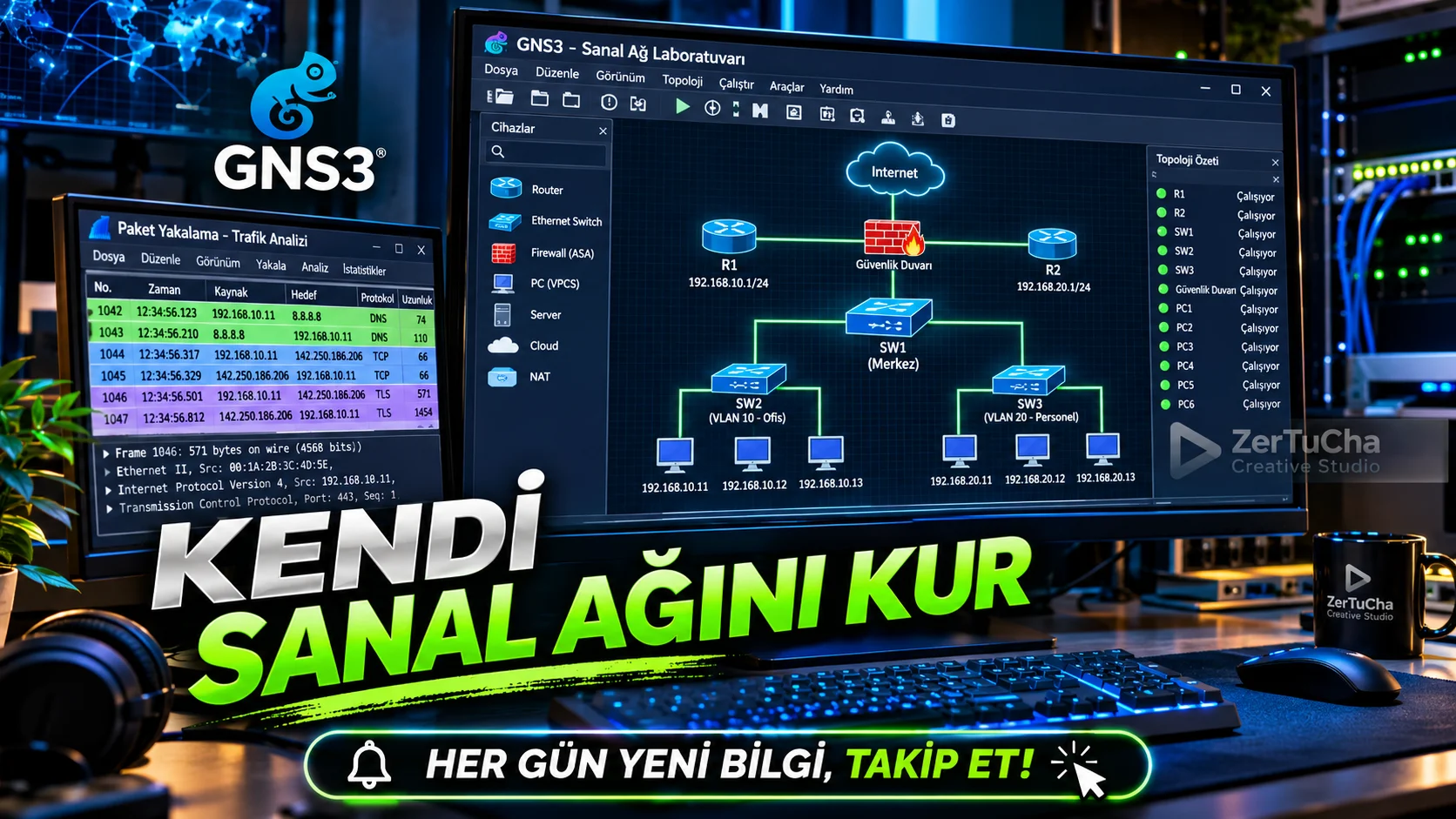
You want to become a network expert or learn network administration.
But testing on real devices:
- Expensive,
- Risky,
- Time consuming.
For example, if you configure a router incorrectly, you may disrupt your home or work internet connection.
GNS3 allows you to set up a virtual network laboratory on your computer.
In the program:
- Computer simulations,
- Virtual switches,
- Routers,
- Safety devices,
- Network connections
.
Moreover, you can examine the packets passing over the connections.
Version information
As of November 2, 2026, 2.2.61 is listed as the stable version in the official version list.
3.1.0 Alpha 7 has also been released, but this is a preliminary release. That's why I prefer 2.2.61 for daily use. GitHub
Create your first network lab step by step
In this example, we will connect two computers via a virtual switch.
1. Install GNS3.
Download the 2.2.61 version suitable for your operating system from the official download page.
Make sure that GUI and Server versions are compatible with each other.
2. Create new project.
Turn on GNS3.
Go to File → New Blank Project.
Project name:
ZerTuCha_Network_Lab.
3. Add virtual switch.
Open the Switches category from the Devices Toolbar section.
Drag the Built-in Ethernet Switch to the work area.
4. Add two virtual computers.
Drag two VPCS devices from the End Devices section to the work area.
These are:
- PC-1
- PC-2
.
VPCS is a simple computer simulator.
5. Connect devices together.
Select the Add a Link tool.
Connect PC-1's Ethernet connection to the switch.
Perform the same operation for PC-2.
This creates the following topology:
PC-1
  |
  |
switch
  |
  |
PC-2
6. Initialize devices.
Press the green Play button at the top.
Then open the Console connection.
7. Give IP addresses to computers.
To PC-1 console:
ip 10.1.1.1 255.255.255.0To PC-2 console:
ip 10.1.1.2 255.255.255.0write.
8. Test connection.
On PC-1 console:
ping 10.1.1.2command.
If you receive a response, it means that the two virtual computers can communicate.
9. Examine network traffic.
Right click on the connection line.
Use Start Capture option.
If Wireshark is installed, you can examine the captured network packets.
So you can see how ICMP, ARP and other network traffic works.
10. Save project.
Save your laboratory with File → Save.
You can create more complex networks by adding new routers and switch devices in the future. docs.gns3.com
Expected result
You can establish connections between virtual computers, try IP configurations and examine network traffic without touching your real network connection.
What should you do if it doesn't work?
- If devices do not start, check the GNS3 Server connection.
- Check IP addresses and subnet masks if PCs are not pinging.
- If the link is not working, check the link status.
- If the console does not open, check the configuration of the terminal application.
- If more advanced devices do not work, review GNS3 VM and QEMU requirements.
Security and licensing
GNS3 is an open source software licensed under GPL-3.0. GitHub
But there is an important issue:
GNS3 does not offer ready-made router and switch operating system images from all manufacturers.
Especially, you must legally obtain the Cisco IOS images yourself. I do not recommend using images obtained from unauthorized sources. docs.gns3.com
Also connecting the virtual laboratory to the real production network in an uncontrolled manner.
Official sources:




Henüz yorum yapılmamış. İlk yorumu siz yapın!
Bir Yorum Bırakın