

Docker Might Be Filling Your Disk! Securely Clean Up Unused Data
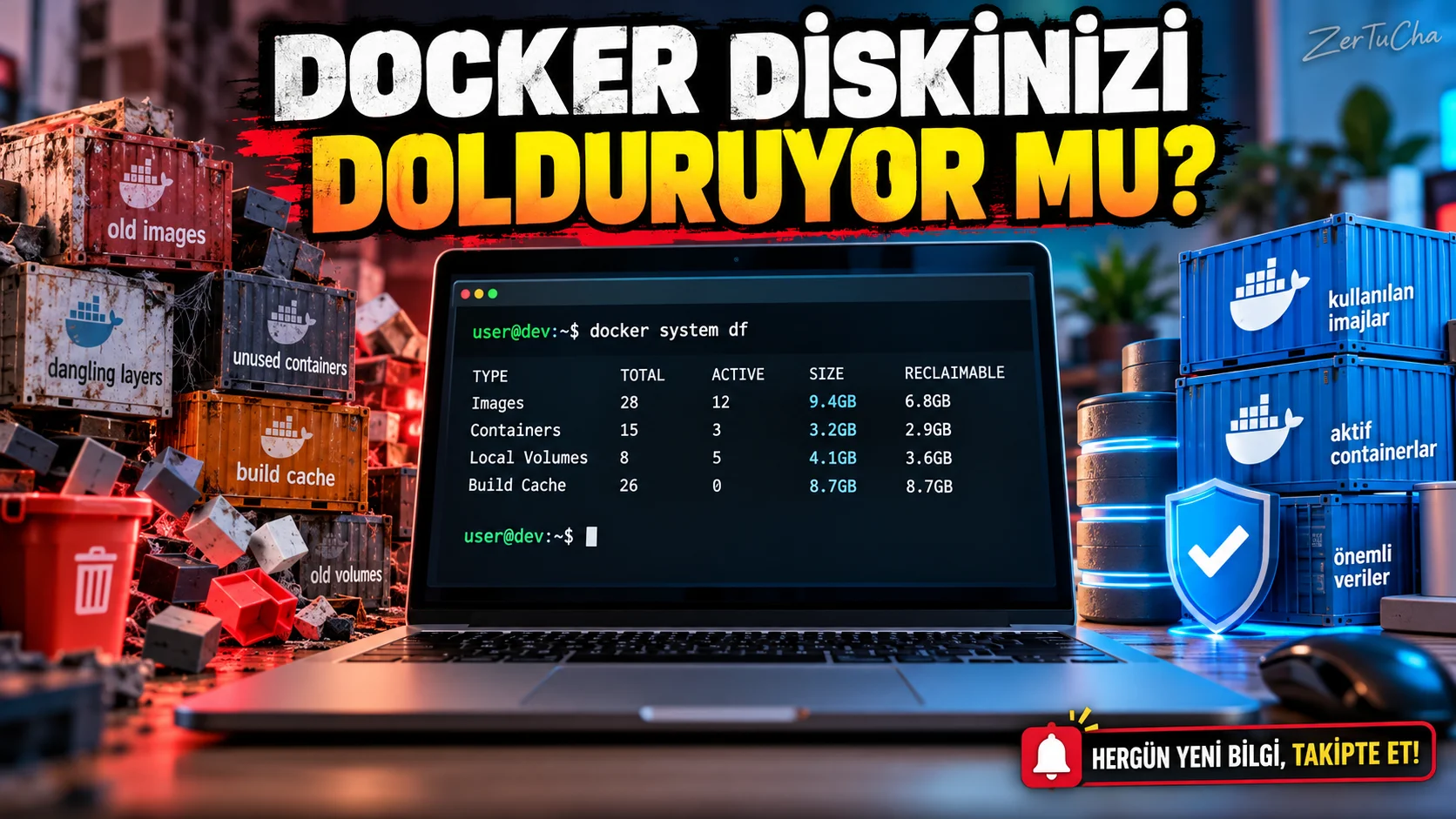
Docker helps software developers run applications in isolated environments. However, over time, unused containers, old images, and build caches can accumulate and take up unnecessary disk space.
Docker generally does not automatically delete unused objects unless you explicitly request cleanup. For this reason, developers, especially those who try many projects, should check disk usage from time to time. Docker Documentation
The purpose of this guide is not to reinstall Docker or delete all data; see what's taking up space and purge data that isn't really needed in a controlled manner.
Learn these concepts first
Before doing a Docker cleanup, let's separate a few terms:
- Image: Template used to run an application.
- Container: Running or stopped application environment created from the image.
- Volume: Storage space that can be used to persistently store data across containers.
- Compilation cache: Intermediate data that can be reused when creating application images.
The most important distinction is: Deleting an unused image is not the same as deleting a volume that holds database files. Volumes may contain application data, and accidental deletion may result in data loss. Docker is particularly cautious about automatically removing volumes. Docker Documentation
1. See how much space Docker takes up
First open the terminal. If you are using Docker Desktop on Windows, you can also run commands via PowerShell or Windows Terminal.
Enter the following command:
docker system dfThis command gives summary information about Docker's disk usage.
For a more detailed view:
docker system df -vThe second command shows the usage of resources such as images, containers, and volumes in more detail. Docker Documentation
Do not delete immediately at this stage. First try to understand which resources are taking up space.
2. Purge unused images
To purge Docker's unused and untagged images:
docker image pruneThe command warns about the objects to be deleted and asks for confirmation.
There is also the following command that provides more extensive cleaning:
docker image prune -aBut be careful: -a option deletes more images that are not associated with existing containers. If you need these images again later, you may need to download or create them again. Therefore, starting with a more limited command on the first try is a more cautious approach. Docker Documentation
3. Purge unused stopped containers
A container that has stopped running may continue to take up disk space even if it is stopped.
To see all containers first:
docker ps -aTo clear the list of stopped containers that you no longer need:
docker container pruneThis command offers to remove all stopped containers. Before you approve, make sure your list doesn't contain containers that you want to review or reuse later. Docker Documentation
4. Clear build cache separately
In large projects, the build cache may also take up space.
To clear build cache only:
docker buildx pruneThe command is used to clear the unused assembly cache of the selected compiler. If you use more than one compiler, consider which compiler is selected.
Clearing the cache may cause some steps to be redone on subsequent builds. So it may be normal for the first build to take longer after the cleanup. Docker Documentation
5. If you want to do general cleaning
After evaluating the above sources separately, the following command can be used for general cleaning:
docker system pruneDocker can clean up stalled containers, unused networks, untagged images, and unused build cache with this command. You must read the confirmation screen and accept the transaction. Docker Documentation
Attention: This command may also remove some resources you need. Before docker system df and understand what to delete.
6. Do not use this command without knowing what you are doing
docker system prune --volumesThis option also includes unused anonymous volumes in the cleanup. Volumes may contain database or application data. Just because they appear to be unused does not mean that the data inside them is unimportant.
Also --volumes should not be thought of as indiscriminately deleting all named volumes; Docker's default behavior differs from the options that additionally clean volumes. However, before deleting volumes, check their contents and which projects they belong to. Docker Documentation
Recommended safe cleaning sequence
For daily use, you can follow this order:
docker system df.docker ps -a.- Purge containers that you are sure are unnecessary.
- Remove unused images in a controlled manner.
- Clear the build cache if necessary.
- Finally
docker system dfagain.
This approach is more controlled than trying to delete all resources directly.
Result: Docker taking up a lot of space does not always mean a malfunction. Leftover images, stalled containers, and caches from old projects can accumulate over time. The best start is to measure how much space is used and clean only unnecessary resources.




Henüz yorum yapılmamış. İlk yorumu siz yapın!
Bir Yorum Bırakın