

5 Free Windows 11 Software That Will Blow Your Computer (2026)
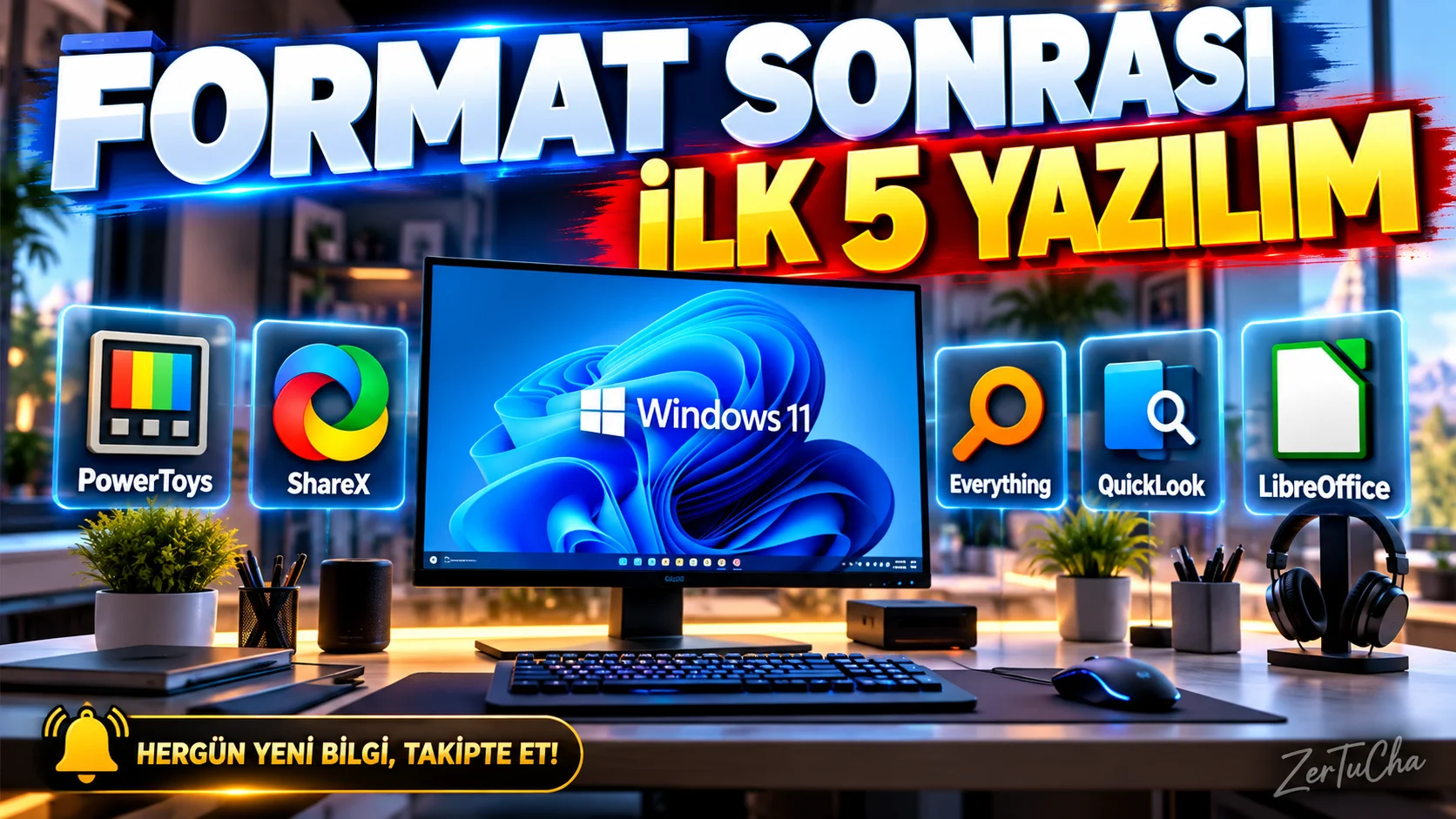
“I am sharing 5 free open source tools that I first installed on my computer after formatting and which accelerated my work 5 times.”
“Friends, after formatting Windows 11, there is no need to install dozens of programs on the computer.
I would like to share with you the 5 programs.
Moreover, most of it is completely free and open source.
I'm not talking about programs sitting idly on the computer.
We will fix the window.
We will get color from the screen.
We will take an advanced screenshot.
We will find the file on the computer in seconds.
We will press the space bar and open the preview of the file.
And finally, we will have a free office suite that can meet the needs of Word, Excel and PowerPoint.
So I made a nice list of the first programs to be installed on the computer after formatting.
Let's get started.”
1. POWERToys
“Unlocks Windows' hidden superpowers”
“Our first program was Microsoft's PowerToys.
Now you may not have heard of this before, but if you are using Windows, I think it is definitely one of the tools you should have on your computer.
Because although PowerToys seems like a single program, it actually contains a lot of auxiliary tools.
I will show you two in particular today.
First:
Always On Top.
So don't keep the window at the top all the time.
For example, you are watching a YouTube video and taking notes.
Normally you open the browser.
Then you move on to Word.
Then you go back to the browser.
Here you can fix the window.
With the default shortcut, you can keep the active window above other windows. According to Microsoft's official documentation, Always On Top is used to pin the window above other applications.
So, for example, you can leave the calculator or YouTube video on top and work on other programs.
The second feature is Color Picker.
This will especially be appreciated by designers.
You saw a color on the screen.
For example, there is a beautiful blue color on a website.
Normally you struggle to find the code for that color.
You open PowerToys Color Picker and hover over the color on the screen.
You choose the color.
You can receive HEX or different color formats.
According to Microsoft, Color Picker allows you to pick a color at any point on the screen and copy it to the clipboard. The default shortcut is Win + Shift + C.
So if you are a designer, creating a website or producing content, it is very useful.
Let me also say this.
PowerToys is open source and actively developed by Microsoft. There are more than 30 auxiliary tools in the current project.
Here's the thing about it for me:
It brings together a lot of work that Windows normally does separately under one roof.”
Most Useful Features
Always On Top: Keeps the window always at the top.
Color Picker: Quickly retrieves the code of any color on the screen.
Fee Status
Free – open source.
2. SHAREX
“Taking screenshots has never been easier”
“Our second program ShareX.
Now we know about Windows' screenshot tool.
But if you want something a little more professional, check out ShareX.
Because this program does not only take screenshots.
You select the part of the screen you want.
You are shooting a specific window.
You are taking a full screen view.
You can even capture a long scrolling web page.
What happens next?
You draw an arrow on the image.
You are marking a place.
You are adding text.
If necessary, you extract the text in the image using OCR.
You can record screen.
You can create GIF.
And you can do all of these with a single program on Windows.
ShareX is described in its official project as a free and open source screen capture, screen recording, file sharing and productivity tool.
Now, I am specifically calling out to content creators.
If you are going to send a screenshot to a customer…
If you are going to display an error message…
If you are going to explain how to use a program…
You can solve the problem by drawing two arrows on the screenshot.
So you do not need to open another program every time.
And since you can customize the shortcuts, you can also create your own working system.
The best part of ShareX for me is this:
It makes taking screenshots a habit rather than an action.
One key.
Option
Save.
Done.”
Most Useful Features
Screenshot, screen recording, GIF, OCR, annotation and automation.
Fee Status
Free – open source.
3. EVERYTHING
“Find the file on your computer in seconds”
“Our third program is perhaps the simplest looking but most time-saving program on the list.
Everything.
Sometimes people get annoyed when searching for files in Windows.
You know the name of the file, but you don't know where it is.
You are typing into Windows search.
You are waiting.
You wait a little longer.
Then comes the result.
Everything's logic is completely different.
The program indexes file and folder names.
Then as soon as you start typing in the search box, it shows the results.
For example:
‘invoice’
.
Files named invoices on your computer arrive instantly.
You wrote ‘*.pdf’.
You can filter PDF files.
You wrote ‘*.jpg’.
You can only find JPG files.
Voidtools' official documentation states that Everything is a file search engine for Windows, quickly indexing file and folder names and updating results in real time.
According to the official FAQ, it can even index a new Windows 11 installation with approximately 250 thousand files in a few seconds.
And the resource consumption is quite low.
Now let's make a small correction here.
At the beginning of the video, I said 'free open source tools' but Not everything is open source.
Free software.
So you can use it for free, but the source code is not open source like PowerToys or ShareX.
I would like to say this specifically so that we do not give false information.
But since it's free and does what it does incredibly fast, it definitely has a place on this list.”
Most Useful Features
Instant filename search, filtering, advanced search, real-time update.
Fee Status
Free. It is not open source.
4. QUICKLOOK
“Press the space bar and see the file without opening it”
“Our fourth program brings one of the things that Mac users miss when they switch to Windows.
QuickLook.
You have now opened a folder on your computer.
There are lots of photos.
There are lots of PDFs.
There's a lot of documentation.
To find out which is the right file, you constantly double-click on the file to open it.
Then you close it.
You are moving to another file.
You open it again…
Instead you select the file.
You press the space bar.
And you see the preview of the file.
That's it.
QuickLook's official project description also states that the selected file in Windows It can be previewed quickly by pressing the Space key is stated.
Furthermore, it can be used to preview PDF, image and various file types.
You press the space bar again, it closes.
So it's a great time saver, especially for those who work with a lot of files.
For example, there are 30 photos in a folder.
Instead of double-clicking all of them to open:
Option
Space.
See
Go to next.
Done.
It's that simple, but once you get the hang of it you start to question why this isn't more powerful by default in Windows.
And the good part:
QuickLook is open source and GPL-3.0 licensed. ”
Most Useful Feature
Quick file preview with spacebar.
Fee Status
Free – open source.
5. LIBREOFFICE
“If there is no Microsoft Office, the computer will not be empty”
“And we come to the fifth program.
LibreOffice.
You have now formatted your computer.
Word is needed.
I need Excel.
I need PowerPoint.
But you don't want to buy a Microsoft 365 subscription.
This is where LibreOffice comes into play.
Inside LibreOffice:
Writer exists.
You are preparing a Word-like document.
Calc exists.
You are creating Excel-like tables.
Impress exists.
You are preparing PowerPoint-like presentations.
Apart from this, it also has other tools such as Draw, Base and Math.
LibreOffice's official site states that it is an open source office suite and includes six main tools: Writer, Calc, Impress, Draw, Base and Math.
There are also updated versions on Windows.
Even Windows 64-bit and Windows ARM64 options are available on the official download page.
Now let's be honest here.
If you have used Microsoft Office, it may take some time to get used to LibreOffice's interface.
You shouldn't expect the exact same experience with some advanced Office features.
But for normal user:
I will write text.
I will prepare a table.
I will make a presentation.
I will read the PDF.
.
And most importantly:
You can use it for basic office needs without paying an ongoing subscription.
So if you are going to put an office program on your computer after formatting, add LibreOffice to your list.”
Tools Included
Writer: Creating a document
Calc: Spreadsheet
Impress: Presentation
Draw: Graphics and drawing
Base: Database
Math: Mathematical formula editing
Fee Status
Free – open source.
“Now friends, let me tell you again the five programs you will install on the computer after formatting.
A:
PowerToys.
Makes Windows more useful.
Two:
ShareX.
Very powerful in screenshot and screen recording.
Three:
Everything.
Saves time when searching for the file on your computer.
Four:
QuickLook.
With the space bar you preview the file without opening it.
Five:
LibreOffice.
Offers a free alternative to Word, Excel and PowerPoint.
And let me remind you again:
Four of the five programs on this list are open source.
Everything is free but not open source.
I specifically reserved this.
Because 'free' and 'open source' are not the same thing.
Now I want something from you.
Which of these programs have you used before?
Write in the comments.
I especially like to collect programs that we do not notice in Windows but save incredible time in daily use.
If you want more content like this follow the channel.
Because every day we will share a new program, a new artificial intelligence tool or a tip that will help you use your computer more efficiently.
Don't waste your time on your computer.
Use the right tools.”


Henüz yorum yapılmamış. İlk yorumu siz yapın!
Bir Yorum Bırakın