

Those who work with 50 tabs should definitely try this browser!
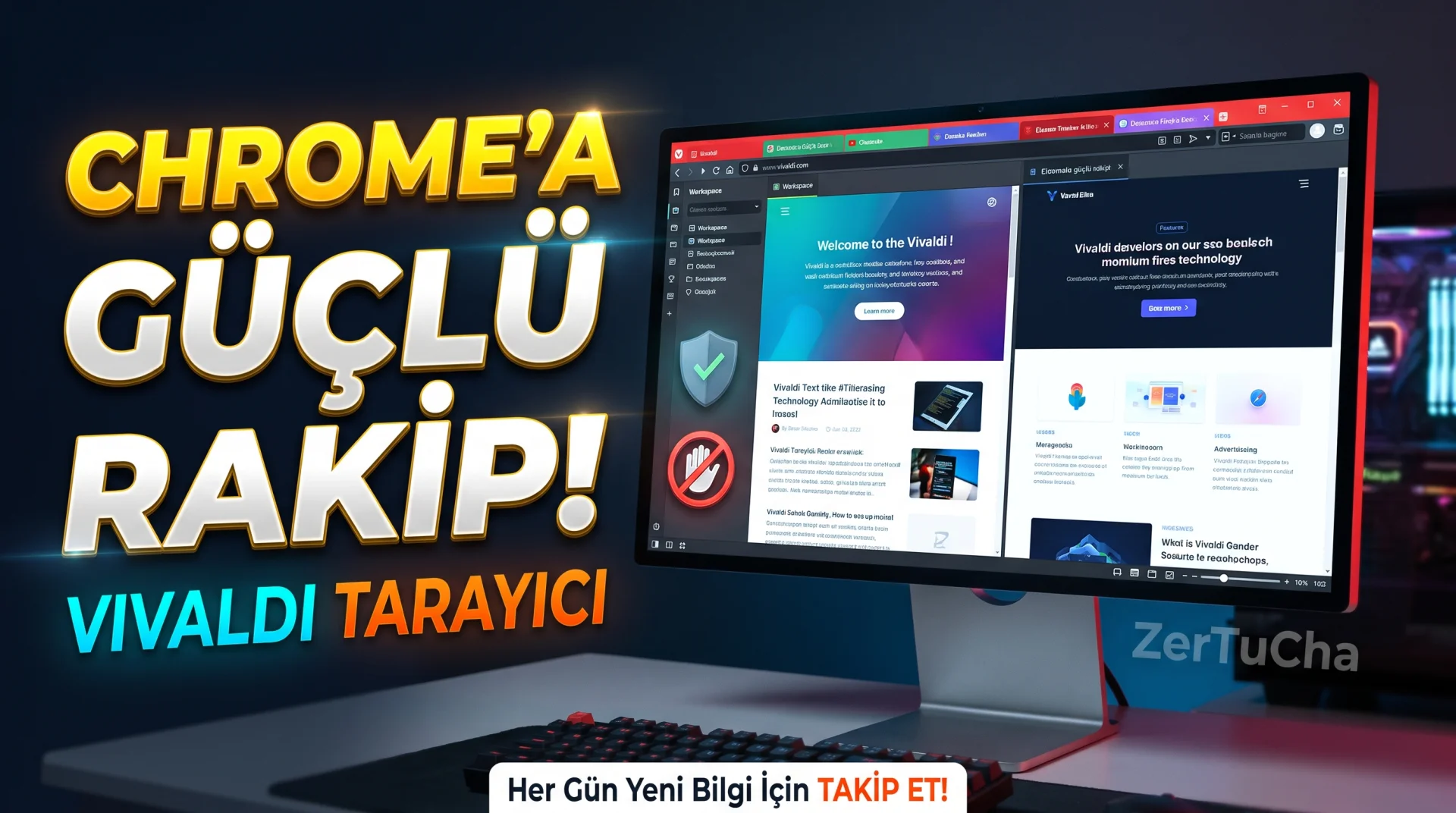
You are using Google Chrome on your computer. On the one hand, YouTube is open, on the other hand, 15 tabs in which you do research, a few social media accounts and perhaps dozens of pages related to your business…
Tabs get mixed up, you can't find the page you're looking for, and you constantly switch between windows.
What if I told you there was a free alternative where you could open multiple websites side by side at the same time, separate your tabs by projects, block ads, and manage your notes from within the browser?
Today on ZerTuCha, we are reviewing the Vivaldi browser, which may be of interest especially to those who use their computers extensively.
Moreover, this browser is not just about changing its appearance. You can even organize the way you work according to your needs.
So is it worth quitting Chrome? Is Vivaldi really safe? Does it slow down the computer? Let's examine the pros and cons together!
🌐 What is Vivaldi?
Vivaldi can be used on Windows, macOS and Linux computers; It is an internet browser that also has versions for Android and iOS.
Developed under the leadership of Jon Stephenson von Tetzchner, one of the founders of Opera, Vivaldi focuses especially on customization, tab management and productivity features.
The desktop version of the browser is Chromium based. In other words, it takes advantage of the basic browser technologies that Chrome also uses. In this way, you can use many Chrome extensions in Vivaldi.
But what makes Vivaldi different is that it offers the work you can do in many browsers with additional extensions.
Tools such as ad blocking, grouping tabs, viewing multiple pages simultaneously, note taking, e-mail and calendar management are among the features of the browser.
Official site: https://vivaldi.com/
🧩 1. You can open multiple websites on the same screen
I think this is one of the most impressive features of Vivaldi.
Let's say you are researching a product. On one side, the official page of the product, on the other side, its technical specifications and user comments are open in another tab.
Normally you have to constantly switch between these pages.
Vivaldi's Tab Tiling feature, you can view multiple tabs side by side in the same window or in a split-screen layout.
For example, you can divide the screen into two and read an article on one side while writing your notes on the other or compare the features of two products.
This feature is especially useful for content creators, researchers, students, and those who work with multiple internet resources.
Furthermore, you can set the view in horizontal, vertical or grid layout according to your needs.
How to use?
-
Open two or more tabs you want to compare in Vivaldi.
-
Select tabs by holding down Ctrl.
-
Right-click on one of the selected tabs.
-
Select the tiling tabs option from the menu.
-
If desired, choose another view from the tile layouts in the toolbar.
So you can see them all at once instead of constantly switching between pages.
Official guide: https://help.vivaldi.com/desktop/tabs/tab-tiling/
🗂️ 2. You can separate your tabs by projects
Do you have dozens of tabs open on your computer? One group for YouTube research, others for shopping, and some for work?
Vivaldi's Workspaces feature helps solve exactly this problem.
For example, you can create the following workspaces:
-
YouTube: Video ideas, resources, competitor channels and research.
-
Job: Email, customer pages and project management.
-
Learning: Tutorials, documentation and articles.
-
Daily use: News, social media and shopping.
You can keep tabs for each field separately and switch between fields according to your needs.
There is also a Tab Groups feature. You can collect tabs related to the same subject under a single group.
For example, if you have opened 20 different product pages, you can create a product research group instead of viewing them all separately.
The nice thing about these features is that you can create a more organized working system without having to close your tabs.
But be careful: Separating tabs into workspaces does not remove all pages from memory. Computer resources may continue to be used if many active tabs remain open. That's why it's important to put the tabs you don't use to sleep.
🛡️ 3. You can block ads and trackers
Vivaldi has a built-in ad and tracker blocker.
So you don't have to install a separate extension just to block ads.
The browser may block some requests by using filter lists for known advertising and tracking links. This may prevent some of the ads and tracking mechanisms from loading on supported sites.
This has two main benefits:
First, you may experience fewer ads and distractions.
Second, when blocked content is not loaded, some pages may open faster and consume less data.
But there is a detail here: Not every ad is blocked. Some sites serve ads from the same source as their own content or use different methods. Therefore, Vivaldi's blocker does not eliminate all ads and tracking.
Also, some websites may not work properly with an ad blocker turned on. In such a case, you can reduce the blocking or add an exception for the relevant site.
How to open?
-
Open Vivaldi's Settings.
-
Go to the Privacy and Security section.
-
Find Tracker and Ad Blocking setting.
-
If you want, block only the viewers, or block both the viewers and ads.
-
Create different rules for specific sites.
If you like fine-tuning, you can also manage block lists.
Official guide: https://help.vivaldi.com/desktop/privacy/tracking-and-ad-blocking/
🔒 4. What does it offer for those who care about privacy?
Vivaldi's basic principles include not profiling user behavior and not selling browser history for advertising purposes.
In addition, the browser has features such as tracker blocking, private window, password manager and encrypted synchronization between devices.
It is important to understand correctly what the special window does here.
Private window can make it difficult for others using the same computer to view browsing history. However, it does not completely hide you from the websites you visit, your employer's network, or your internet service provider.
Similarly, ad and tracker blockers do not provide complete anonymity on the internet.
Another advantage of Vivaldi is its sync feature. You can sync bookmarks, settings, and other supported browser data across devices. Encryption is used to protect synchronization data.
Still, you shouldn't assume any browser is absolutely safe based solely on its privacy claims. It's still important to keep up to date, use strong passwords, and avoid installing extensions you don't trust.
🧰 5. You can add any website you want to the side menu
This feature may especially appeal to those who use several vehicles at the same time.
In Vivaldi Web Panels. With this, you can add any website you want to the side panel of your browser.
For example:
-
You can keep a messaging service open in the side panel.
-
You can quickly access the website where you keep your notes.
-
You can keep a research page open and write in another tab.
-
You can control your social media stream without switching to a separate window.
It is also possible to use the mobile or desktop view of the site in the panel.
The biggest advantage of this is that it reduces the need to open a separate window for each vehicle.
However, not every site opened in the side panel works like a full desktop application. Some sites may behave differently on small screens or prompt you to log in again.
📝 6. You can take notes in the browser and take a view of the entire page
Vivaldi's productivity tools are not limited to this.
With the notes feature built into the browser, you can save important information while browsing. You can also use your notes on your other devices with supported sync settings.
You can also take screenshots that cover the entire web page on appropriate pages, not just the area visible on your screen.
For example, you are searching for an article. You can save important information in your notes or take a screenshot of an entire page to use in your research process.
Here too you should consider copyright and privacy issues. It may not be right to share other people's content without permission or publish personal information in screenshots.
📧 7. You can manage your email, calendar and news feed in one place
One of the most comprehensive features in the desktop version of Vivaldi is the built-in email client, calendar and RSS news reader.
So, once you configure the appropriate accounts, you can manage your emails, plan your events, and read new content from the publications you follow.
For example, if you follow technology news regularly, you can see new articles from different publications in one place by adding RSS feeds.
This feature is especially useful for those who do research and follow many sources.
But there is one detail: You need to connect your email account and make the necessary settings. Additionally, not all tools in the desktop version are available in the same way in the mobile application.
🎨 8. You can change the appearance of your browser almost to your liking
One of Vivaldi's most distinctive features is its customization options.
You can change the position of tabs, organize toolbars, use themes, change keyboard shortcuts, and perform certain operations with mouse movements.
You can even create Command Chains that combine multiple actions into a single shortcut.
You can design your own workflow, for example, to open specific tabs, switch to a workspace, or perform some of your favorite browser operations with a single command.
But so many options may not be an advantage for everyone. A user who just wants to open websites may find the abundance of settings unnecessary or complicated.
⚙️ How to install Vivaldi?
1. step: Open official download page:
2. step: Download the version appropriate for your operating system.
3. step: Run the installation file and follow the on-screen steps.
4. step: Customize your appearance, tab layout and basic privacy settings at first startup according to your needs.
5. step: Enable ad and tracker blocker.
6. step: If you work with a lot of tabs, try the Workspaces and Tab Groups features.
7. step: Transfer bookmarks and supported browser data from your other browser if you want.
8. step: If you use more than one device, review your Vivaldi account and sync options.
You don't need to try to unlock all the features on the first day. Try tab management and ad blocking first; Then you can start using the tools that actually work for you.
💰 Is Vivaldi free?
Yes, Vivaldi browser is free.
You do not need to purchase a monthly or annual subscription to use the basic features of the browser. Built-in ad blocker, tab management, personalization and many productivity tools are available for free.
However, some third-party services integrated into the browser may have their own terms of use. Availability, coverage or account requirements for additional services, such as VPN, may vary.
Just because Vivaldi is free does not mean that all internet services are free.
Download page: https://vivaldi.com/download/
✅ What are the advantages?
-
Free use: You don't have to pay for basic browser features.
-
Advanced tab management: Offers tab groups, workspaces, and split screen.
-
Built-in ad blocking: It can block many ads and tracking requests without installing an extension.
-
Extensive customization: You can change toolbars, themes and shortcuts.
-
Productivity tools: Notes, web panels, screenshots, and other tools are built-in.
-
Chrome extension support: You can use many Chrome Web Store extensions.
-
Sync: You can sync your supported data between different devices.
-
Desktop tools: Provides functions such as email, calendar and RSS reader in a single application.
❌ What are the disadvantages?
-
Learning process: Many settings and features may seem complicated at first.
-
Resource consumption: Many tabs or heavy web applications can increase memory and processor usage.
-
Not every extension works perfectly: Some Chrome extensions may have compatibility issues with Vivaldi.
-
Built-in features not needed for everyone: If you don't use email, calendar or advanced tab tools, the browser may seem overly comprehensive.
-
Does not provide full anonymity: Ad blocking and private windows do not eliminate all tracking methods.
-
Interface may seem busy: It may offer many options for those who want a simpler browser.
👥 Who should use it?
Content creators: Those who want to view multiple sources simultaneously while doing research and separate their tabs according to projects.
Students: Those who want to organize course resources, notes and research.
Developers and technical users: Those who compare multiple web pages, read documentation, and want to customize their workflow.
Those who care about privacy: Those who want to use the built-in ad and tracker blocking options.
Heavy internet users: Those who work with a large number of tabs and want to organize their browser according to their needs.
For whom might it be unnecessary? For people who only visit a few sites, want a simple interface, and will not use advanced features, Chrome, Edge, Firefox or another browser may be sufficient.
🏁 Final decision: Should we abandon Chrome and switch to Vivaldi?
My opinion is this: Vivaldi's strongest point is that it turns the internet browser into a personal workspace rather than just an application that opens a web page.
Especially for people doing research, working with lots of tabs, and creating content, split screen, workspaces, built-in notes, and ad blocking can be really useful.
But it wouldn't be right to say that everyone should abandon Chrome just because it has more features. When choosing a browser, in addition to speed, it is necessary to evaluate resource consumption, extension compatibility, habits and privacy expectations.
If it were me, I would install Vivaldi for free, try it in my real work for a few days and see if the tab management and ad blocking features improve my workflow.
So which browser do you use: Chrome, Edge, Firefox, Brave or Vivaldi? Write it in the comments!
Follow ZerTuCha! Every day we come across new programs, free tools and discoveries that will be useful in the digital world.


Henüz yorum yapılmamış. İlk yorumu siz yapın!
Bir Yorum Bırakın