

Show QR Code Instead of Telling Wi-Fi Password: Easy Way to Share Wi-Fi on iPhone
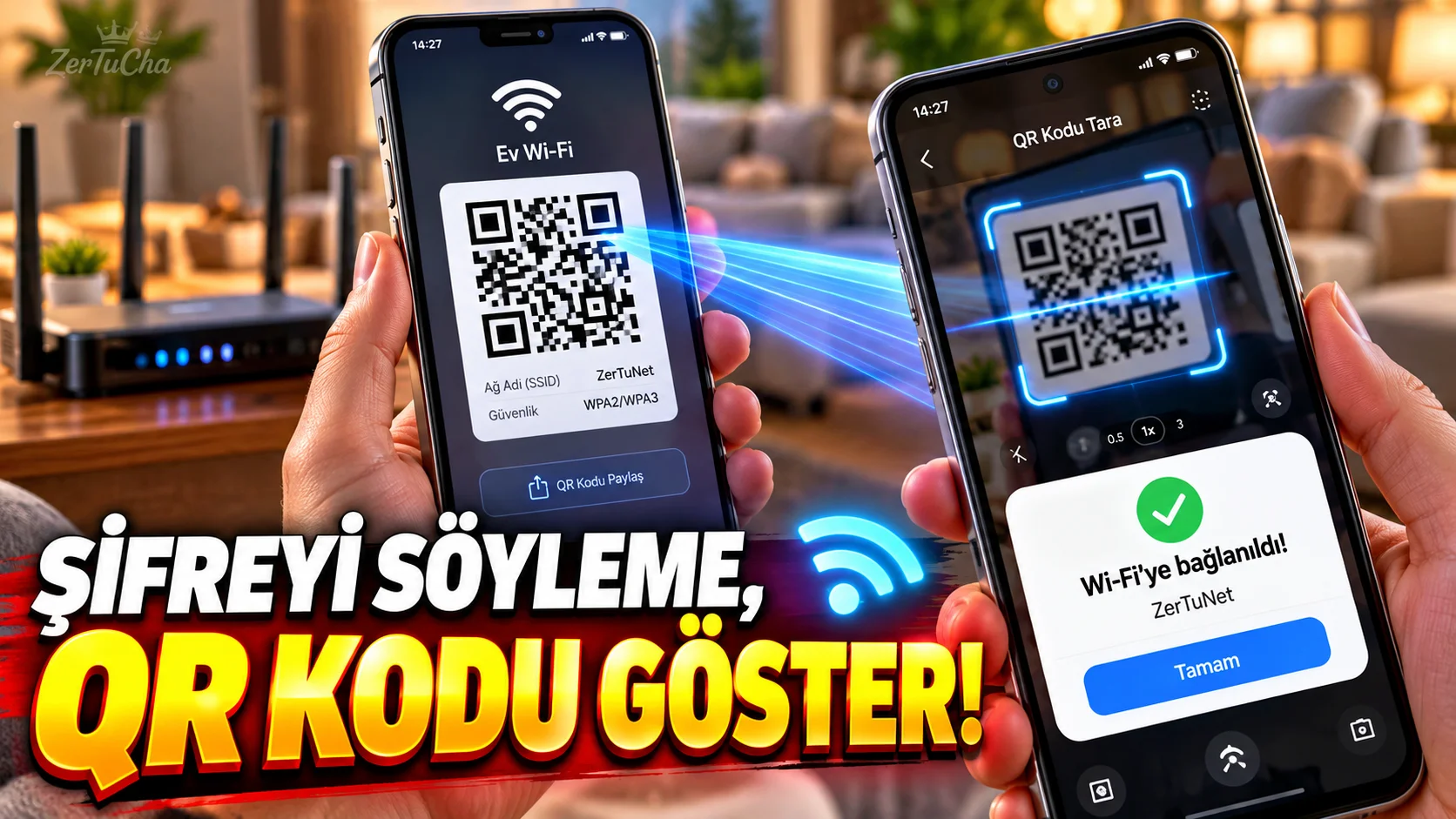
A guest came to the house.
Your Wi-Fi password:
“KitchenWifi_5G_2026!…”
, you can type Wi-Fi QR code.
According to Apple's current iPhone documentation, the QR code of the registered Wi-Fi network can be displayed and other people can join the network by scanning this code.
Where to open the QR code?
On current iPhone versions:
-
Passwords application.
-
Wi-Fi.
-
Select the Wi-Fi network you are connected to or registered with.
-
Show Network QR Code.
The QR code containing the connection information of the network is displayed on the screen.
What will the other party do?
With Android or other supported device:
-
Open the camera app.
-
Point at the QR code.
-
Tap the Wi-Fi connection notification on the screen.
-
Confirm connecting to the network.
So there is no need to type the Wi-Fi password manually.
There is also another method among Apple devices
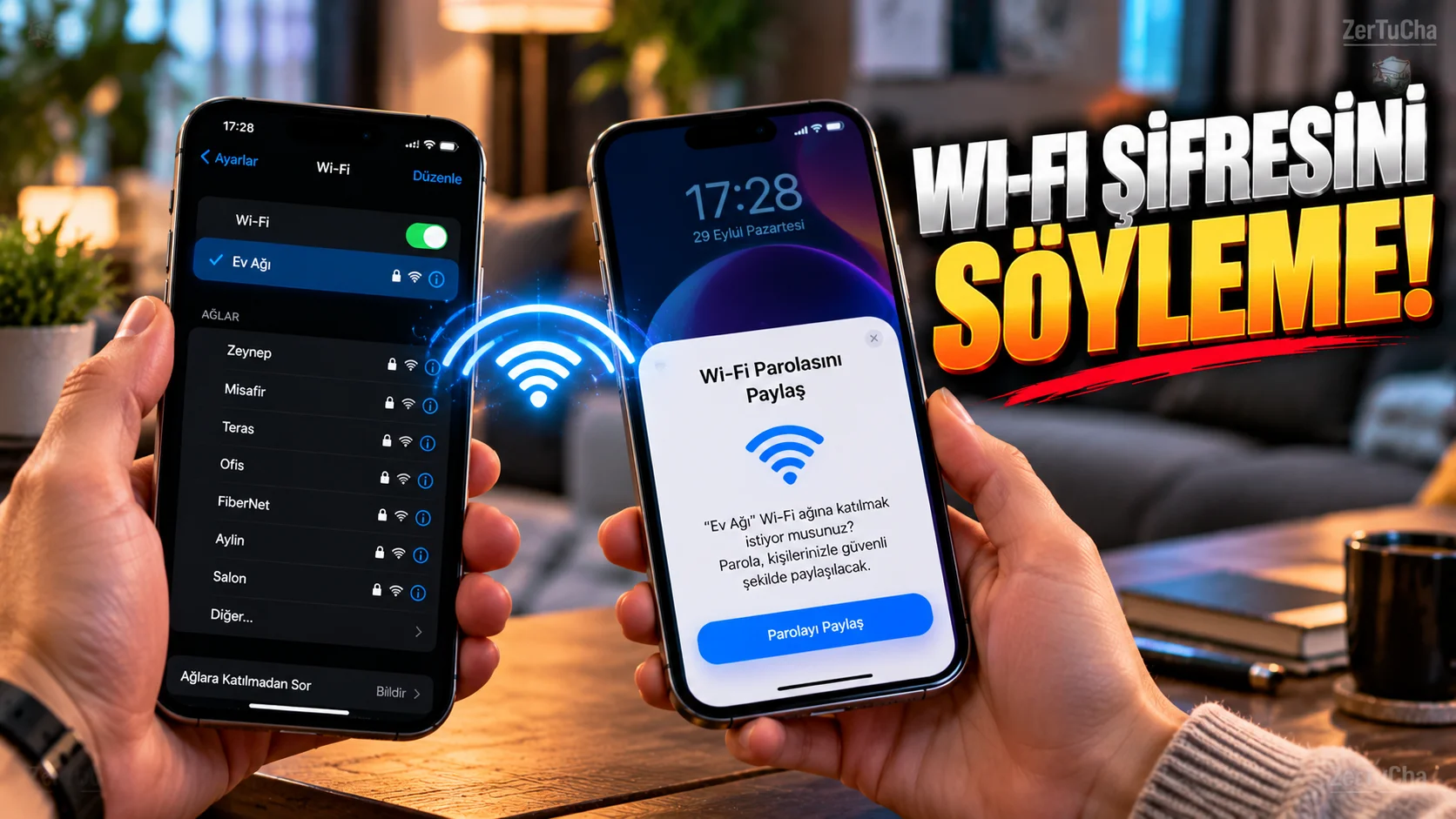
If the other person uses an iPhone, iPad or Mac, Apple's direct Share Password feature is also available.
For this:
-
Wi-Fi must be on on both devices.
-
Bluetooth must be on.
-
Devices should be close to each other.
-
The Contacts app must contain the necessary Apple Account contact information.
-
Personal Hotspot must be turned off.
Why is QR code more practical?
Because the QR code method can offer more universal use, even if the other party's phone is Android.
For example:
iPhone → Wi-Fi QR code → Android phone
.
Is there a risk in sharing your Wi-Fi password with a QR code?
Yes.
QR code actually makes Wi-Fi connection easier.
Hence the QR code:
-
Do not share on social media.
-
Do not leave it on the public display of the workplace.
-
Do not display in public.
-
Do not give it to people you do not trust.
Because the person who scans the code can join your network.
If the QR code is not working
If you're using direct sharing between Apple devices, Apple recommends these controls:
-
Restart the two devices.
-
Make sure Wi-Fi and Bluetooth are turned on.
-
Move the devices closer together.
-
Enter the password manually if necessary.
You can also see the Wi-Fi password
In Apple's current Passwords app:
Passwords → Wi-Fi → network name → Password
.
This also works if you need to manually use the passcode on another device.

Henüz yorum yapılmamış. İlk yorumu siz yapın!
Bir Yorum Bırakın