

Logitech MX Master 4 or Razer Pro Click V2? 2026 Comparison
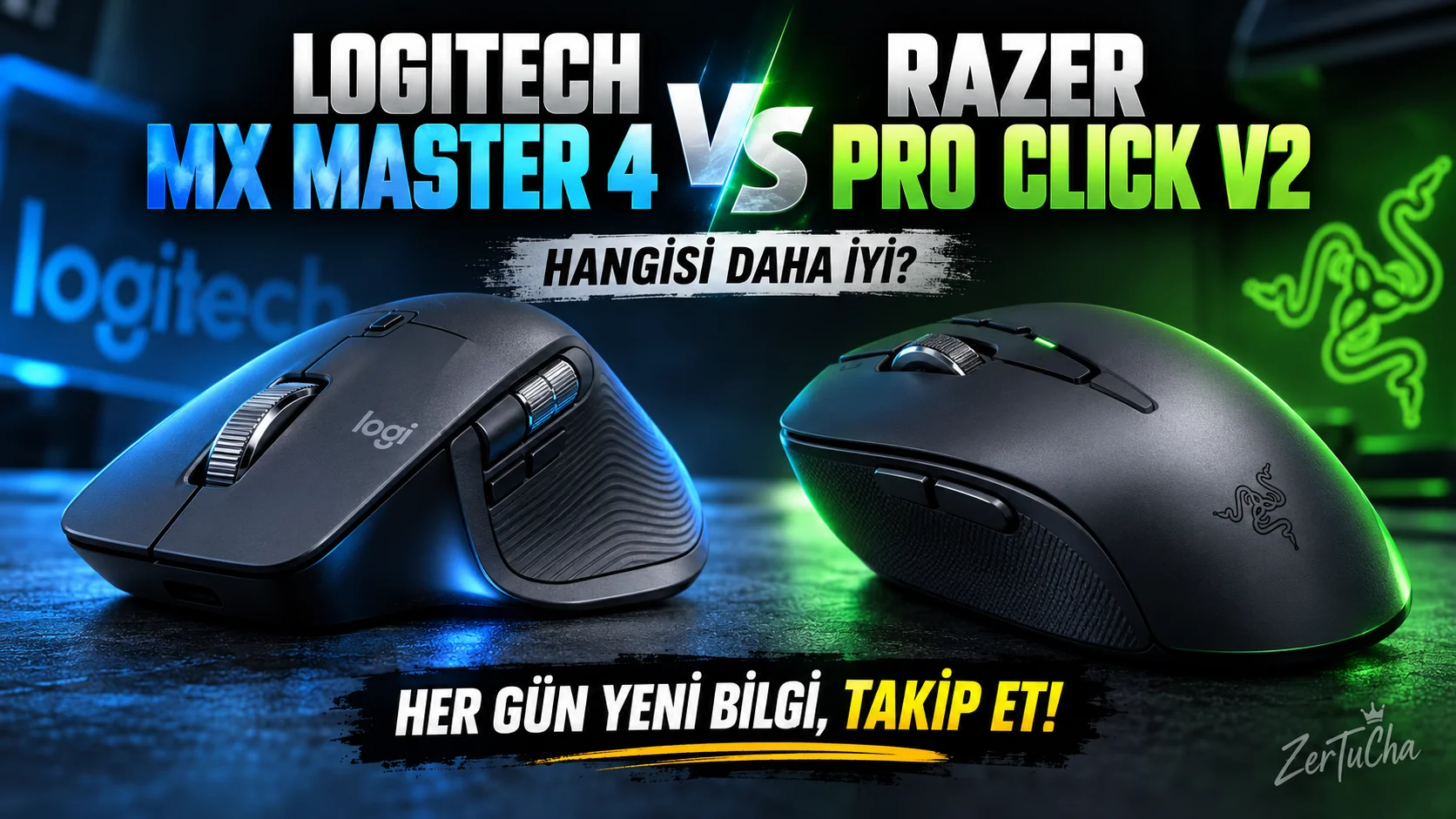
Logitech MX Master 4 or Razer Pro Click V2? 2026 Comparison
If you spend long hours in front of the computer, choosing the right mouse may be more important than you think. The scroll wheel, thumb keys, and app shortcuts you use hundreds of times throughout the day; over time, it can speed up your workflow or slow it down unnecessarily. So, which makes more sense, the productivity-focused Logitech MX Master 4 or the Razer Pro Click V2, which combines work and gaming features?
At first glance, both models offer wireless connectivity, ergonomic design, customizable keys and long battery life. However, their design purposes are different. Logitech focuses specifically on improving productivity at the desk and making it easier to work with large numbers of documents. Razer, on the other hand, appeals to users who occasionally turn their work desk into a gaming station with its powerful sensor, programmable controls and RGB lighting.
Short answer: If your priority is office work, Excel, long documents, visual editing and multitasking, Logitech MX Master 4 is a more logical choice. If you want to both work and benefit from high-precision mouse performance, Razer Pro Click V2 may be more attractive.
Logitech MX Master 4 and Razer Pro Click V2: Technical specifications
| Feature | Logitech MX Master 4 | Razer Pro Click V2 |
|---|---|---|
| Main purpose | Productivity and professional work | Switch between productivity and play |
| Sensor | 8,000 DPI Darkfield | 30,000 DPI Focus Pro optics |
| Shift | MagSpeed and separate horizontal scroll wheel | HyperScroll, gradual and free rotation |
| Additional controls | Thumb wheel, trackpad, Actions Ring | Programmable controls, AI Prompt Master |
| Hactile feedback | Customizable haptic feedback | No obvious haptic control system |
| RGB illumination | None | 14-zone Razer Chroma RGB |
| Device connection | Bluetooth and USB receiver; up to three devices | Five-way multi-device connection |
| Battery life | Up to 70 days | Up to 3.5 months |
| Tracking on glass surface | Supported | Supported |
| Software | Logi Options+ | Razer Synapse 4 |
| The most obvious advantage | Productivity controls and panning | High DPI, flexible usage and RGB |
Note: Battery ratings are maximums based on manufacturer specifications. Actual time may vary depending on usage pattern, connection method and enabled features. Specifications are for the standard Razer Pro Click V2 model; Pro Click V2 Vertical Edition is a different product.
1. Design and ergonomics: Which is more comfortable?
Logitech MX Master 4
MX Master 4 has a large palm-supporting body shaped for right-handed use. The thumb area is not just designed to rest your hand; There is also a horizontal scroll wheel and additional control areas.
The advantage of this design is that you do not have to constantly move your fingers between the main keys. For example, you can use the thumb wheel when scrolling horizontally in a large Excel table, and use the main wheel when scrolling up and down in a document.
The haptic control area in the new generation also offers tactile feedback in certain operations. With compatible apps and the right software settings, you can use this space to access shortcuts and productivity tools.
However, the large, right-handed body does not suit everyone. If you have small hands or like to control the mouse with your fingertips, it's a good idea to check if it fits in your hand before purchasing.
Razer Pro Click V2
Razer also offers an ergonomic design for right-handed use. The wide thumb rest aims to support the hand during long work sessions. However, the aim here is not just office comfort; Being able to switch between work and play with high-precision sensors and programmable controls.
The separate horizontal scroll wheel on the MX Master 4 is one of the most important details that make Logitech's ergonomic design business-oriented. Razer's HyperScroll system allows the main wheel to be used in gradual or free rotation mode.
Which is more comfortable? The exact answer to this question depends on your hand size, grip style and personal preference. However, if horizontal scrolling and thumb control are important to you, Logitech's design is more functional. If you want to use a single mouse for both work and play, Razer may be a more flexible option.
2. Scroll wheel: Logitech's strongest trump card
One of the features that distinguishes the MX Master series from ordinary office mice is the MagSpeed electromagnetic scroll wheel. In MX Master 4, this system makes it easy to switch between controlled scrolling through short content and fast scrolling through very long pages.
For example, imagine you are working in an Excel file with hundreds of rows. You can switch to precise scrolling when checking cells one by one, and free rotation mode when you need to quickly reach subsections of the file. You can see the same advantage with very long web pages or PDF documents.
Logitech's real difference does not end here: The separate thumb wheel can scroll horizontally. This feature is really useful for applications that require large spreadsheets, timelines, large design files, and horizontal movement.
Razer Pro Click V2's HyperScroll system is also very functional for fast scrolling. The wheel can move gradually and make controlled progress, or it can quickly pass long contents in free rotation mode. This provides a good experience in document and web page usage.
But Razer's main wheel's two modes are no substitute for Logitech's separate horizontal scroll wheel. If you constantly work with wide tables or horizontal timelines, this advantage of Logitech becomes more evident in daily use.
3. Sensor and sensitivity: Is 30,000 DPI really necessary?
Razer Pro Click V2 stands out on the spec sheet with its Focus Pro optical sensor that reaches up to 30,000 DPI. Logitech MX Master 4 uses a Darkfield sensor up to 8,000 DPI and can also track on glass surfaces.
DPI affects how far the cursor moves on the screen when you physically move the mouse. High DPI can enable the cursor to travel more distance in the same physical movement. However, a higher number alone does not mean a better mouse experience.
In office applications, in the browser, when editing text or most visual editing tasks, 8,000 DPI already offers a wide adjustment range. Moreover, in daily use, it is important that the sensor tracks consistently, the cursor is controllable, and the software can be adjusted to suit your needs.
Razer's powerful sensor could make more sense on the gaming side, especially on high refresh rate displays, precise cursor movements, and gaming. However, it would not be right to choose Pro Click V2 just because of its 30,000 DPI value. You should consider whether you will really use the sensor advantage of this model.
Logitech's tracking feature on glass surfaces also provides an advantage for those who do not want to use a mouse pad on the desk. Since Razer also supports glass surface tracking, there is no clear winner between the two models in this regard.
Result: Razer is ahead in sensor features and sensitivity settings. However, in office and productivity work, Logitech's low DPI value does not automatically create a disadvantage.
4. Shortcuts and software: Which one gets your job done faster?
Logitech Actions Ring and haptic control
One of the prominent innovations of MX Master 4 is the Actions Ring. This feature, which can be configured via Logi Options+, aims to give you access to your frequently used tools and commands near your mouse cursor.
For example, you can assign the tools you frequently use in a visual editing application, certain shortcuts or compatible application plug-ins to this system. This way, you can access the action you need faster, instead of navigating through different menus each time.
Haptic feedback can also provide a physical sensation in compatible operations. Although this feature may seem like a small detail at first glance, it differentiates the interaction with the interface for people who use the mouse all day long.
Another benefit of Logitech's approach to productivity is that you can create custom control profiles for different applications. It is possible to use one key for another task in a browser and another in a design program; Available options depend on software and application support.
Razer AI Prompt Master and Synapse 4
Razer Pro Click V2 aims to add artificial intelligence tools to the daily work flow with its AI Prompt Master feature. Compatible shortcuts and macros can be configured via Razer Synapse 4; Access to tools such as ChatGPT or Microsoft Copilot can be facilitated for certain transactions.
For example, you can use this feature when you want to summarize a long text, draft an e-mail, or get artificial intelligence help on a text. However, the mouse alone is not an independent system that performs all AI operations. It works depending on the service, application and configuration used.
Razer's programmable controls can also be useful for frequently repeated operations. But the real usefulness of macros and shortcuts depends on which applications you use and what you assign to those keys.
Which software is better? If you want to use the mouse for productivity in Photoshop, Premiere Pro, Excel and similar applications, Logitech's combination of Actions Ring, horizontal scrolling and haptic feedback is powerful. If you care about AI shortcuts and a wider range of programmable use cases, you should also consider Razer.
5. Battery life and wireless connectivity
Logitech MX Master 4 can work up to 70 days on a full charge, according to manufacturer data. It is charged via USB-C and it is stated that a one-minute fast charge can provide approximately three hours of use. Actual battery time may vary depending on usage conditions.
The maximum battery life announced for the Razer Pro Click V2 is up to 3.5 months. Although this value means approximately 105 days, it is an upper limit based on the manufacturer's testing conditions; It should not be thought that the same duration will be guaranteed in daily use.
On the connection side, Logitech offers wireless use via Bluetooth and USB receiver and supports switching up to three devices. Razer, on the other hand, highlights five-way multi-device connectivity. This feature may be important for users who frequently switch between a desktop computer, work laptop, and other devices.
Both models appeal to people who work with more than one device. However, if the number of devices that can be connected simultaneously, connection modes, and device switching experience are important to you, check the specifications for the exact model of the product you are purchasing.
6. Which one makes more sense for gaming?
Here Razer Pro Click V2's approach is clearer. With its high DPI sensor, sensitivity settings, programmable controls and Chroma RGB lighting, it also appeals to those who want to play games after work.
MX Master 4 is primarily a productivity mouse. Its large and ergonomic body, separate horizontal scroll wheel and business-oriented controls provide advantages in document, spreadsheet and design applications. But it is not a model designed for high-speed and competitive games.
Still, Razer Pro Click V2 should not be directly considered a professional e-sports mouse. The main purpose of this model is to combine work and gaming use in a single device. If latency, reporting speed and motion control are your top priorities in competitive games, it would be better to separately consider a dedicated gaming mouse.
7. Price/performance: Which one should you pay for?
Prices of the two models may vary depending on the seller, campaign, stock status and warranty conditions. Since there may be significant differences between different advertisements of the same product in Türkiye, it is not right to accept a single price as permanent.
Don't just look at the sticker price when making your decision. Ask yourself these questions:
-
How often do I use horizontal scrolling during the day?
-
Do I switch between different devices?
-
Do RGB lighting and high DPI really matter to me?
-
Will I use macros and application shortcuts regularly?
-
Will I use the mouse mainly for work or a mix of gaming and work?
If your main goal is productivity, you can use the special controls offered by Logitech every day. In this case, the price difference, which initially seems higher, may become meaningful depending on your usage habits.
Razer may be more attractive in terms of price/performance if it is available at a more affordable price and its sensor features, programmable controls or gaming side are valuable to you. But don't decide by just picking the largest numbers in the spec sheet.
Pros and cons of Logitech MX Master 4
Pros
-
MagSpeed main wheel and separate horizontal scroll wheel
-
Actions Ring and customizable haptic feedback
-
Useful controls for long documents, large spreadsheets and productivity apps
-
Silent clicking experience
-
Following support on glass surface
-
Connect up to three devices
Cons
-
Large body may not be suitable for small hands
-
Right hand focused design
-
8,000 DPI is behind Razer's 30,000 DPI sensor
-
Some productivity features require software configuration
-
Not a model designed for competitive gaming
Pros and cons of Razer Pro Click V2
Pros
-
Focus Pro optical sensor up to 30,000 DPI
-
HyperScroll with gradual and free rotation modes
-
Five-way multi-device connection
-
AI Prompt Master and programmable controls
-
14-zone Chroma RGB lighting
-
Up to 3.5 months battery life according to manufacturer data
-
Convenient approach to switching between work and play
Cons
-
No separate horizontal scroll wheel like on Logitech
-
RGB lighting may be unnecessary for those who want a simple office setup
-
The benefit of AI features depends on the software you use and the way you work
-
Very high DPI alone does not provide a significant advantage to the office user
Frequently asked questions
Is Logitech MX Master 4 or Razer Pro Click V2 better?
For general productivity, horizontal scrolling, long documents, and customizable work shortcuts, the Logitech MX Master 4 is better suited. Razer Pro Click V2 stands out for higher sensor sensitivity, RGB and mixed work-play use.
Which is better for Excel?
If you're working with large tables, Logitech MX Master 4's separate horizontal scroll wheel is a significant advantage. Being able to control horizontal and vertical movement independently of each other in long worksheets simplifies the workflow.
Which is better for Photoshop and Premiere Pro?
Both models can be used in these applications with shortcuts and programmable controls. Logitech offers productivity-oriented advantages with horizontal scrolling and Actions Ring. Razer, on the other hand, takes a different approach with its high DPI and customizable controls. The best choice depends on the shortcuts you assign and your personal usage habits.
Which battery lasts longer?
Razer Pro Click V2, up to 3.5 months, based on maximum values in manufacturer data; Logitech MX Master 4 offers up to 70 days of battery life. However, these values are not directly comparable to laboratory results and actual usage time may vary.
Does Razer's 30,000 DPI definitely make it better?
No. DPI indicates the cursor sensitivity adjustment range; it alone does not determine overall quality. For daily office work, 8,000 DPI offers sufficient range for most users. Razer's high sensor capacity makes more sense, especially for precision and gaming-oriented needs.
Can they be used with Mac and Windows?
Both models are designed for wireless use with compatible computers. However, app support and customization options may vary by operating system. Before purchasing, check Logi Options+ or Razer Synapse 4 support for the operating system you are using and compatibility with the features you need.
Final verdict: Which mouse should you buy?
Logitech MX Master 4 and Razer Pro Click V2 are two wireless mice that may meet at similar price levels but appeal to different priorities.
If you want to speed up your daily work, move smoothly through long documents, scroll horizontally in large Excel tables and create special shortcuts to applications Logitech MX Master 4 is a more balanced productivity choice. Especially the separate horizontal scroll wheel and Actions Ring are the strongest aspects of this model.
On the other hand, if you want to work and play with a single mouse, care about high sensor sensitivity, and like RGB lighting Razer Pro Click V2 is a more versatile option.
My suggestion is this: If you use the mouse to produce work every day, choose Logitech; If you frequently switch between work and play, consider Razer first. Because the best mouse is not the one with the highest numbers on the spec sheet, but the one that actually makes the tasks you do every day easier.



Henüz yorum yapılmamış. İlk yorumu siz yapın!
Bir Yorum Bırakın