

Can You Use Docker on Windows Without Being a Developer? Installation Guide with WSL 2
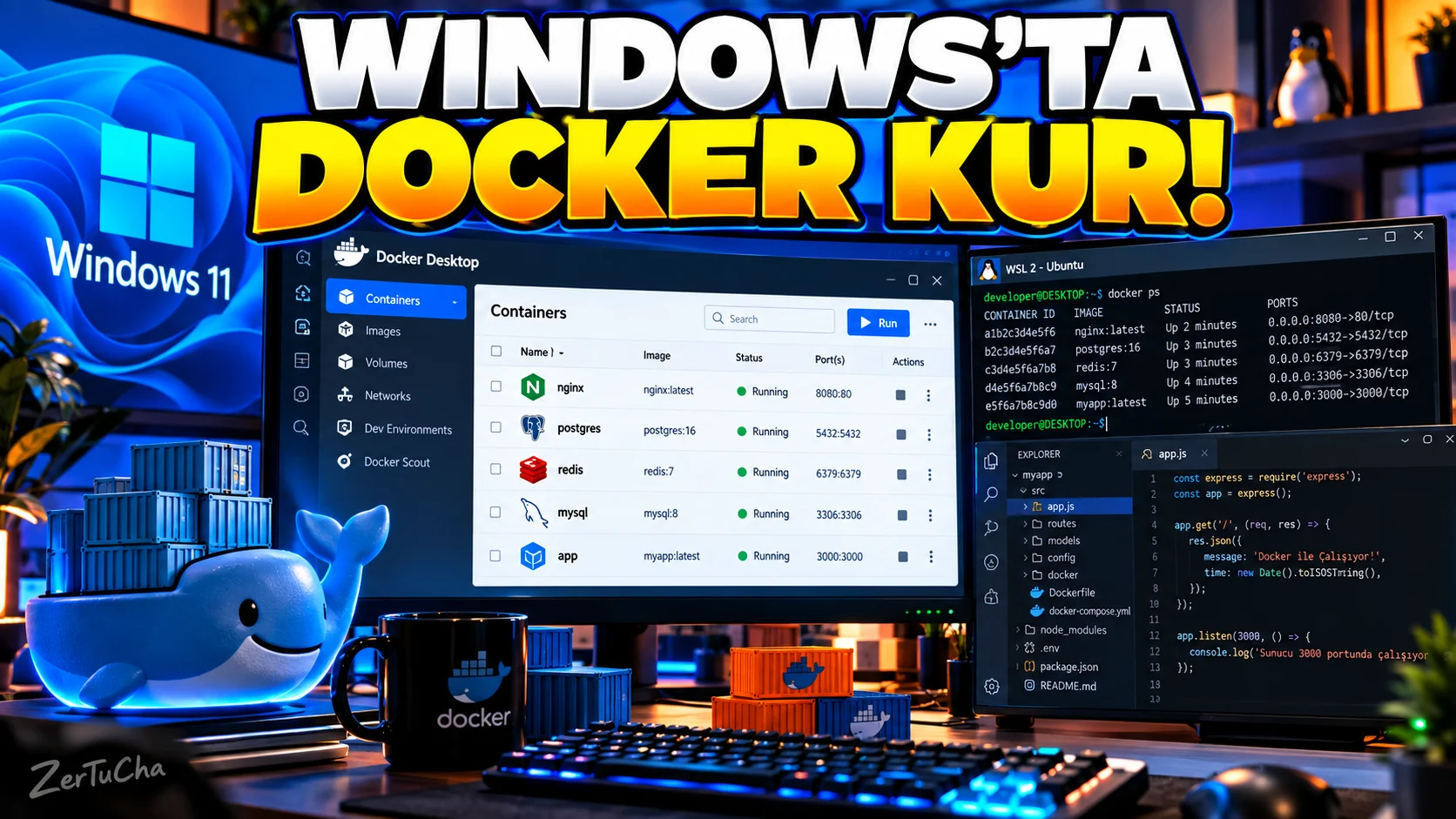
You hear the name Docker frequently, especially in the software world.
But many people:
“Do you need a Linux computer to use Docker?”
thinks.
Not required.
Current Docker Desktop for Windows for running Linux containers on Windows WSL 2 infrastructure. Docker's current documentation lists WSL 2 as the default and recommended backend for most users.
What does Docker do?
Simply put, Docker isolates an application together with the environment it needs container.
For example:
“It works on my computer but not on yours.”
problem.
Which system is required on Windows?
According to Docker's current Windows documentation, in supported scenarios:
-
Windows 11 64-bit, 23H2 or later
-
Windows 10 64-bit 22H2
-
WSL 2
-
Hardware virtualization
-
At least 8 GB RAM
.
Check WSL 2 first
Open PowerShell or Command Prompt:
wsl --version
command.
According to Docker's current documentation, the WSL version 2.1.5 or newer.
If WSL is not installed
In the terminal opened as administrator:
wsl --install
command can be used.
Docker documentation also where needed:
wsl --update
command.
You may need to restart the computer after installation.
Install Docker Desktop
Download Docker Desktop from Docker's official site.
During installation:
WSL 2
based option.
According to Docker's current documentation, per-user installation is recommended for most users and no administrator privileges are required to install/update in this mode.
After opening Docker Desktop
In Docker Desktop:
Settings → General
from:
Use WSL 2 based engine
option.
Docker connection with Linux distribution
If you are using a Linux distribution such as Ubuntu on WSL, on Docker Desktop:
Settings → Resources → WSL Integration
section.
Working with VS Code
Docker + WSL 2 + VS Code trio is especially useful for software development.
Docker's current documentation explains that you can work on Linux distribution projects from the Windows interface with VS Code's WSL extension.
In terminal:
wsl
then in the project folder:
code .
.
Where is it better to keep codes?
Docker's current WSL development documentation recommends keeping the code within the default Linux distribution.
Especially in WSL + Docker development scenarios, this approach can provide a better development experience.
Very important: Do not install Docker's own engine separately in WSL
Docker's WSL documentation states that installing Docker Engine or Docker CLI separately within the WSL Linux distribution when using Docker Desktop may cause conflicts.
So:
Docker Desktop + WSL integration
, do not try to install the same structure in WSL.



Henüz yorum yapılmamış. İlk yorumu siz yapın!
Bir Yorum Bırakın