

Typing Wi-Fi Password in Windows Becomes History: Connect in One Move with QR Code
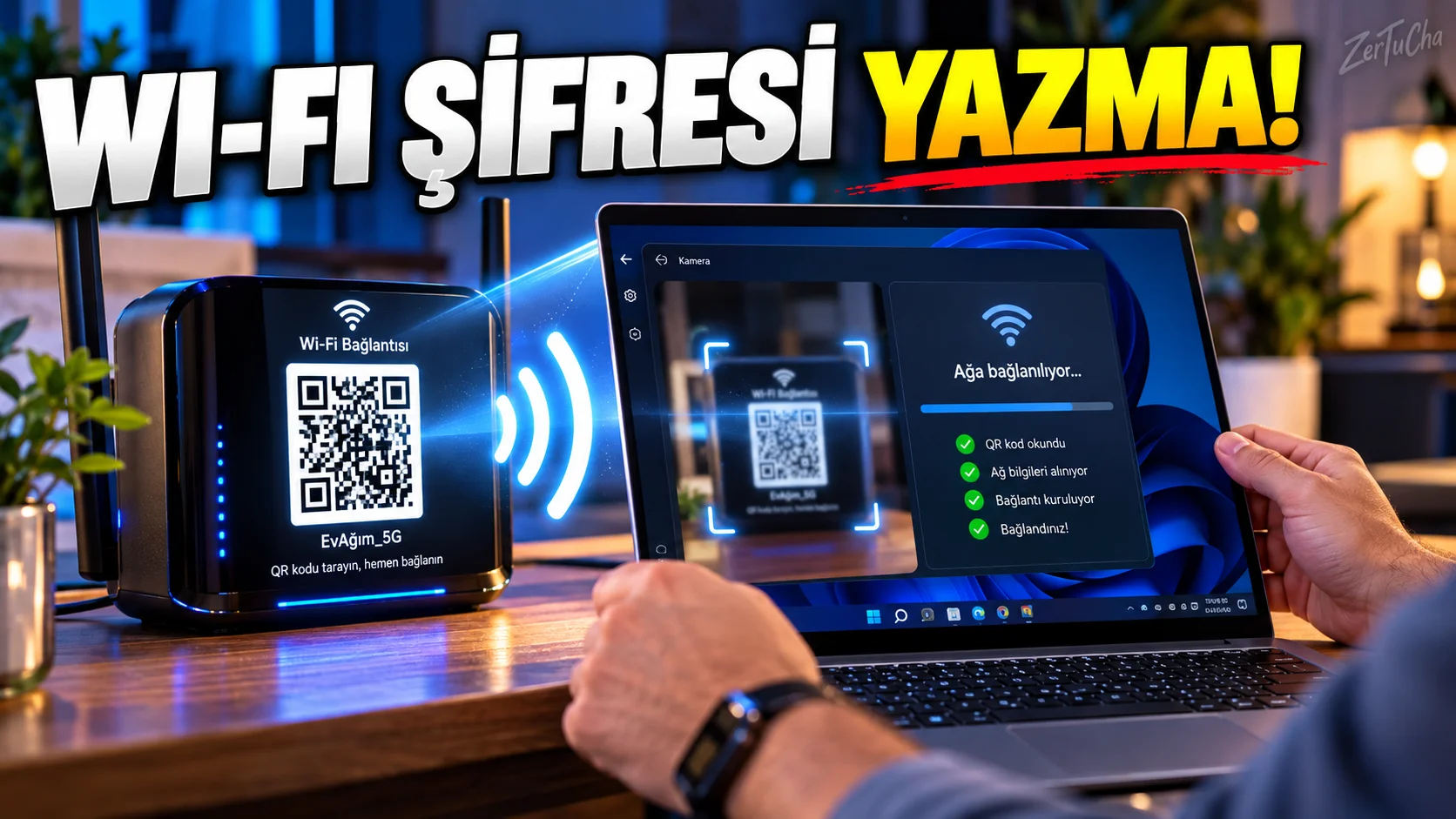
Writing a long and complex Wi-Fi password into a computer is a test of patience.
Specifically the password:
HomeWifi_2026!Kadir#92x
, there is also the possibility of entering the wrong character.
Wi-Fi connection on supported devices of Windows 11 QR code.
According to Microsoft's current support documents, a network connection can be established by scanning the QR code containing Wi-Fi connection information on Windows devices with cameras.
How to connect to Wi-Fi with QR code on Windows?
-
Camera application.
-
In-camera barcode/QR code mode.
-
Point the camera at the QR code containing Wi-Fi connection information.
-
Tap the link that appears on the screen.
-
Windows will direct you to the relevant Wi-Fi settings.
-
Confirm connecting to the network.
Where can you find the QR code?
Wi-Fi QR code:
-
On the label on the modem
-
In Businesses
-
In hotels and cafes
-
On the Wi-Fi sharing screen created by another device
available.
Microsoft also states that Wi-Fi QR codes, especially those found in public places, can be scanned with a Windows camera.
You can also see the Wi-Fi password yourself on your Windows computer
If the computer has been connected to this network before:
-
Settings
-
Network and Internet
-
Specifications
-
Wi-Fi network password
-
Show
steps.
Microsoft also noted that registered networks Manage known networks section.
Transferring the password to another device
After viewing the password of the Wi-Fi network registered in Windows, a connection can be established with another supported device via QR code.
Thus:
Write password → make mistake → write again
loop.
Caution for safety
There is an important detail here.
Wi-Fi QR code is actually a method that facilitates network connection information.
So your home's Wi-Fi QR code is:
-
Do not share on public social media.
-
Do not leave in public areas.
-
Do not give it to people you do not know.
Because the person who scans the QR code can obtain network access information.
If the QR code is not working
Check these:
-
Do you have a camera on your computer?
-
Is the barcode/QR mode visible in the camera app?
-
Is the QR code clear?
-
Is the entire code in the camera frame?
-
Does the QR code really contain Wi-Fi connection information?
Also, choosing the Wi-Fi name instead of the QR code and entering the password manually is always an alternative method.



Henüz yorum yapılmamış. İlk yorumu siz yapın!
Bir Yorum Bırakın