

Important Date for Windows Server 2022: Main Support Ended, So Are Servers in Danger?
Do I need to stop using the server immediately after the support period ends?
A business's file server, application server or authentication infrastructure can run smoothly for years.
However, just because the hardware works does not mean that all support conditions of the software remain the same.
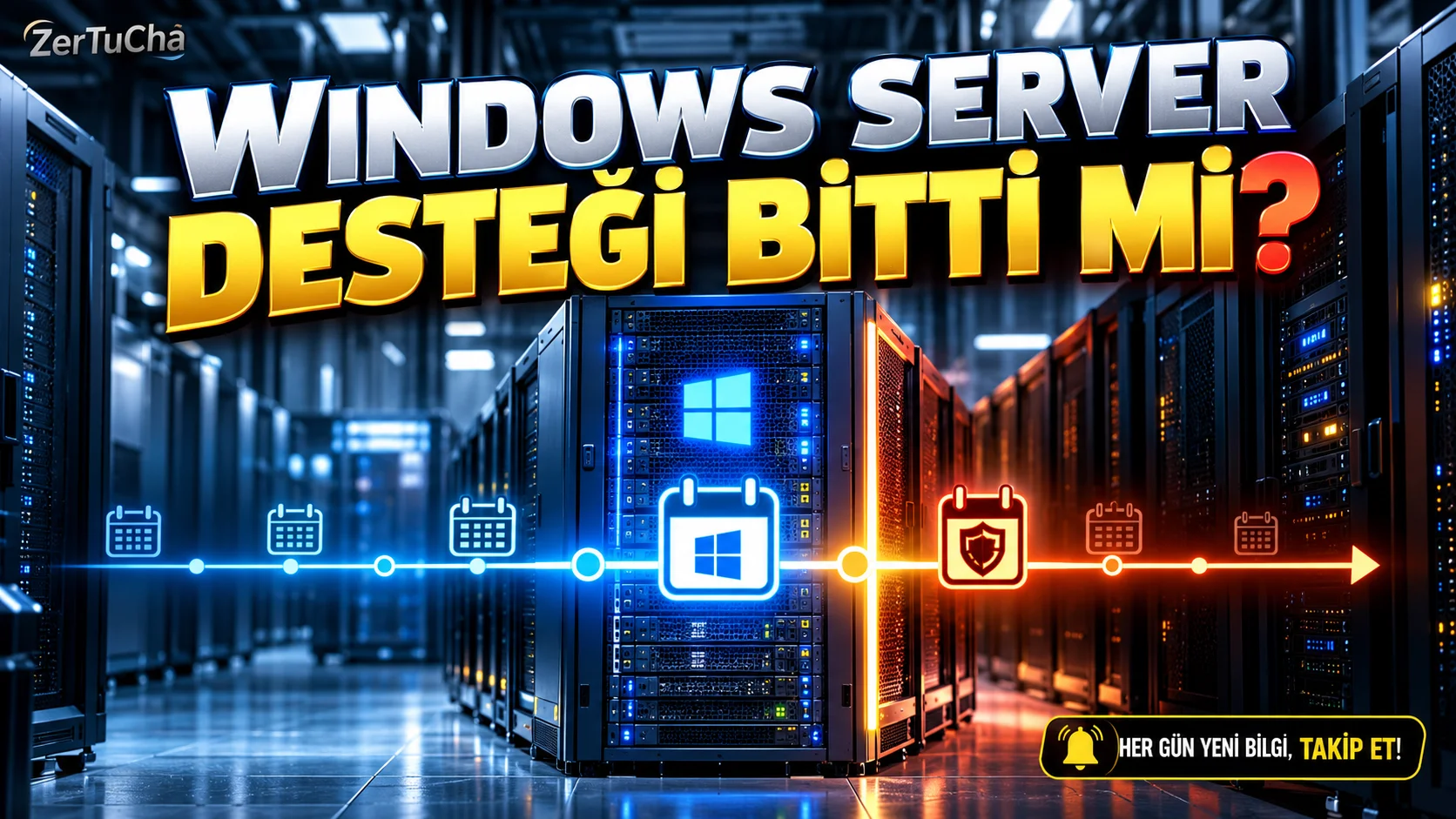
According to Microsoft's lifecycle documentation, Windows Server 2022 has moved from the main support period to the extended support period as of October 2026. The distinction here is important: The end of mainstream support does not mean that the product will lose all security updates on the same day. Microsoft Learn
Difference between main support and extended support
In Microsoft's fixed lifecycle policy, during the major support period the product may receive security updates, as well as certain bug fixes and other support.
During the extended support period, the scope of support narrows and expectations change in terms of new features or standard bug fixes.
Microsoft's Windows Server 2022 lifecycle page lists the end date of mainstream support as October 14, 2026, and the end date of extended support as October 15, 2031. Microsoft's status page refers to dates as the calendar day before; This difference is due to the date and time display of the pages. Microsoft Learn
Security updates for Windows Server 2022 during the extended support period will continue until 2031. Therefore, just because the main support period of the system has ended does not require shutting down the server immediately.
So what should IT admins do?
1. Verify server version.
Determine if the server is running Windows Server 2022 and what version.
2. Check the edition used.
Verify terms for different editions, such as Standard, Datacenter, Essentials, or Azure Edition, on Microsoft's lifecycle page.
3. Check the update status.
Check if the October 2026 security update has been applied. Changing the support period is not a reason to abandon update management.
4. Evaluate workloads.
Additionally consider compliance and security requirements if the server manages business-critical applications, databases, or user identities.
5. List dependencies.
Ensure that applications, drivers, and other enterprise systems are compatible with Windows Server 2022.
6. Prepare a transition plan.
If considering upgrading to a newer version such as Windows Server 2025, create a test environment and verify application compatibility. Microsoft lists Windows Server 2025 as the current LTSC release. Microsoft Learn
7. Prepare backup and recovery plan.
Verify that backups are working before server upgrade. Just having the backup file is not enough; It should also be tested whether it can be restored when necessary.
Is it necessary to upgrade immediately?
The same answer is not valid for every institution.
If the current system runs workloads smoothly, receives security updates and meets the requirements of the institution, the transition can be done in a planned manner.
However, new features, longer support period, application compatibility or security requirements may necessitate a upgrade to a newer version.
The wrong approach would be to do nothing because the support period has changed, or conversely, to hastily upgrade all servers without testing.
Quick result
Windows Server 2022's major support end is an important IT planning event; However, the product's security updates do not end immediately.
Check your server's version, update status and long-term support plan. So you can manage security and compliance risks while avoiding an unnecessary emergency migration.



Henüz yorum yapılmamış. İlk yorumu siz yapın!
Bir Yorum Bırakın