

Adjust This Before Windows Breaks: Creating a Restore Point
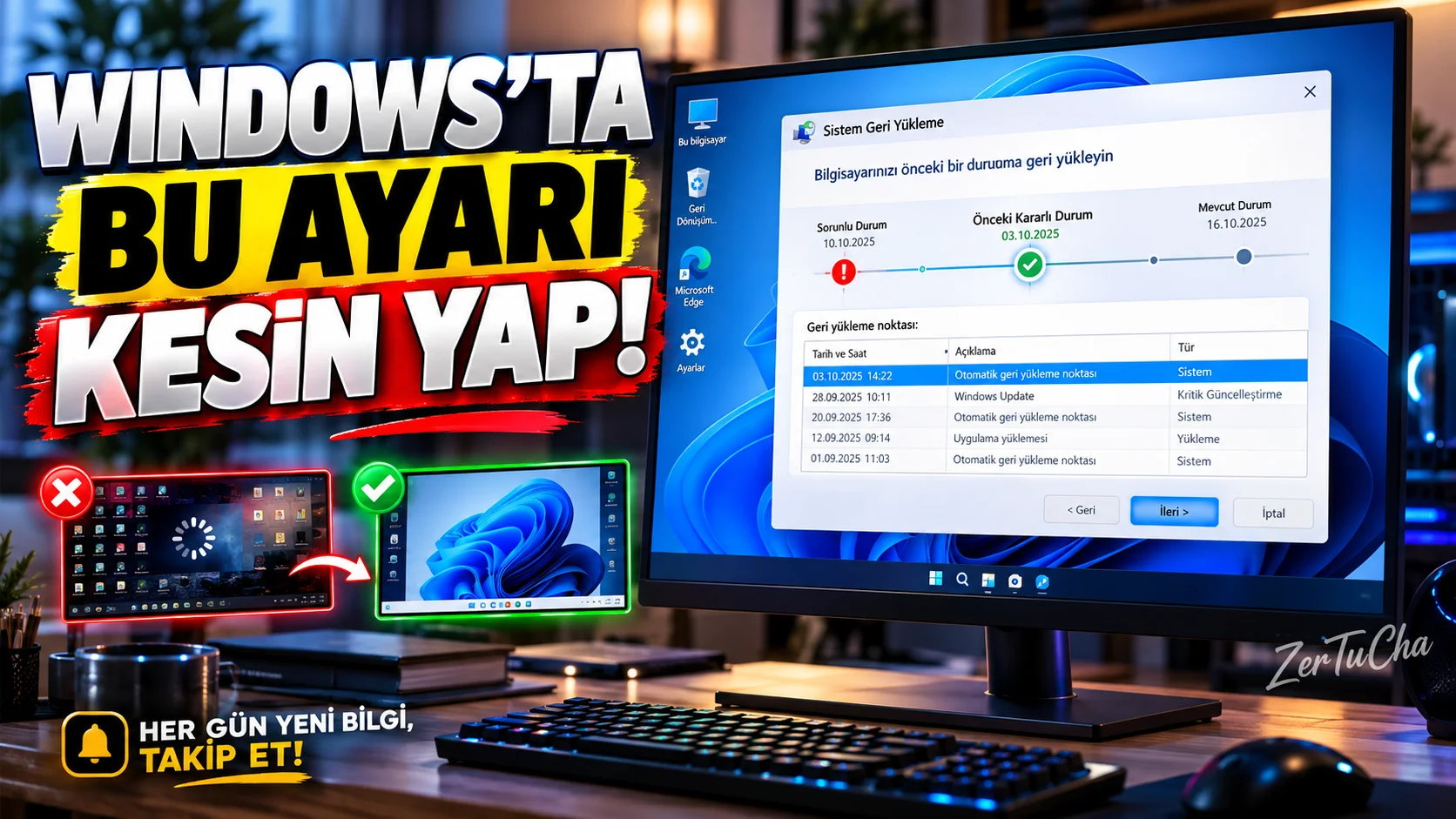
Create a Restore Point in Windows 11! Come Back If There Are Problems
You installed a new program on your computer, updated the video card driver, or changed a setting. Then Windows started acting strange. In such a case, you do not have to reset the computer immediately.
Windows System Protection feature can help you return certain system settings and system files to a previous state by creating system restore points.
According to Microsoft's documentation, this feature is available in Windows 10 and Windows 11. However, System Protection may not be on by default on every computer. Therefore, it is necessary to check its status first. Microsoft Support
What does a restore point do?
A restore point stores information about the computer's system state at a specific point in time.
For example:
- You can create a restore point before installing a new driver.
- You can save the current status before a significant system change.
- If you experience problems after a software installation, you can return to the previous system state.
- You can restore some system settings and installed programs.
Important: The restore point is not a backup of your personal files. You should also back up your photos, videos and documents.
1. Check if System Protection is on
Follow these steps on your Windows 11 computer:
- Open the Start menu.
- Search field Create restore point.
- Open the option with the same name in the results.
- In the System Properties window System Protection tab.
- Check the protection status opposite the drive where Windows is installed.
If protection is turned off, you must enable it before you can create a restore point. Microsoft Support
2. Enable System Protection
- On the System Protection tab, select the drive on which Windows is installed.
- Configure button.
- Turn on system protection.
- Determine the disk space available for restore points.
- Apply button.
- OK.
If you set the disk space too low, old restore points may be deleted more quickly. Allocating too much space can also increase disk usage. Set a reasonable limit based on your available space. Microsoft Support
3. Create a manual restore point
When System Protection is on, you can also create a restore point yourself before taking any important action.
- Re-Create restore point screen.
- Open the System Protection tab.
- Create button.
- In the description field, for example
Before driver update. - Re-Create button.
- Wait for the process to complete.
So you can easily remember later why the point you created was saved. Microsoft Support
4. How to return to the previous state if a problem occurs?
If Windows opens, you can try the following method:
- From keyboard Windows + R.
- In the drop box
rstrui.exe. - Press Enter.
- In the System Restore window Next.
- Select the restore point you want to use.
- If you want Scan for affected programs option.
- Read the on-screen warnings and confirm the operation.
The computer may restart. Do not turn off the device while the process is in progress.
Restore may undo some system changes, program installations, or driver updates made after the selected point. Therefore, it is important to back up your important files and examine the possible effects before continuing. Microsoft Support
5. Why is the restore point not visible?
There may be several reasons for this:
- System Protection may have been previously turned off.
- A restore point may not have been created yet.
- Older points may have been deleted due to disk space issues.
- A point for the date you want may not be available.
Just because you turn on System Protection today doesn't mean that an old patch will automatically pop up that could fix a past problem.
Difference between restore point and backup
Make sure you know this distinction:
- Restore point: Helps troubleshoot problems with system files, settings, registry, and some program changes.
- File backup: Allows the recovery of photos, documents and other personal files in case they are lost.
If you really want to protect your computer, think of these two methods as complementary tools, not as alternatives.
Official source: Microsoft System Protection guide




Henüz yorum yapılmamış. İlk yorumu siz yapın!
Bir Yorum Bırakın