

Your Windows Computer Can Connect to the Phone's Internet Without Asking for a Password: Instant Hotspot
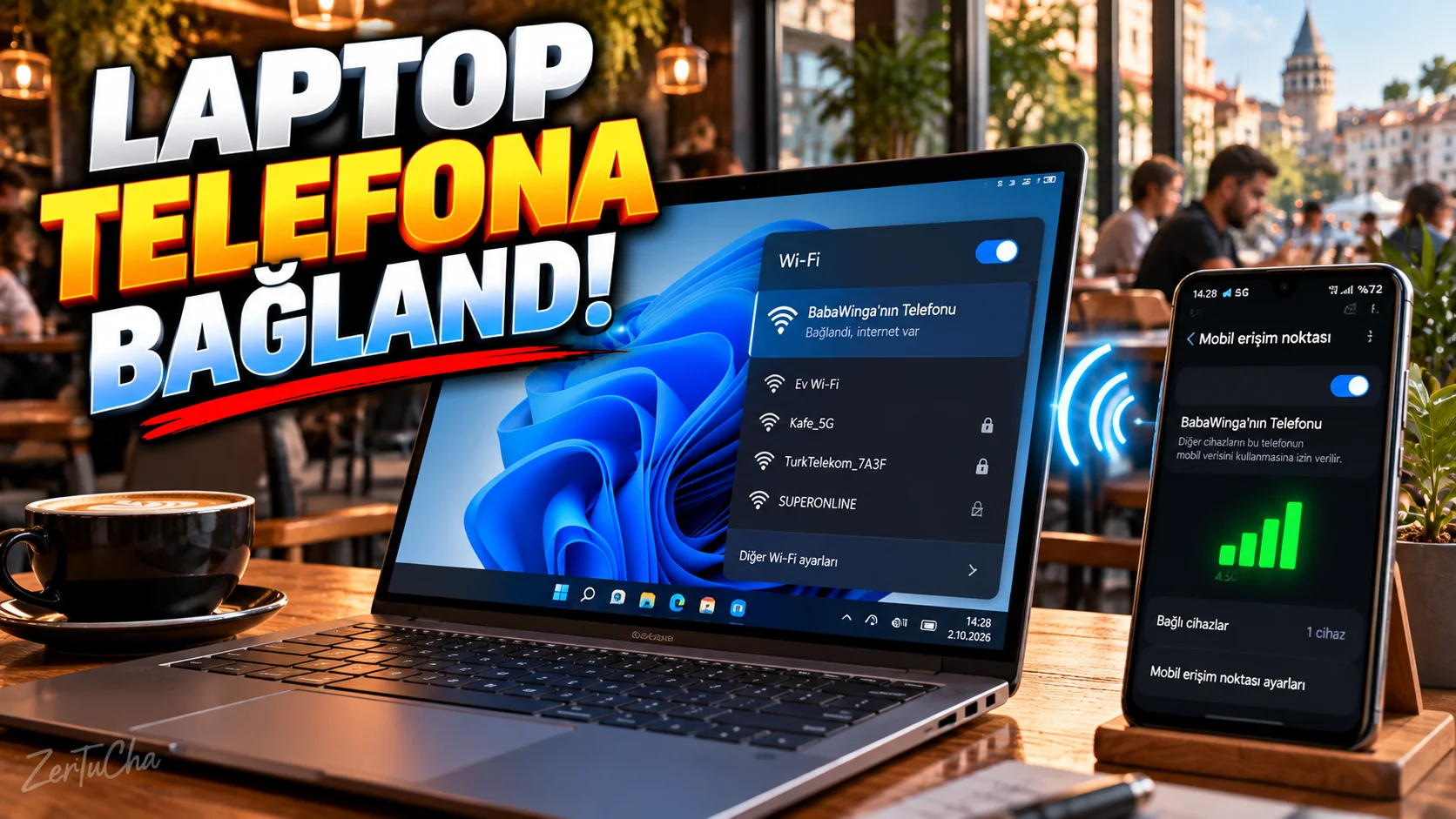
You are out.
Laptop cannot connect to the internet.
There is mobile internet on your phone.
Normally:
Turn on the phone → Turn on the hotspot → Find the password → Write it to the computer
action required.
However, on supported Android phones and Windows 11 computers, Microsoft's Instant Hotspot feature can shorten this process.
According to Microsoft's current documentation, the feature makes it easier to connect to a supported Android device's mobile hotspot from the Windows computer's Wi-Fi menu.
Does it work on every Android phone?
No.
Microsoft's current support list contains specific manufacturer and version conditions.
For example, supported include:
-
Samsung — One UI 4.1.1 or later
-
HONOR — MagicOS 8.1 or later
-
OPPO
-
OnePlus
-
realme — ColorOS 14.1 or later
-
vivo — Funtouch OS 15 or later
available.
Since support may vary depending on the phone model, the fact that this feature does not appear does not mean that there is a fault in your phone.
Requirements on Windows side
According to Microsoft's current requirements:
-
Windows 11 version 22H2 or later
-
Build number 22621 or later
-
Bluetooth support
-
Wi-Fi adapter
-
Available version of Phone Link
required.
How to install?
On PC:
-
Phone Connection application.
-
Settings.
-
Specifications section.
-
Instant Hotspot.
-
Set Instant Hotspot.
-
Open the notification sent to your phone.
-
Allow hotspot usage.
On Android phone:
-
Connect to Windows application.
-
Enable Instant Hotspot feature.
-
Open the Wi-Fi menu of the Windows computer.
-
Select your phone's hotspot.
-
Start connection.
Why is it important to connect without typing a password?
The biggest advantage of the feature is that it reduces the need to type the hotspot password over and over again.
Especially if you are someone who constantly works outside with a laptop:
Laptop → Wi-Fi menu → Phone hotspot
becomes much more practical.
Attention to mobile data consumption
There is an important detail here.
When using hotspot, the internet goes through your phone's mobile data package.
Microsoft also warns that this use may result in mobile data charges.
Specifically:
-
YouTube
-
Netflix
-
Major Windows updates
-
Cloud backup
-
Large file downloads
can consume your mobile internet quota very quickly.
If the feature is not visible
Check these:
-
Windows 11 22H2 or later?
-
Is your phone one of the supported brands?
-
Is the phone's operating system up to date?
-
Is Phone Link up to date?
-
Is the Connect to Windows app up to date?
-
Is Bluetooth turned on?
-
Is Wi-Fi on?
-
Is the connection between the phone and Microsoft account correct?
-

Henüz yorum yapılmamış. İlk yorumu siz yapın!
Bir Yorum Bırakın