

Many Don't Know This Feature of Windows 11! Control RGB Keyboard and Mouse Lights in One Place
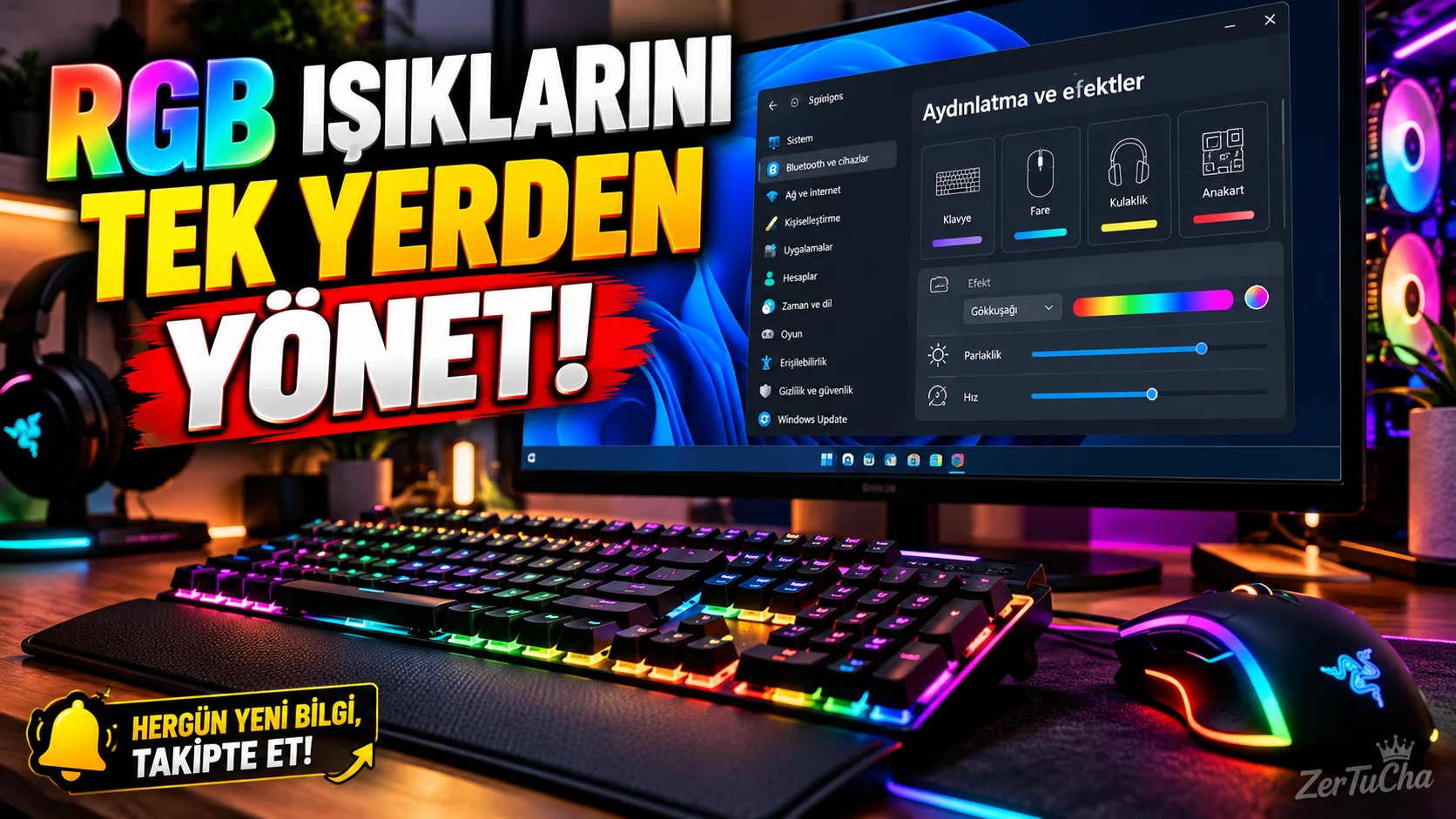
If your computer has a keyboard, mouse, or other accessory with RGB lights, you may be using more than one manufacturer's application to change the devices' lights. However, Windows 11 Dynamic Illumination feature allows you to manage compatible devices' lights directly from Windows settings.
So you can edit colors, brightness and lighting effects without having to open a separate application for each device. However, there is an important detail: Not every RGB device is compatible with this feature. Microsoft Support
What does Dynamic Lighting do?
With this feature:
- You can manage the lights of your compatible keyboard and mouse.
- You can choose different colors and effects on supported devices.
- You can match the lighting of multiple compatible devices.
- You can change the brightness of the lights.
- You can allow some applications, such as games, to manage lighting.
A single setting screen can be very useful, especially for people who use RGB devices from different brands.
1. Open Dynamic Lighting settings
Follow these steps on your Windows 11 computer:
- Start menu.
- Settings.
- Personalization.
- Dynamic Illumination section.
- Check if your compatible devices are listed.
If the menu does not appear, check your Windows version and updates. The appearance of the feature alone does not mean that your device is supported; Compatibility is also important. Microsoft Support
2. Change keyboard or mouse color
If a compatible device appears in the list:
- Open the device's own setting card.
- Edit the brightness setting, if applicable.
- Effects.
- Select from available color or animation options.
- Check the result.
The options offered by Windows depend on the features supported by the device. Not all effects available on one keyboard may be available on another device.
3. Match the lights of all devices
General lighting settings can be found under device-specific options on the settings page.
These settings can be used to create a common light appearance on supported devices. For example, you can make your keyboard and mouse work in the same color and adjust the brightness jointly.
It is also possible to change individual settings for each device. Settings specific to a device may override general settings for that device. Microsoft Support
4. What should you do if the lights do not change?
If the device remains the same color even though you change the color, do not immediately think that the keyboard is broken.
Check the following:
- Check compatibility: Check if your device supports Windows Dynamic Lighting.
- Check manufacturer application: Another RGB software may be managing the lighting.
- Examine the backlight control: Check the priorities of background controller applications in the Dynamic Lighting settings.
- Check for software and hardware updates: Evaluate any updates offered by the device manufacturer.
Microsoft also notes that another RGB controller implementation having a higher priority may prevent the effect of the settings. Microsoft Support
Who is it useful for?
- Players
- RGB keyboard and mouse users
- Those who want to personalize their desktop computer
- Those who are bored of using more than one lighting software
Quick note: This feature does not speed up the computer or provide more FPS in games per se. Its purpose is to make managing compatible lighting devices easier.


Henüz yorum yapılmamış. İlk yorumu siz yapın!
Bir Yorum Bırakın