

Scan Documents, Copy Text and Create PDF from Your Phone: And It's Free
-
Application: OSS Document Scanner
-
Official installation guide — Android and iOS links
-
Android: Android 7.0 and above.
-
iOS: iOS 13.0 and above.
The project's own documentation describes the Android and iOS versions, document editing, PDF export, and optional sync features.
You don't have to use a computer or a paid scanning application to convert an invoice, lecture notes or an important document to PDF. OSS Document Scanner helps you do this right on your phone.
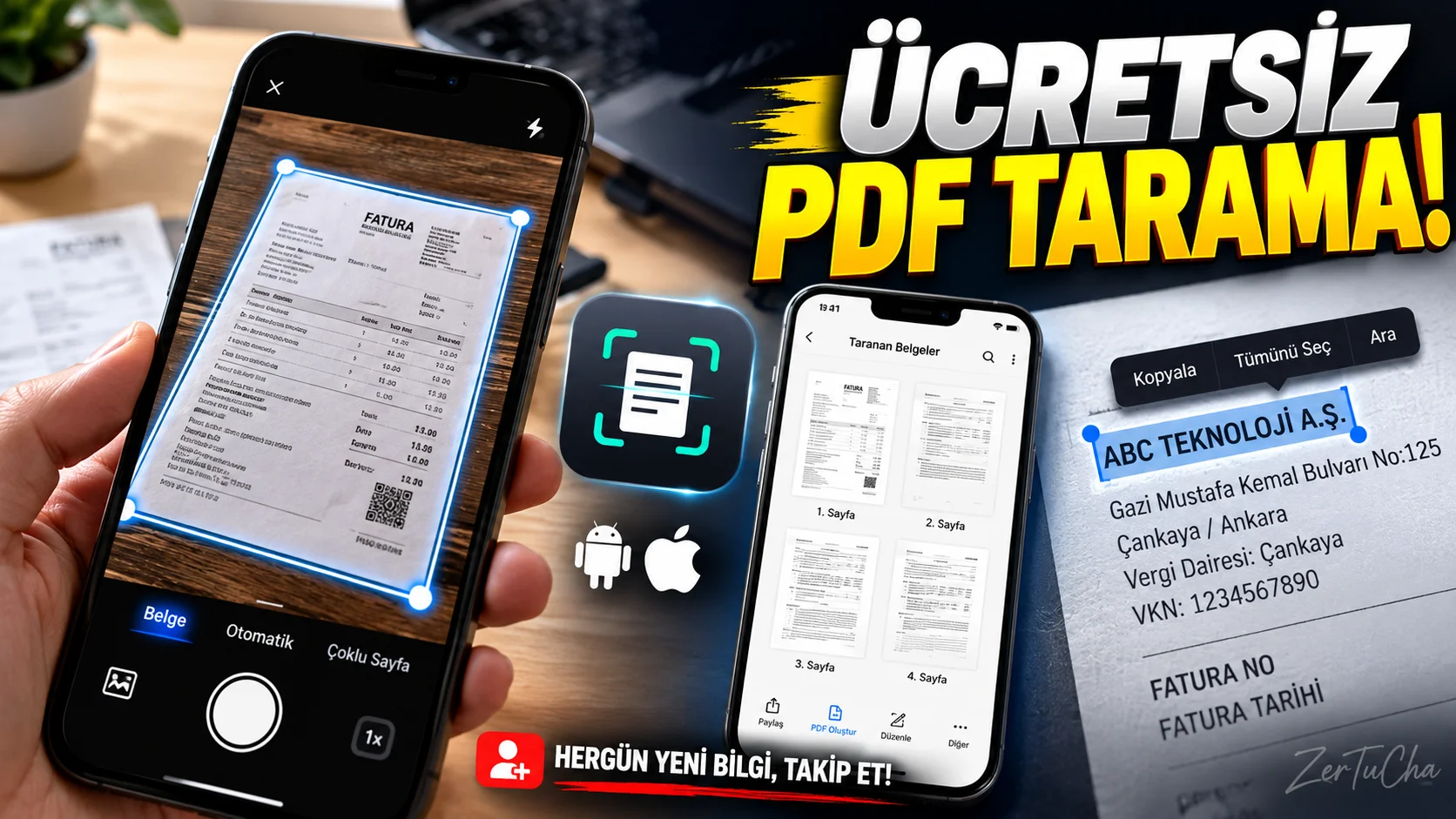
You open the app, scan the document with the camera, and smooth the edges. You can combine multiple pages into a single PDF file, apply image filters, and recognize texts with OCR in supported texts. Thus, you can not only store the document photo, but also search the text in it.
There are Android and iPhone versions. According to the description of the project, the application is free, ad-free and open source. Documents are processed on the device; Synchronization can also be configured.
Just remember one thing: OCR doesn't always work perfectly. You should check the text, especially in blurry shots. It is also important to examine the encryption settings when backing up sensitive documents.
In short, if you want to keep your documents organized on your phone, check out OSS Document Scanner.
-
What does it do?
You do not need to look for a separate scanner to scan a document. You can take an image of the document with your phone's camera, correct the edges, edit the pages and save it as PDF.
For example:
-
Converting invoices and warranty documents into digital archives.
-
Storing lecture notes distributed by the teacher as PDF.
-
Merge multiple pages into one file.
-
Recognizing the texts in the printed document with OCR and copying them as text.
-
Separating documents into folders to make them easier to find later.
OCR is used to recognize text in an image. However, in cases such as blurry photos, bad lighting or handwriting, the results may be inaccurate.
Highlights
-
Automatic edge detection: Detects the boundaries of the document, making it easier to crop.
-
Image editing: Rotation, cropping and different image filters.
-
Multi-page scanning: Collecting multiple pages into one document.
-
PDF and image export: save in PDF, JPEG or PNG format.
-
OCR: Copy or search for recognized text.
-
Optional sync: Sync to supported WebDAV servers can be configured.
Why is it worth trying?
Some of the document scanning applications may feature paid features, account opening or cloud services. OSS Document Scanner aims to perform basic scanning and document management tasks with a free and open source option.
Especially worth considering for those who want to keep their documents on the phone and have more control over where their files are processed.
Advantages and disadvantages
Advantages
-
Android and iOS support.
-
Free, open source and ad-free.
-
OCR, multi-page PDF and foldering features.
-
Optional sync support.
Disadvantages
-
A camera and good lighting are required.
-
OCR result depends on image quality and selected language.
-
Cloud sync does not automatically work with all services; supported servers may need to be adjusted.
-
It is necessary to separately examine backup and encryption options for sensitive documents.
Who is it suitable for?
Suitable for: Students, freelancers, small businesses, frequent filers, and those who want to create a digital document archive.
Not a good fit: Those looking for enterprise document approval processes, advanced electronic signature management, or a centralized document system for large teams.
Get started guide
-
Official installation guide and select the store link suitable for your phone.
-
Give the application only the camera permission required to scan documents.
-
Place the document on a flat, well-lit surface.
-
Use automatic edge detection or take the photo yourself.
-
Crop the page and select the appropriate filter; Combine multiple pages if necessary.
-
Save as PDF. If you want to search or copy text, try the OCR feature.
Privacy and reliability
Project documentation states that data is processed on the device and is not uploaded to the server unless the user configures synchronization separately. The app requests camera permission; Storage access and optional sync notifications can also be used to save files on Android.
Important detail: According to the project's FAQ page, backups may be unencrypted ZIP files by default. When backing up sensitive documents, check the application's encryption settings and where it stores the backup file.




Henüz yorum yapılmamış. İlk yorumu siz yapın!
Bir Yorum Bırakın