

You Can Wirelessly Charge Another Phone with Your Samsung Phone
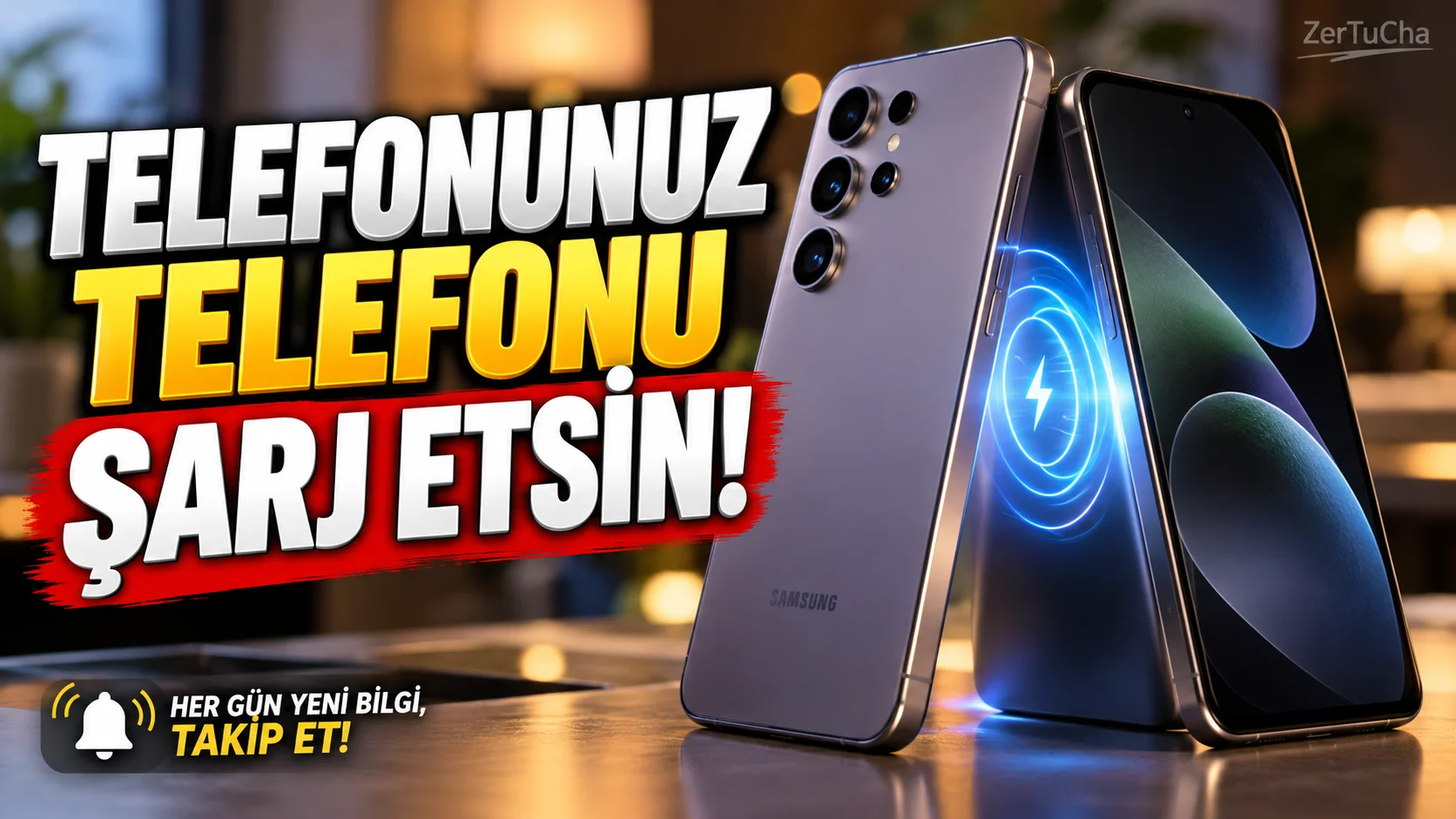
Your Samsung Phone Can Charge Another Phone! How to Use Wireless PowerShare?
Content
Your phone is about to run out of battery and you don't have a charger with you. However, the person next to you has a compatible Samsung Galaxy phone.
Available on some Galaxy models Wireless PowerShare feature can transfer energy from the phone's battery to another compatible wireless charger. This may then be possible to wirelessly charge another supported phone, smartwatch or headset.
Samsung's official support documentation explains that the Wireless PowerShare feature is available on compatible Galaxy models and can be used with select devices that support Qi wireless charging. However, not every Galaxy phone supports this feature. Samsung se
What is Wireless PowerShare?
Wireless PowerShare lets you use your compatible Galaxy phone as a wireless charging source.
For example:
- You can charge another supported phone.
- You can charge compatible Galaxy Buds headphones.
- You can transfer energy to supported Galaxy Watch models.
The purpose of this feature is to provide a short-term and practical charging opportunity. Don't assume it will be as fast as a regular charger or that it will fully charge your phone. Charging speed and efficiency depend on the devices and conditions used. Samsung se
1. Check if your phone supports this feature
First of all, you should check the model of your device.
- On your phone Settings section.
- About phone screen.
- Learn the model name.
- Check your model's Wireless PowerShare support on Samsung's official support page.
Samsung's list of compatible models may be updated over time. Therefore, do not assume that your phone has this feature just because it is Galaxy branded. Samsung se
2. Turn on Wireless PowerShare
If you have a supported Galaxy model, follow these steps:
- Open the quick settings panel by swiping down from the top of the screen.
- Expand the panel if necessary.
- Wireless PowerShare or similar name.
- Enable the feature.
If you can't see the icon, check the editing section of the quick settings panel. Some of Samsung's device manuals state that the power sharing icon can be added if it is not on the panel. Menu steps may vary depending on the model. Samsung Images
3. Place the other device behind your phone
After enabling the feature:
- Verify that the device you want to charge supports wireless charging.
- Remove the cases of both devices if necessary.
- Place the backs of the two devices facing each other.
- Ensure the charging coils are aligned.
- Check if the charging icon or connection indicator appears.
Samsung notes that the location of the charging coils may vary from device to device. If the connection does not start, you may need to move the devices slightly to find the correct position. Samsung se
4. What should you do if charging does not start?
Wireless PowerShare may not work immediately in all cases.
Try these:
- Check wireless charging compatibility of both devices.
- Remove the phone cases.
- Make sure the backs of the devices are clean and dry.
- Align devices in different positions.
- Check your phone's battery level.
- Verify that power sharing is turned on.
Samsung's support documentation states that thick or incompatible accessories, misalignment, and low battery level can affect charging in some cases. In some models, power sharing may not work or may turn off automatically when the battery level falls below a certain level. Samsung se
5. Will the phone be fully charged with this method?
Maybe; but how long this takes depends on the devices.
Wireless PowerShare is useful for transferring some power to another device in emergency situations. However, some of the energy may be lost during wireless power transfer and the charging speed may be lower than normal wired charging.
So consider the feature especially when:
- If you need to make an urgent phone call
- If your headset is out of charge
- If your smart watch is low on power
- If you don't have access to the charger
Devices' own charging solutions may be more suitable for long-term and fast charging.
6. What should you pay attention to when sharing power?
- Try not to move devices while charging.
- Stop operation if you notice overheating.
- To avoid draining your phone's battery more than necessary, turn off power sharing when you're done.
- Verify that the charged device supports wireless charging in advance.
- Follow the device manufacturer's safety and usage instructions.
Result: If you have a compatible Galaxy phone, Wireless PowerShare is a handy feature that can come in handy when a charger isn't available. However, it is important to check model compatibility and know that charging speed may be limited.

Henüz yorum yapılmamış. İlk yorumu siz yapın!
Bir Yorum Bırakın