

SAMSUNG GALAXY: There's a Camera Setting That Doesn't Make You Wait for Lifting Your Finger While Taking Photos!
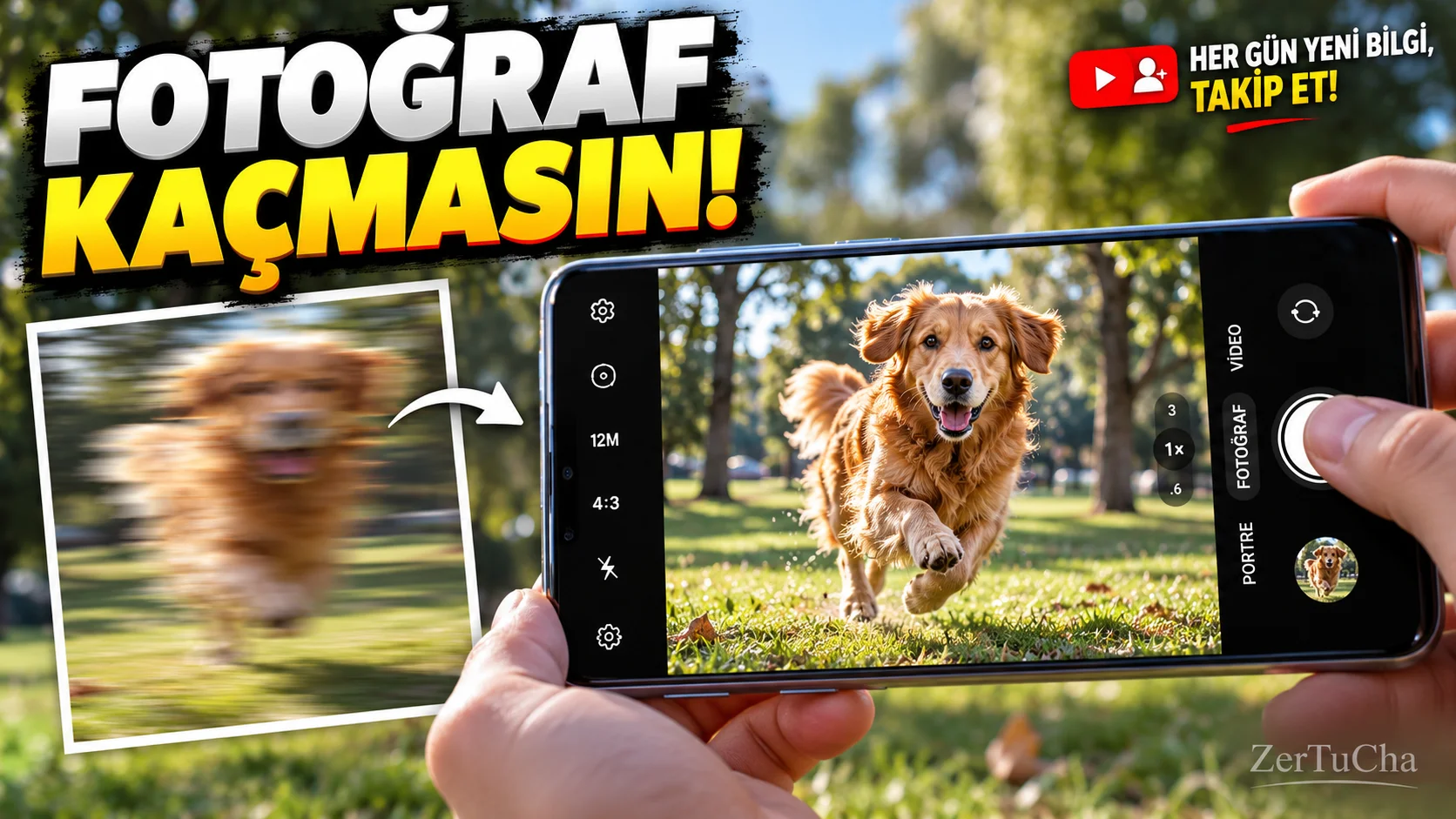
When taking photos of children, pets, or people in motion, sometimes you can miss the desired moment just as you press the shutter button.
Available on some Samsung Galaxy phones Camera Assistantin the applicationQuick Tap Shutter feature ensures that the photo is taken as soon as you touch the shutter button, rather than when you lift your finger from it.
So the shooting response can become faster. The feature is especially useful for photos where timing is important. In addition to this feature, Samsung also offers other camera options such as automatic HDR, shutter speed and taking multiple photos with a timer. Samsung my
How to open?
1. Check if Camera Assistant is available on your phone.
Open the Camera app on your Samsung Galaxy phone.
2. Enter camera settings.
Camera → Settings and Camera Assistant.
3. If the application is not installed, download it.
Install Camera Assistant from Samsung's Galaxy Store if your phone supports it. Feature may not be available on all Galaxy models.
4. Find the quick touch shutter option.
In Camera Assistant Quick Tap Shutter.
The Turkish equivalent in the menu may differ depending on the version of the application.
5. Try the camera again.
Return to the Camera application. When taking a photo of a moving subject, tap the shutter button and check to see if the shot occurs before lifting your finger.
6. Check out other options according to your needs.
In Camera Assistant, you can also edit the number of photos to be taken with the self-timer or preferences for shooting speed, if your device supports it. These are separate features; You don't need to open them all.
In what situations is it useful?
- When taking photos of moving children.
- Trying to capture short-term movements of pets.
- When you want the shutter response to be as fast as possible.
Things to consider
Quick touch shutter does not automatically correct blurry photos. If the subject is moving, lighting, focus and shooting conditions are still important. Additionally, feature availability varies by Galaxy model and software version. Samsung's guide for the S23 Ultra also explains this setting through the Camera Assistant.


Henüz yorum yapılmamış. İlk yorumu siz yapın!
Bir Yorum Bırakın