

You Can Teach Your Own Voice Command to Your iPhone! You Might Not Even Need Siri
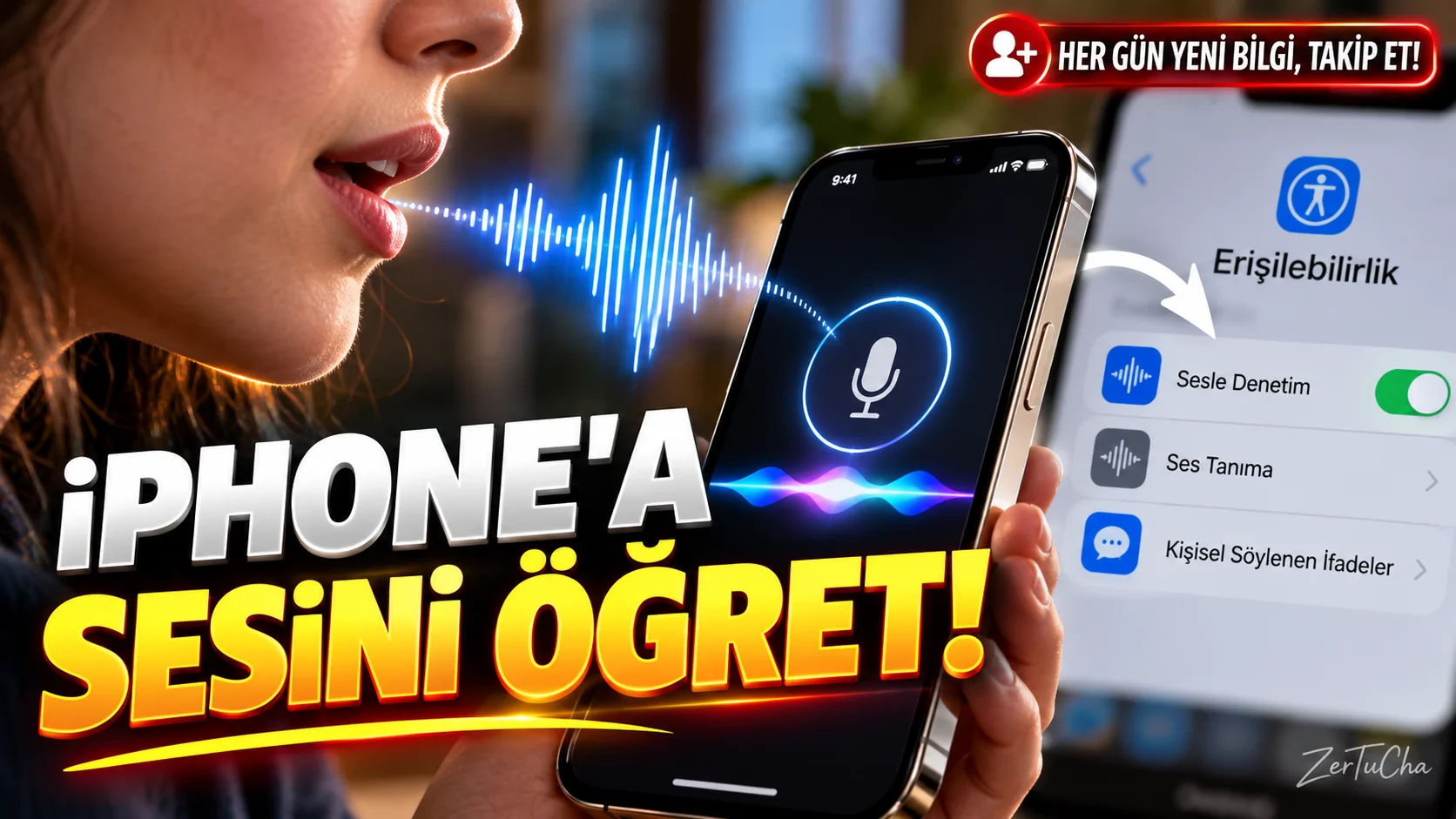
Imagine making your phone do the same thing over and over: starting a specific action, turning on an accessibility feature, or giving Siri a similar command over and over…
available on iPhone Vocal Shortcuts feature can perform an action of your choice when it recognizes a word or sound you specify. You can choose an action or define a Siri request. Apple's current user guide also states that voice shortcuts are processed on the device. Apple Support
How to create?
1. Enter Settings.
On your iPhone, follow this path:
Settings > Accessibility > Vocal Shortcuts
2. Start the installation.
- Set Up.
- Follow the on-screen instructions.
3. Select the action to be taken.
You can select one of the actions offered by the phone or Siri Request.
For example, you can specify a custom voice phrase to initiate a supported action or an appropriate Siri request.
4. Choose a special word for yourself.
Choose an expression that is easy to pronounce and does not appear frequently in other conversations. For example, you can use a short and specific word.
5. Say this phrase several times.
iPhone prompts you to repeat the phrase you specified so it can recognize it. Complete the registration by following the on-screen instructions.
6. Try the command.
After the installation is completed, say the phrase you specified. If the action occurs, your audio nap is working.
What does it do in real life?
Can be useful in cases where touching the phone's screen is difficult to initiate accessibility operations more easily. You can also personalize your phone use by assigning special emoticons to appropriate Siri requests that you use frequently.
What you need to pay attention to
- Not every operation is supported on every device or version.
- The iPhone's microphone is used to listen to voice shortcuts. When active, the microphone usage indicator appears in the status bar.
- When you do not want to use the feature, you can turn it off from the same menu.
- Choose an expression you rarely use in everyday conversation to reduce the chance of accidental triggering.



Henüz yorum yapılmamış. İlk yorumu siz yapın!
Bir Yorum Bırakın