

You Can Pause the Video on iPhone and Copy the Text in the Image!
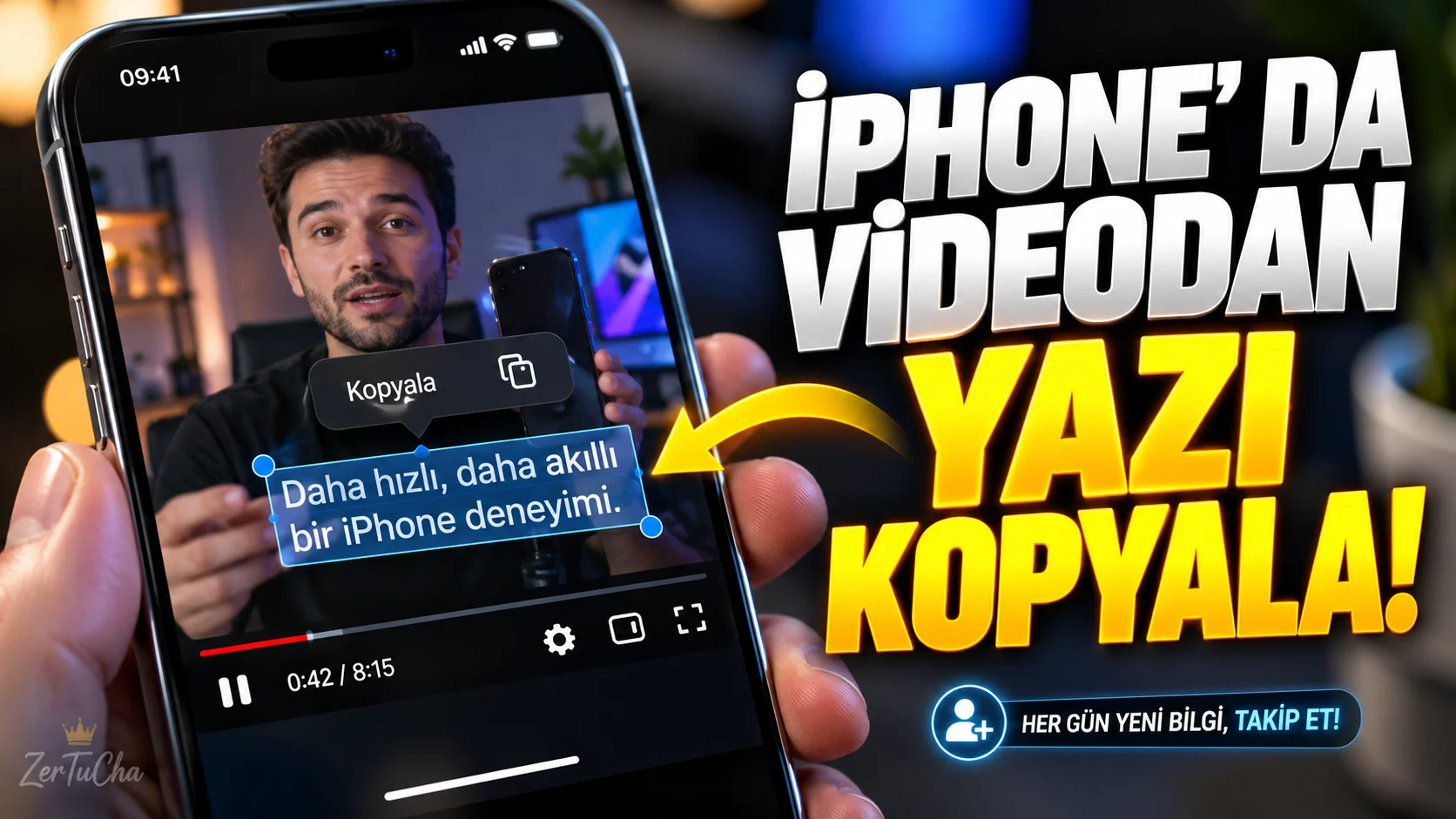
You saw an address, product code, recipe or website in a video, but you have to play the video over and over to write it down. On supported iPhones, it may be possible to pause the video and select the text on the image.
How to do it step by step?
-
On your iPhone, open the video with text in the Photos app.
-
Pause the video at the point where the text appears clearly on the screen.
-
Try pressing and holding on the text in the image.
-
Selection handles appear if text is detected. Select the word or line you want.
-
Tap Copy from the menu that opens.
-
Paste the text into Notes, Messages, Safari, or another app.
In what situation is it useful?
-
Copying a command line or setting from a tutorial video.
-
Get the model number that appears on the product box.
-
Transferring the internet address that appears for a moment in the video without typing it.
-
To avoid having to retype a short text displayed on the screen.
Compatibility and troubleshooting: Apple's Live Text feature can be used with videos in iOS 16 and later; but device support and language support are important. Detection may fail if text is blurry, too small, or if the video is moving quickly. In such cases, stop the video, take a screenshot and try selecting text on the screenshot.



Henüz yorum yapılmamış. İlk yorumu siz yapın!
Bir Yorum Bırakın