

Canon's Free Software Can Produce 3D Images from a Single Photo: How to Use Dual Pixel 3D?
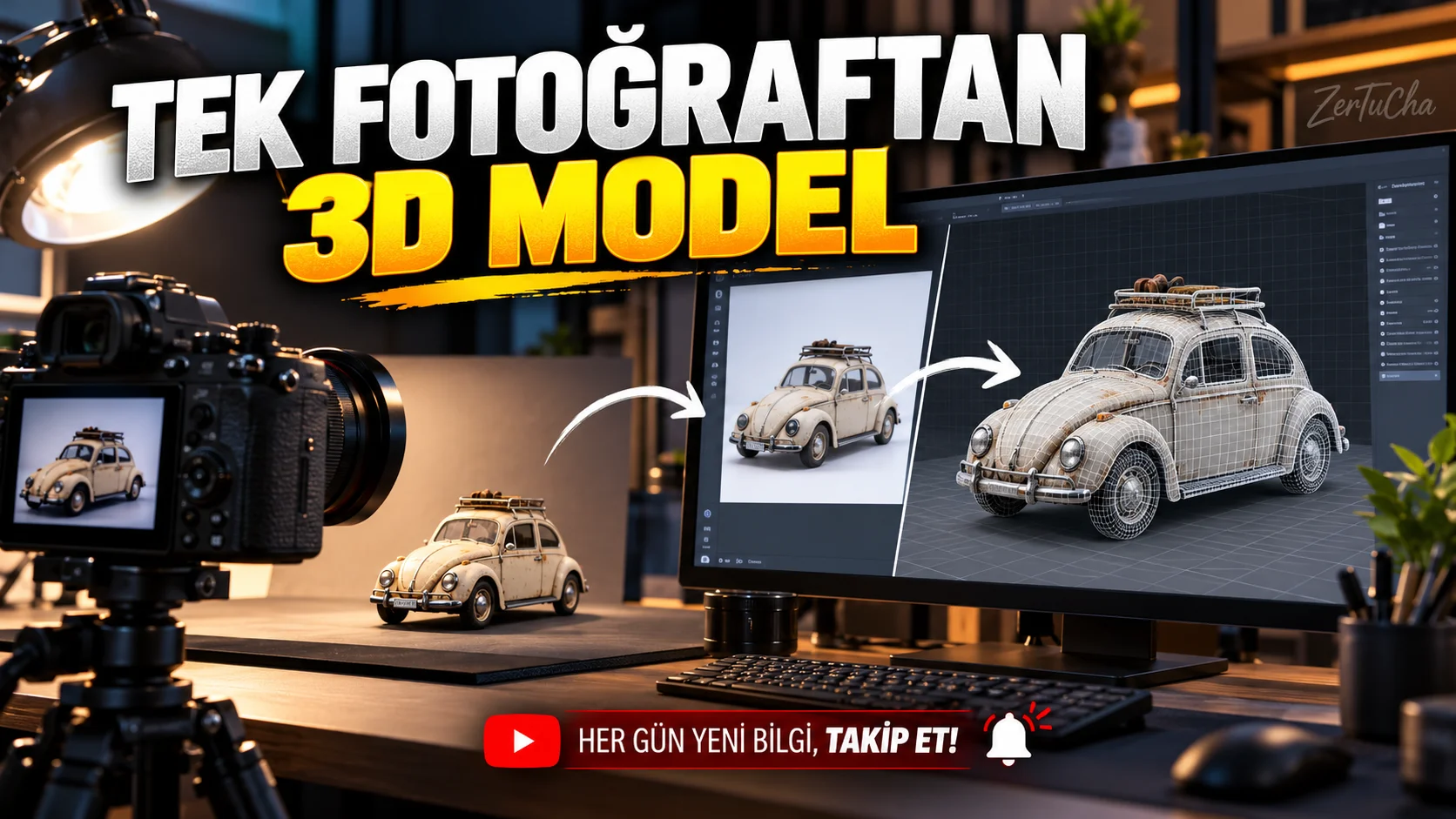
You may no longer necessarily need a 3D scanner to show a product in 3D
You are selling a product and you want customers to examine the product more realistically on your website. Or you want to visualize an object you use in your YouTube videos in three dimensions.
With the traditional method, you may need to take multiple photos, calculate depth from the images, and create a 3D model with special software. Canon's Dual Pixel 3D Converter software aims to simplify this process by using the depth information obtained from the sensors of compatible cameras.
According to TechRadar's news dated September 2026, the software is a free Windows application for producing 3D images or models from a single photo. Canon's official statement also states that the software uses Dual Pixel CMOS AF technology and can create OBJ, GLB or MP4 outputs. TechRadar
How is this possible?
Dual Pixel technology in compatible Canon sensors utilizes the pixels' two photodiodes for autofocus. This structure allows the image to be evaluated in terms of focus and depth information.
Dual Pixel 3D Converter uses this data to create a three-dimensional view of the object in the photo. Extracting depth data from a single frame, rather than photographing the object from every angle as in traditional 3D scanning, can simplify the workflow.
But do not think of this method as a perfect 3D scanner. A single photograph does not carry complete information about all surfaces of the object that are not visible to the camera. It may be necessary to edit the result, especially for complex shaped objects.
What devices are required?
Canon's official page lists EOS R5 Mark II, EOS R5, EOS R6 Mark III, EOS R6 Mark II, EOS R7, EOS R8 Mark II, EOS R8 and EOS R10 among compatible bodies. It needs to be used with one of the compatible lenses. The operating system requirement of the software is 64-bit Windows 11 24H2 or newer. usa.canon.com
Canon also recommends paying attention to aperture and ISO values when shooting. Official guidelines include recommendations for an aperture of f/5.6 or lighter, not exceeding f/8, and staying at ISO 1600 or below. These settings aim to preserve the clarity of the image and the quality of the conversion. usa.canon.com
Creating 3D visual step by step
1. Check your camera model.
Make sure your body is on Canon's compatibility list. Just having a camera from the Canon EOS R series is not enough.
2. Verify lens compatibility.
Check the lens list on the official page. Just because you have a compatible body doesn't mean you can work with every lens.
3. Take the photo with the correct settings.
Keep your subject in sharp focus. Follow Canon's recommended aperture and ISO limits. A photo that is too blurry or excessively noisy may negatively affect the 3D conversion.
4. Download Dual Pixel 3D Converter.
Get the Windows version from Canon's official software page. Instead of getting software from third-party download sites, use the manufacturer's own source.
5. Import your photo.
Open the app and select your compatible photo. Canon's instructions state that the software allows selecting photos from thumbnails.
6. Edit 3D model settings.
3D Model Settings. Check the result to see if the edges of the object and the sense of depth look natural.
7. Select the type of output you want.
OBJ or GLB can be used for 3D modeling and interactive visuals. MP4, on the other hand, allows the three-dimensional view to be presented as a video.
8. Check the result in another application.
Open your 3D model in a compatible viewer. Examine the edges of the object, the sense of depth, and possible distortions. If you are going to use it for a product presentation, do quality control before publishing the image.
This workflow is based on the official usage steps published by Canon. usa.canon.com
For whom does it make sense?
An interesting tool for product photographers, e-commerce businesses, creative content creators and Canon users who want to experiment with 3D images.
However, you must have a Windows computer and use a compatible camera-lens combination. Also, just because the software is free does not mean it works with all Canon cameras.
Quick conclusion: If you have a compatible Canon camera, try Dual Pixel 3D Converter. Producing a 3D print from a single photo can save time for product presentations and creative projects; However, do not consider the result as an exact equivalent of a professional 3D scan.



Henüz yorum yapılmamış. İlk yorumu siz yapın!
Bir Yorum Bırakın