

Android Is Now Becoming a Laptop: Can Googlebook Replace Windows?
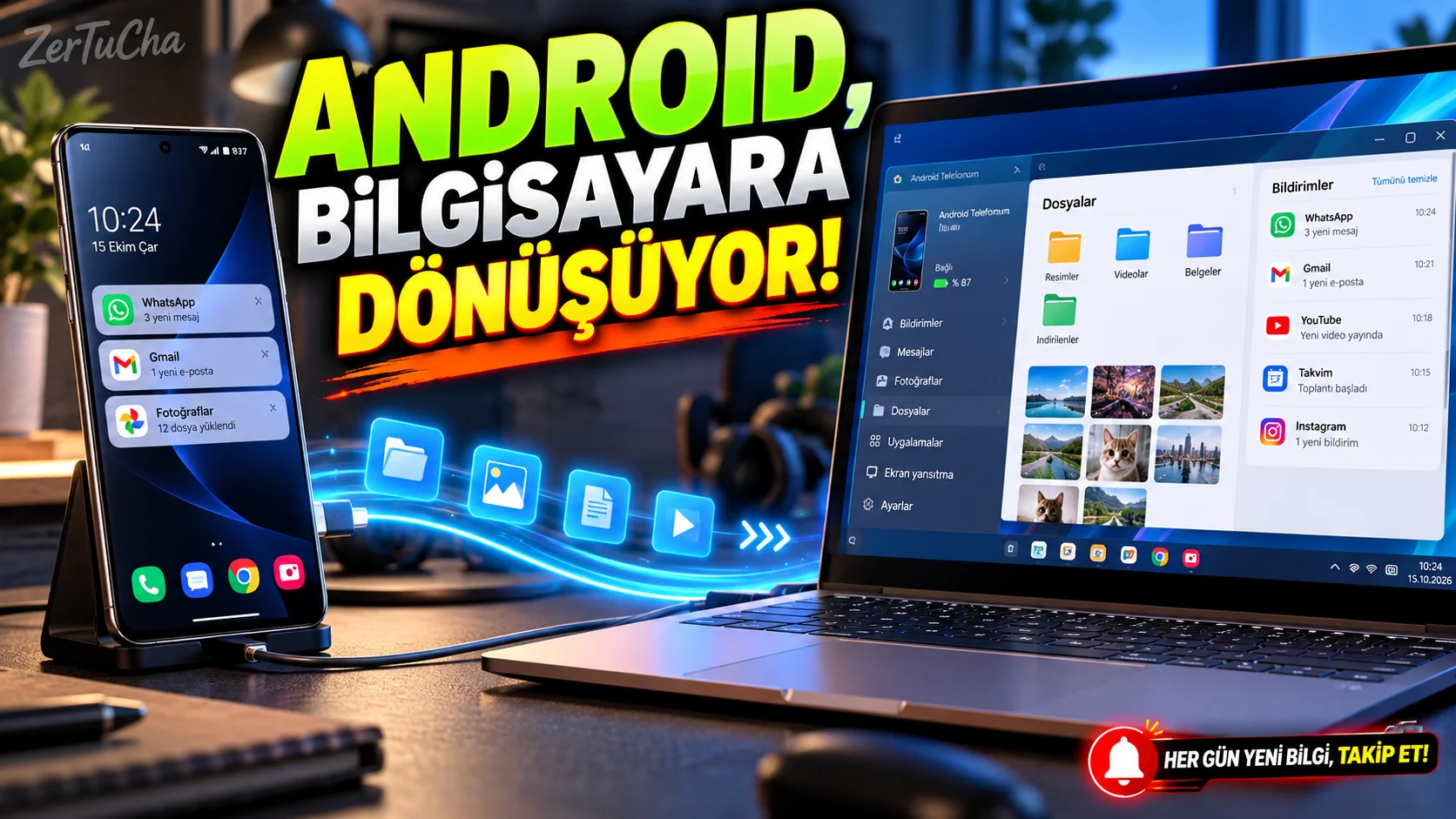
What if you could run apps from your phone directly on your laptop?
This question lies at the heart of the Googlebook idea. The applications, files and Google account you use on your Android phone are transferred to your computer more directly. Thus, instead of learning a separate operating system, you can continue the Android experience you are used to on a larger screen.
Ars Technica's review dated October 16, 2026 states that Google's Android-based laptop approach has yet to experience some problems on the software side, despite its powerful hardware. According to the review, although the devices have good screens, metal cases and advanced touchpads, many Android applications are still based on phone usage.
This is one of the biggest tests of a new operating system: Rather than whether the application can be opened, can it actually run efficiently?
How does connecting Googlebook to the phone work?
In the system examined by Ars Technica, the connection features between Google's Android 17-based devices stand out.
The functions mentioned in the review include viewing phone notifications on the computer, accessing files on the phone, and mirroring some phone applications on the computer. However, appropriate phone version and connection conditions are required for these features to work. The review states that it is important that the phone and the Googlebook are connected to the same Wi-Fi network, and that the connection may cause problems during network changes.
For example, imagine you are opening a document on your phone. Being able to access the same file from the computer, use the messaging application on the desktop, and see notifications in one place can facilitate the daily workflow.
However, this experience does not always replace the desktop application. According to the review, some phone apps do not properly support desktop habits such as mouse-over or right-clicking. Applications with some security features may also not work during mirroring.
What should you do to really use it efficiently?
If you're using a Googlebook or similar Android laptop, this approach makes sense:
-
Check your phone version. Verify which Android versions you want advanced connectivity functions between Googlebook and phone.
-
Perform initial setup using official instructions. Complete Google account and device pairing.
-
Test on the same Wi-Fi network. Make sure that the phone and the computer are connected to the same local network.
-
Try file access. Open a file on the phone from the computer and check that the transfer works as expected.
-
Test apps individually. Review the mirroring or desktop usage terms, especially for banking, video editing and productivity applications.
-
Set notifications and permissions. Limit notifications of private messages you do not want to see on the computer.
-
Try network changes. Observe how your phone connection behaves when you switch from your home network to another network.
These steps will help you understand whether the integration between Android and computer suits your usage style. Since Googlebook-specific menus may vary depending on the device and software version, the product's current manual should be taken as basis for the exact menu path.
So can it replace Windows and macOS?
Not for everyone yet.
Ars Technica's review criticizes Android apps' desktop experience, background app management, and errors in phone connectivity. It is also stated that the starting models start at approximately $ 899, while the more expensive options compete with premium laptops.
In this price range, the user is not only looking for a beautiful display; Strong application compatibility, stable multitasking and long-term software support are also expected.
Quick conclusion: Deep integration with Android phone is interesting, but it's not just the number of apps that makes a successful laptop. Real productivity also requires desktop software maturity.


Henüz yorum yapılmamış. İlk yorumu siz yapın!
Bir Yorum Bırakın