

Samsung Expert Raw Astrophoto: Shoot the Stars with Your Phone Like a Professional Camera!
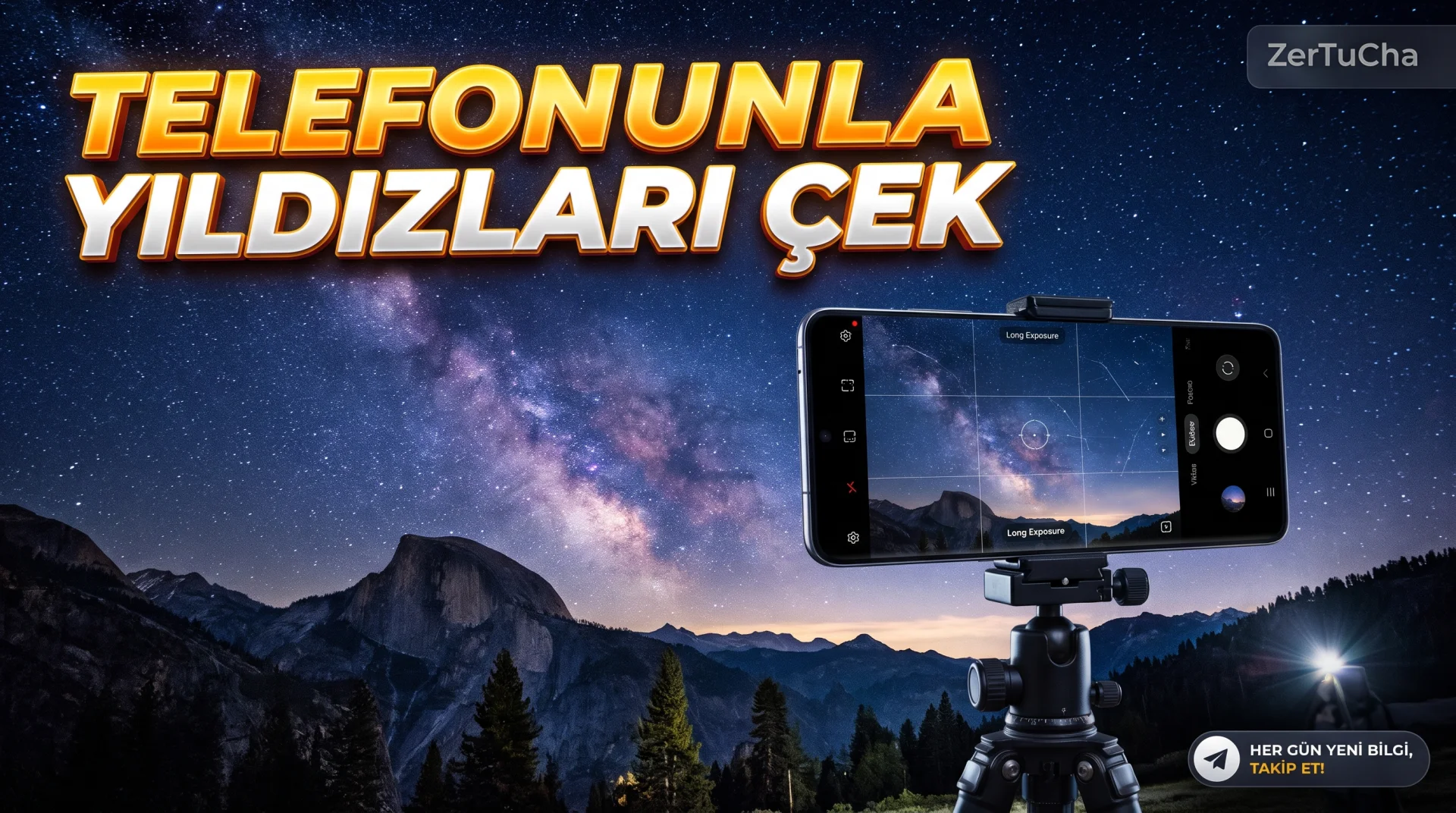
Why don't the stars appear when you shoot the night sky?
When you take photos of the night sky with your phone, you usually get a dark image.
One of the reasons for this is that the phone's normal photo mode is not designed for long-term astronomical shooting.
Astrophoto mode in Samsung's Expert RAW app offers a dedicated shooting workflow for astrophotography.
One of its most striking features is Sky Guide.
With this feature, you can view the positions of constellations and other celestial objects in the sky.
Samsung states that Astrophoto enhances night sky images by processing multiple frames. Samsung Global Newsroom
Step by step usage
1. Install Expert RAW.
Open Galaxy Store.
Find and download the Expert RAW app.
On supported devices, you can also access the application via Camera → More → Expert RAW.
2. Enable custom photo options.
Open Expert RAW application.
Tap the Settings icon.
Find the Special Photo Options section.
Enable Astrophoto option.
3. Turn on Astrophoto mode.
Tap the constellation icon on the camera preview screen.
Astrophoto options will open.
4. Enable Sky Guide.
Open Sky Guide.
Give necessary permission when location accuracy is requested.
This feature helps you identify constellations and celestial objects in the sky.
5. Set shooting time.
Samsung's Galaxy S23 support document includes the following options:
- 4 minutes
- 7 minutes
- 10 minutes
Select the duration according to the sky conditions you want to shoot.
6. Secure the phone.
There is an important detail here: Taking long exposures while holding the phone in your hand does not give good results.
Use a tripod and stabilize the frame.
7. Take the photo.
Frame the sky and tap the Capture button.
Do not move the phone until the process is completed.
8. Examine the RAW file.
JPEG and 16-bit linear DNG RAW files can be created in Expert RAW's supported workflow.
RAW file in a compatible photo editing application. Samsung also
Expected result
In an environment with low light pollution, you can take photos where stars and constellations are more visible.
What should you do if it doesn't work?
- If Astrophoto does not appear, check your device's support matrix.
- Update Expert RAW application.
- Enable custom photo options.
- Check 12 MP condition of supported custom shooting options.
- If the photo is very dark, evaluate whether light pollution is high.
- Make sure the phone does not move during long exposure.
Samsung's documentation does not guarantee Astrophoto support for all Expert RAW compatible devices. Samsung also
Privacy, security and data loss
Sky Guide may use location accuracy. Grant location permission only when necessary.
RAW files may use more storage space than JPEG. Check your storage space, especially after long shoots.
Official sources:


Henüz yorum yapılmamış. İlk yorumu siz yapın!
Bir Yorum Bırakın